This is the multi-page printable view of this section.
Click here to print.
Return to the regular view of this page.
Building Apps with Kianda’s Low-Code Platform
Low-code development guides. Developers start here
Kianda is a low-code development platform designed for web developers who want to create robust business process applications without getting bogged down in complex coding tasks. Because Kianda is built on open web technologies—primarily CSS, JavaScript, and micro-services—you can put your existing skills to work right away. Instead of grappling with proprietary systems, you’ll find familiar tools and frameworks, making it straightforward to build and customize applications to meet your organization’s needs.
Key Technologies Under the Hood
Kianda’s front-end leverages established, open-source tools including Ember.js, Bootstrap, and features like web sockets and AJAX for real-time, responsive interfaces. This front-end stack lets you quickly create modern, dynamic user experiences using the same skills you apply every day in web development.
On the back-end, Kianda’s architecture is powered by scalable micro-services running on top of widely used technologies like .NET and Node.js, ensuring that your applications are both reliable and easy to maintain. By embracing these open standards, Kianda allows you to integrate seamlessly with other systems and tools in your ecosystem.
Ember.js and Handlebars
Kianda’s user interface is built using Ember.js, an open-source JavaScript framework well-known for its convention-over-configuration approach. This means you can write less boilerplate code while still delivering high-quality, maintainable applications. Ember.js works hand-in-hand with the Handlebars templating library. Handlebars makes it simple to bind data to templates, dynamically generate HTML, and reuse common UI patterns.
If you’re already comfortable with JavaScript and modern CSS frameworks, you’ll find working with Ember.js and Handlebars an easy step forward. For more on best practices, see our Ember Inspector guide and explore Ember.js documentation and Handlebars documentation.
Why Choose Low-Code with Kianda?
Low-code development reduces the time and effort needed to build enterprise applications. By using Kianda’s graphical interface and predefined building blocks, you can rapidly assemble process apps that integrate with your company’s workflows. At the same time, Kianda’s openness means you’re never locked in. If a standard component isn’t a perfect fit, you can dive into the code and craft a solution that suits your exact requirements.
Kianda provides a large selection of ready-to-use fields and rules, so non-developers can create forms and workflows without writing code. But when you need something more advanced, Kianda’s low-code approach lets you implement custom logic and UI widgets using the CSS and JavaScript skills you already have.
For example, you might create a new field type that displays images in a custom layout or build a bespoke rule widget for integrating with an external data source. You can also fine-tune list widgets for dashboards or write JavaScript expressions to automate tasks like generating unique IDs or formatting text.
What You Can Do as a Developer
With an administrator role, you have access to Administration functions that let you tailor the platform:
- Modify the Global JavaScript and Global CSS files to set application-wide styles or logic.
- Create custom Field, Rule, Dashboard, or data connector widgets to extend the platform’s capabilities.
- Integrate external data sources and use your own JavaScript expressions in fields, rules, or anywhere rich text is used, like in emails and dashboards.
- Customize list widgets to display data in dashboards in a way that makes sense for your organization’s metrics and KPIs.
- Incorporate HTML and custom styling in forms and emails to produce richer user experiences.
These options give you the flexibility to shape Kianda to fit your exact business processes, without leaving the familiar territory of open web development.
Kianda Developer is a user-friendly interface that lets you build and manage reusable widgets. Instead of starting from scratch, you can focus on your core logic or design. You can create:
- Field widgets: Custom UI elements that appear on-screen, such as specialized inputs or interactive controls.
- Rule widgets: Automated logic components that manipulate data, set statuses, or initiate actions.
- Dashboard widgets: Dynamic visualizations or layouts for presenting information on dashboard pages.
- Data connector widgets: Integrations for sending and receiving data from external sources.
Getting Started with Kianda Developer
- Open Administration > Developer to see all custom widgets in your environment.
- Browse existing widgets, review version histories, edit or delete widgets, and easily restore previous versions.
- To create a new widget, click New widget, provide a title, pick an icon, and choose a widget type. Then add your HTML, Handlebars, and JavaScript logic.
- Once you’re done, you can export your custom widget as part of a Kianda file and import it into another environment. This portability ensures you can reuse and share your work seamlessly.
Below is an example of a simple field widget’s Handlebar and JavaScript code. The Handlebar template adapts based on the widget’s display mode (design, edit, settings, display), and the JavaScript object defines functions for each mode.
Handlebars UI:
{{#if (eq displayMode "design")}}
  {{input required=field.required maxlength="4" type="text" value=field.text class="form-control"}}
{{/if}}

{{#if (eq displayMode "edit")}}
  {{input required=field.required maxlength="4" type="text" value=field.text class="form-control"}}
{{/if}}

{{#if (eq displayMode "settings")}}
  <!-- Add UI for settings here if needed -->
{{/if}}

{{#if (eq displayMode "display")}}
  <p class="text-muted">{{field.text}}</p>
{{/if}}
JavaScript Logic:
{
  edit: function() {
    // Code for edit mode
  },
  display: function() {
    // Code for display mode
  },
  settings: function() {
    // Code for settings mode
  }
}
This structure allows you to cleanly separate your UI and logic, making development and maintenance straightforward.
JavaScript Expressions Everywhere
Kianda supports using JavaScript expressions throughout its platform—inside fields, rules, and email templates. For instance, you can combine multiple field values to generate new strings, format data dynamically, or even create direct links to specific process instances with functions like ProcessLink().
To learn more, visit our Expression builder guide and explore how to inject logic and dynamic content anywhere you need it.
By building on open technologies like CSS, JavaScript, Ember.js, and Handlebars, Kianda lets you apply the full range of your web development experience. Whether you’re creating simple apps or highly customized widgets, Kianda’s low-code approach helps you deliver results faster—without sacrificing flexibility or control.
1 - Field widget development
Develop custom Kianda field widgets with four display modes, field data binding, validation, child fields, and asynchronous integrations.
A custom field widget renders and edits data in a Kianda form. It can provide a simple input, manage a structured value such as a location or a collection of uploaded files, or integrate an external control such as a payment element. Its main responsibility is to keep the field model consistent with what the user sees and enters.
This guide builds a complete Reference text field and a complete Geolocation field. It then develops a public-file upload example and explains the component patterns needed for a Stripe integration. Along the way, it covers display modes, change notifications, configuration validation, process APIs, and child fields.
The examples target Kianda’s Ember.js widget environment. They use classic Ember components, Handlebars templates, and native JavaScript Promises.
A widget has two authoring surfaces:
| Part | Responsibility |
Widget UI — Handlebars (.hbs) | Renders the Designer preview, editable field, read-only field, and configuration interface. |
Widget Code — JavaScript (.js) | Defines the Ember component: properties, computed values, actions, lifecycle behaviour, and integration logic. |
Kianda supplies the component with field, the field model being rendered, and displayMode, which selects the appropriate view. The associated process is available through this.get("field.process").
Field widgets and rule widgets share Ember component techniques, but have different runtime responsibilities:
| Concern | Field widget | Rule widget |
| Main purpose | Render and manipulate a field’s data. | Perform a business action, then return control to the rule engine. |
| Runtime behaviour | Respond to rendering, input events, and component lifecycle events. | Run through execute(). |
| Template | Provides four field views. | Provides the rule’s configuration UI. |
| Designer configuration | field.settings | rule.settings |
| Asynchronous work | The component manages its own pending state, errors, and completion. | The rule engine waits for the Promise returned by execute(). |
A field widget does not call process.save() to persist its changes. It updates field data in the current process instance. The process’s Save rule or surrounding save/commit workflow handles persistence. A remote upload or payment may have an immediate external effect, independently of whether the process is subsequently saved.
You need access to Administration > Developer, normally through an Administrator or Developer role.
- Open Administration > Developer and click New widget.
- Enter a title, choose a unique ID and icon, and select Field as the widget type.
- Open the Widget UI and Widget Code editors.
- Add the template and JavaScript from the first example below.
- Click Update to compile the widget.
- Open a test process in Administration > Designer. Add the widget from Controls > Custom and configure it.
Author the JavaScript as an Ember component module. Kianda creates and renders the component; you do not need to instantiate it yourself.
import Ember from "ember";

export default Ember.Component.extend({
  // Component properties, methods, and actions go here.
});
Use normal method syntax for component methods so that this refers to the component instance. Arrow functions are useful inside methods for callbacks that need to retain that instance.
2. Build a complete Reference text field
This first widget stores the same string in field.text and field.value. Its settings let the designer choose a placeholder. It demonstrates the complete path from user input to field data and attached rules.
Paste this complete template into Widget UI:
{{#if (eq this.displayMode "design")}}
  <input
    type="text"
    class="form-control"
    aria-label={{this.field.title}}
    placeholder={{this.field.settings.placeholder}}
    disabled>
{{/if}}

{{#if (eq this.displayMode "edit")}}
  <input
    type="text"
    class="form-control"
    aria-label={{this.field.title}}
    value={{this.field.text}}
    placeholder={{this.field.settings.placeholder}}
    required={{this.field.required}}
    onchange={{action "updateText"}}>
{{/if}}

{{#if (eq this.displayMode "display")}}
  {{#if this.field.text}}
    <span>{{this.field.text}}</span>
  {{else}}
    <span class="text-muted">No reference entered.</span>
  {{/if}}
{{/if}}

{{#if (eq this.displayMode "settings")}}
  <div class="form-group">
    <label for={{concat this.elementId "-placeholder"}}>Placeholder</label>
    {{input
      id=(concat this.elementId "-placeholder")
      type="text"
      class="form-control"
      value=this.field.settings.placeholder}}
    <p class="help-block">A hint shown when the input is empty.</p>
  </div>
{{/if}}
The eq helper comes from the available ember-truth-helpers addon. Each branch uses one of Kianda’s exact mode strings. The Designer preview is a disabled input; the read-only view displays the stored text.
Paste this complete module into Widget Code:
import Ember from "ember";

export default Ember.Component.extend({
  settings() {
    const field = this.get("field");

    if (field.get("settings.placeholder") === undefined) {
      field.set("settings.placeholder", "Enter a reference");
    }
  },

  actions: {
    updateText(event) {
      if (this.get("displayMode") !== "edit" ||
          this.get("field.enabled") === false ||
          this.get("field.visible") === false) {
        return;
      }

      const field = this.get("field");
      const value = event.target.value;

      field.set("text", value);
      field.set("value", value);
    }
  }
});
The native change event passes its event object to the action. Reading event.target.value makes the input source explicit. For this text input, the change is committed when the user finishes editing and leaves the input. If you choose oninput instead, updates occur while typing and can run attached rules on every keystroke.
The order of the setters is deliberate: set the readable text first, then set the value. Kianda observes field.value to trigger the field’s rules, so those rules should see the corresponding text when they run. Replacing the top-level value already provides the notification; there is no additional notifyPropertyChange() call here.
settings() supplies a Designer default only when the property is absent. An intentionally empty placeholder survives reopening the configuration. It does not initialize or overwrite the user’s runtime value.
- Click Update, add the field to a test process, and open its settings.
- Change the placeholder, save the field configuration, and save the process design.
- Preview the process. Enter a reference and leave the input. Inspect the field: both
text and value should contain the entered string. - Attach a simple rule to the field and verify that committing an edit triggers it.
- Make the field required. Clear the input and verify that the normal submission workflow detects the missing value.
- Disable the field through Designer or a rule. It should render its stored text through the
display branch. - Save the process instance through its normal workflow, reopen it, and confirm that the value is retained.
3. Understand the field model
The widget operates on an Ember Data field model. You do not need to reproduce the model definition in your widget. These are the properties most relevant to authors:
| Property | Meaning and intended use |
field.name | The field’s name, used when resolving fields within a process. |
field.title | Its user-facing title. |
field.type | Its internal control/widget type. |
field.text | A readable string representation of the field’s data; defaults to "". |
field.value | The underlying value. It can hold a simple value, an object, or an array. |
field.settings | Designer configuration. A separate empty object is created automatically for each field model. |
field.help, field.showTitle | Help text and title-display metadata. showTitle defaults to true. |
field.visible | Whether the field is rendered in the form. Defaults to true. |
field.enabled | Whether it is editable. false makes Kianda render it in display mode. Defaults to true. |
field.required | Whether the commit workflow must reject a missing field value/text. Defaults to false. |
field.fields | Child field models owned by this control. |
field.parentField | Its parent field, when nested inside another control. |
field.parentForm, field.form | Form relationship and the resolved containing-form property. |
field.process | The wrapping process or process instance, derived through the containing form. |
field.datasource | A data-source reference for controls that use one. |
field.rules | Rules attached to the field. |
field.class, field.customCssClass | Styling metadata available on the model. |
Typical widgets respect visible, enabled, and required. Designers choose their initial values; specialized rules can change them during execution. Do not repurpose these flags as component-local loading or error state.
Decide what belongs in the model
Use the field attributes for data that should be part of the process:
- A reference field can use the same string for
text and value. - A location field can store coordinates in
value and a formatted coordinate string in text. - An upload field can store file references in
value and filenames in text. - A compound control can own real child models through
fields.
Use component properties such as isBusy, errorMessage, or selectedTab for temporary UI state. Keep browser objects, DOM nodes, upload File objects, service instances, and SDK instances on the component. Store serializable results in the field model.
Keep Designer choices in field.settings. The model already initializes this object; assigning a new empty settings object during rendering would discard saved configuration. The property field.settings and the component method settings() are different things: one holds data, and the other is a convenience hook for the configuration UI.
Rendering, rule notification, and saving
These are related but separate behaviours:
| Update | Rendering/data tracking | Attached rules |
Replace field.value through field.set("value", nextValue) | The new value is tracked. | A changed value triggers the field’s rules. |
Change only field.text | The text is tracked. | A custom widget must also notify value if this edit should trigger its rules. |
Modify a property inside the existing field.value object | Use Ember-aware setters to update bindings. The data remains part of the field value. | Explicitly notify value after the logical update. |
Modify the existing field.value array | Use Ember-aware collection changes to update bindings. The data remains tracked. | Explicitly notify value after the logical update. |
None of these operations saves the process instance by itself.
A custom field that intentionally stores its data only as text can notify the observed property explicitly:
field.set("text", nextText);
field.notifyPropertyChange("value");
Kianda’s process.setField() does this internally for built-in text-only controls when appropriate. Directly setting a custom widget’s field.text does not gain that behaviour automatically.
Treat a notification as a deliberate point at which attached rules can run. Finish the associated text and data updates first. Avoid adding an extra notification after a top-level value replacement, and avoid initialization code that rewrites the field value on every render.
4. Render the four modes and use lifecycle hooks
this.get("displayMode") is always available on the field component.
| Mode string | Where it is used | What to render |
"design" | The Designer canvas. | A useful preview or description of the control. |
"edit" | An editable field in a running form. | Inputs and actions that manipulate the field’s data. |
"display" | A read-only field, including a disabled field. | A readable representation of stored data. |
"settings" | The field’s configuration interface in Designer. | Controls bound to field.settings. |
Keep active uploads, payment controls, location acquisition, and other user operations in the editable view. The Designer preview should help a designer understand the widget without initiating those operations.
Kianda’s convenience hooks
On component insertion, Kianda invokes the convenience method for the current mode if you have defined it:
| Method | Invocation |
edit() | On insertion when displayMode === "edit". |
display() | On insertion when displayMode === "display". |
settings() | On insertion when displayMode === "settings". |
There is no design() convenience method. Render the design view through the template and use normal Ember lifecycle techniques when additional behaviour is needed.
These methods are insertion conveniences, not a promise-based execution pipeline. Kianda does not await Promises returned by field mode hooks. Declaring async edit() does not pause rendering, submission, or the rule engine. Start asynchronous work with explicit error handling and represent pending state in the component.
Do not assume that a convenience method will run whenever displayMode changes. If a long-lived resource must stop when a field becomes read-only, respond to that change explicitly and also clean it up when the component is destroyed. The Geolocation example demonstrates this.
Normal Ember hooks remain available
Use init() for per-instance component setup, such as allocating an array or initializing integration state. Call this._super(...arguments) when overriding an inherited lifecycle hook.
Mount a library that needs a DOM container after insertion, through edit() or an appropriate didInsertElement() implementation. init() runs before the DOM is available. If you override didInsertElement(), retain the superclass call; do not also invoke the same mode method manually and initialize the control twice.
Use willDestroyElement() to release DOM-related resources, listeners, watches, and timers. Match model-event subscriptions with cleanup as well, as shown in the next section. Ember’s component lifecycle documentation explains insertion and destruction hooks.
Native browser and external-library callbacks should enter Ember’s run loop before changing bound state. Use Ember.run(() => { ... }), and check that the component still exists and belongs to the intended field before applying a delayed result. See the Ember 2.18 run-loop guide.
Configuration validation and runtime missing-input validation serve different purposes. A valid Designer configuration does not establish that a user has entered a valid runtime result.
Required settings controls
Use required=true on Ember inputs or platform pickers when a Designer setting is mandatory. Native HTML inputs can use required="required" for the same required-input check.
For example, a control that copies file details into two utility fields could use this settings fragment:
{{#if (eq this.displayMode "settings")}}
  <div class="form-group">
    <label>Filename field</label>
    {{field-picker
      process=this.field.process
      required=true
      allowText=false
      selectForms=false
      selectFields=true
      value=this.field.settings.filenameField}}
  </div>

  <div class="form-group {{this.mappingErrorClass}}">
    <label>File URL field</label>
    {{field-picker
      process=this.field.process
      required=true
      allowText=false
      selectForms=false
      selectFields=true
      value=this.field.settings.fileUrlField}}
  </div>
{{/if}}
The required pickers prevent saving configuration with missing selections. For a relationship between settings, such as requiring two different destination fields, subscribe to the field model’s saving event.
Custom configuration checks with saving
The event receives the same validation argument contract used for custom rules:
- Set
args.isError = true to reject the configuration save. - Append a clear message to
args.errors. - Preserve errors already added by other validators.
The following component methods implement the additional check for the settings fragment above. Merge them into that widget’s component; retain any other initialization already performed by its settings() method.
import Ember from "ember";

export default Ember.Component.extend({
  mappingErrorClass: "",

  settings() {
    this._detachSettingsValidation();
    this.set("mappingErrorClass", "");
    this._settingsField = this.get("field");
    this._settingsField.on("saving", this, this._validateSettings);
  },

  _validateSettings(args) {
    const field = this._settingsField;
    const filenameRef = field.get("settings.filenameField");
    const urlRef = field.get("settings.fileUrlField");
    let message = null;

    if (!filenameRef || !urlRef ||
        filenameRef.type !== "field" || urlRef.type !== "field" ||
        !filenameRef.name || !urlRef.name) {
      message = "Select a filename field and a file URL field.";
    } else if (filenameRef.name === urlRef.name) {
      message = "Filename and file URL must use different fields.";
    } else if (filenameRef.name === field.get("name") ||
               urlRef.name === field.get("name")) {
      message = "Choose utility fields other than this upload field.";
    }

    this.set("mappingErrorClass", message ? "has-error" : "");

    if (message) {
      args.isError = true;
      args.errors.push(message);
    }
  },

  _detachSettingsValidation() {
    if (this._settingsField) {
      this._settingsField.off("saving", this, this._validateSettings);
      this._settingsField = null;
    }
  },

  willDestroy() {
    this._detachSettingsValidation();
    this._super(...arguments);
  }
});
Using a stable function reference makes it possible to remove exactly the listener this component added. Detaching before registering also prevents duplicated validation if settings initialization repeats. This follows Ember’s Evented on/off contract.
Perform these checks synchronously. Do not assume that the saving event waits for asynchronous validation. If configuration needs remote information, load it in the settings UI beforehand and validate the resulting state when saving.
Runtime required fields
During submission, Kianda uses field.required and the contents of field.text/field.value to determine whether required input is missing. A custom control must populate these attributes with meaningful data for the commit workflow to work correctly.
Keep pending and error messages in component properties. Storing "Uploading..." or "Location permission denied" in field.text can leave a nonempty field even though the requested input was never obtained. Clearing a value should also clear any text that would falsely suggest the field still has a result.
A nonempty object can still be incomplete for your business purpose. For example, a payment reference with a pending status is not proof of a successful payment. Use Validate input and appropriate conditions for this kind of pre-validation before dependent actions run.
A component-local isBusy, hasErrors, or errorMessage flag does not automatically block the process’s submission workflow. If an operation must finish before submission, make that requirement explicit in process data and validation rules. Decide whether a previous valid result remains acceptable while a replacement is being acquired.
6. Work with structured values and child fields
Replace a structured value
Replacing the top-level value is often the clearest way to publish a complete logical update. This example assumes uploaded contains a validated upload result:
const previousFiles = field.get("value") || [];
const nextFiles = previousFiles.concat([{
  filename: uploaded.filename,
  fileUrl: uploaded.fileUrl
}]);

field.set("text", nextFiles.map(file => file.filename).join(", "));
field.set("value", nextFiles);
This widget’s value contract is an array. Validate or migrate older values if an existing widget previously used a different shape. The new array reference supplies the top-level change notification.
Mutate an existing value
If you keep the same object or array, make Ember-aware changes and explicitly notify value after finishing. For an already initialized file-reference array:
const files = Ember.A(field.get("value"));

files.pushObject({
  filename: uploaded.filename,
  fileUrl: uploaded.fileUrl
});

field.set("text", files.map(file => file.filename).join(", "));
field.notifyPropertyChange("value");
For an existing object, use Ember.set(object, "property", newValue) for observed nested properties, then update any summary text and call field.notifyPropertyChange("value") once the logical change is ready.
Kianda’s built-in file-upload control uses this notification pattern for its array of file references. Nested changes remain tracked as data; the explicit notification is needed to tell the rule engine that the containing field’s logical value changed.
Do not call both replacement and explicit notification for the same update. Also review rules that write to their own triggering field: a value change can trigger another execution and create a loop. Updating several related fields is not an atomic transaction; rules on each field may observe intermediate state.
Use real child field models when needed
An object property inside field.value is different from a child field model. Use child models when the pieces of a compound control need their own field identities, metadata, or rules.
The parent field’s relationship is fields. Its inverse on each child is parentField. Do not invent a subFields relationship on the field model; a table-row helper with that name is a separate structure.
The following method can be added to a parent component that injects the store service. It returns an existing longitude child or creates it once:
import Ember from "ember";

export default Ember.Component.extend({
  store: Ember.inject.service("store"),

  async ensureLongitudeField() {
    const parent = this.get("field");
    const children = await parent.get("fields");

    if (this.isDestroying || this.isDestroyed ||
        this.get("field") !== parent) {
      return;
    }

    const childName = parent.get("name") + "_longitude";
    let child = children.findBy("name", childName);

    if (!child) {
      child = this.get("store").createRecord("field", {
        title: "Longitude",
        name: childName,
        type: "fields/field-textbox",
        settings: {}
      });

      children.addObject(child);
    }

    return child;
  }
});
Call this from the parent control’s deliberate initialization flow, and await it within that flow. Handle errors there. Do not create children unconditionally on every render or while merely displaying an existing value. The parent and derived child names must remain unique in the process design.
Adding the child through fields uses the model’s inverse relationship. Do not call child.save() or process.save() from this initialization. The normal design or instance save workflow handles persistence.
An alternative is to have the designer select existing utility fields with field-picker. This is useful when those fields already participate in process rules or reporting. The parent then updates the selected models through the process APIs.
7. Resolve the process and referenced fields
Access the wrapping process from the field:
const process = await this.get("field.process");

if (!process) {
  throw new Error("The field's process is not available.");
}
This fragment belongs inside an asynchronous method. The property is normally already resolved, but it can require awaiting at the time of access. await works for either case. Do not copy ad hoc .content unwrapping into every widget; the field model already resolves the wrapping process in its computed property.
Field references from the settings UI
field-picker stores a reference, not the live Ember Data field model. A reference usually includes name, text, type, and fieldType. The reference’s text is its selection label; use the process APIs to read the field’s current data.
With allowText=true, a picker can also contain a literal reference such as { text: "Site", type: "text" }. A destination picker should use allowText=false because a destination must resolve to a real field.
| API | Purpose |
process.findFieldByName(name) | Resolve a field by its process name. |
process.findFieldByRef(fieldRef) | Resolve a field reference; returns the model or undefined. |
process.getFieldRefText(fieldRef) | Read current field text or literal text; can return undefined. |
process.setField(field, value, text) | Update a field using the platform API. The text argument is optional. |
Use a model’s get("value") or get("text") to read its current attributes after resolving it. Check for a missing reference or removed field before accessing it.
For example, this method fragment updates the destination chosen in field.settings.destination. The calling action should await it and handle any error:
async function writeDestination(component, value, text) {
  const ownerField = component.get("field");
  const process = await ownerField.get("process");
  const reference = ownerField.get("settings.destination");

  if (component.isDestroying || component.isDestroyed ||
      component.get("field") !== ownerField ||
      component.get("displayMode") !== "edit" ||
      ownerField.get("enabled") === false ||
      ownerField.get("visible") === false) {
    return;
  }

  if (!process || !reference || reference.type !== "field") {
    throw new Error("Choose a destination field.");
  }

  const destination = process.findFieldByRef(reference);

  if (!destination || destination === ownerField) {
    throw new Error("Choose an existing destination other than this field.");
  }

  await process.setField(destination, value, text);
}
process.setField() triggers rules associated with the affected field. It can return a Promise when, for example, a data-source-backed list or user picker must finish resolving data. Await it whenever subsequent work depends on completion.
Awaiting this API within your own action sequences that action’s work. It does not make Kianda await the entire field component or automatically delay process submission.
8. Build a complete Geolocation field
This example develops the geo-location pattern into a widget that captures location on an explicit user action, optionally watches for updates, and releases the browser watch when it is no longer needed.
Its value contract is:
{
  "latitude": 53.3498,
  "longitude": -6.2603,
  "accuracy": 12
}
The readable coordinates are also stored in field.text. This structured schema is the contract for this tutorial widget. When updating an installed widget that previously stored a comma-separated string, preserve its existing schema or deliberately migrate its consumers and saved data.
Browser geolocation requires a secure context and user permission, and can be restricted by the embedding page’s permissions policy. watchPosition() returns a watch identifier that must be passed to clearWatch() when finished. See the browser geolocation reference.
{{#if (eq this.displayMode "design")}}
  <p class="text-muted">A user can capture a location with this field.</p>
{{/if}}

{{#if (eq this.displayMode "edit")}}
  <p>
    {{#if this.field.text}}
      {{this.field.text}}
    {{else}}
      No location captured.
    {{/if}}
  </p>

  <button
    type="button"
    class="btn btn-default"
    disabled={{this.isBusy}}
    onclick={{action "capture"}}>
    {{#if this.isBusy}}Acquiring location…{{else}}Capture location{{/if}}
  </button>

  {{#if this.isWatching}}
    <button type="button" class="btn btn-default" onclick={{action "stop"}}>
      Stop watching
    </button>
  {{/if}}

  {{#if this.errorMessage}}
    <p class="text-danger" role="alert">{{this.errorMessage}}</p>
  {{/if}}
{{/if}}

{{#if (eq this.displayMode "display")}}
  <p>
    {{#if this.field.text}}
      {{this.field.text}}
    {{else}}
      No location captured.
    {{/if}}
  </p>
{{/if}}

{{#if (eq this.displayMode "settings")}}
  <div class="form-group">
    <label>Continue watching after the first location?</label>
    {{radio-button
      name=(concat this.elementId "-watch-position")
      label="Yes"
      value="yes"
      group=this.field.settings.watchPosition}}
    {{radio-button
      name=(concat this.elementId "-watch-position")
      label="No"
      value="no"
      group=this.field.settings.watchPosition}}
    <p class="help-block">
      Each accepted location update changes the field value and can run its rules.
    </p>
  </div>
{{/if}}
import Ember from "ember";

export default Ember.Component.extend({
  isBusy: false,
  isWatching: false,
  errorMessage: null,
  _watchId: null,
  _requestId: 0,

  settings() {
    const field = this.get("field");

    if (field.get("settings.watchPosition") === undefined) {
      field.set("settings.watchPosition", "no");
    }
  },

  _isEditable() {
    return !this.isDestroying && !this.isDestroyed &&
      this.get("displayMode") === "edit" &&
      this.get("field.enabled") !== false &&
      this.get("field.visible") !== false;
  },

  _accepts(requestId, field) {
    return this._isEditable() && this._requestId === requestId &&
      this.get("field") === field;
  },

  _stopLocation() {
    this._requestId += 1;

    if (this._watchId !== null) {
      navigator.geolocation.clearWatch(this._watchId);
      this._watchId = null;
    }

    if (!this.isDestroying && !this.isDestroyed) {
      this.setProperties({ isBusy: false, isWatching: false });
    }
  },

  stopWhenContextChanges: Ember.observer(
    "displayMode", "field", "field.enabled", "field.visible", function () {
      this._stopLocation();
    }
  ),

  willDestroyElement() {
    this._stopLocation();
    this._super(...arguments);
  },

  actions: {
    capture() {
      if (!this._isEditable()) {
        return;
      }

      this._stopLocation();
      this.set("errorMessage", null);

      if (typeof navigator === "undefined" || !navigator.geolocation) {
        this.set("errorMessage", "Geolocation is not available in this browser.");
        return;
      }

      const requestId = this._requestId;
      const field = this.get("field");
      const watch = field.get("settings.watchPosition") === "yes";
      this.setProperties({ isBusy: true, isWatching: watch });

      const success = position => Ember.run(() => {
        if (!this._accepts(requestId, field)) {
          return;
        }

        const coords = position.coords;
        const value = {
          latitude: coords.latitude,
          longitude: coords.longitude,
          accuracy: coords.accuracy
        };

        this.setProperties({ isBusy: false, errorMessage: null });
        field.set("text", value.latitude + ", " + value.longitude);
        field.set("value", value);
      });

      const failure = error => Ember.run(() => {
        if (!this._accepts(requestId, field)) {
          return;
        }

        this._stopLocation();
        this.set("errorMessage", error.message || "Unable to retrieve your location.");
      });

      const options = {
        enableHighAccuracy: true,
        timeout: 15000,
        maximumAge: 0
      };

      try {
        if (watch) {
          this._watchId = navigator.geolocation.watchPosition(success, failure, options);
        } else {
          navigator.geolocation.getCurrentPosition(success, failure, options);
        }
      } catch (error) {
        failure(error);
      }
    },

    stop() {
      this._stopLocation();
    }
  }
});
Why the example manages callbacks explicitly
The browser can return a position after the user has moved to another form or after a rule has disabled the field. _accepts() checks the request number, the current field model, editability, and component lifetime before allowing a result to update data.
Stopping or replacing a request increments _requestId, so an older callback is ignored. For a watch, the code also calls clearWatch(). Checking the identifier against null is deliberate: a valid identifier of 0 must still be cleared. A single-position request has no equivalent cancellation method here; its late result is simply ignored.
The context observer stops location work when the field or display context changes. Destruction performs the same cleanup. This does not depend on edit() or display() being called again on a mode transition.
In the success callback, component-local state is updated before writing field.value. A rule triggered by the value change may immediately hide or otherwise remove the field, so there is no subsequent component update that assumes the control is still rendered.
Each accepted browser reading replaces the structured value and can trigger attached rules. Watch mode uses one acquisition path rather than starting both a single request and a watch. If the process only needs a final location, leave watching off. Add sampling or meaningful-change thresholds when continuous updates would trigger more work than the workflow needs.
An error remains in errorMessage; it never becomes the field’s coordinate data. The example retains the last successful location if a later attempt fails. If the process requires a fresh capture for each submission, model and validate that requirement explicitly, for example by storing and checking an acquisition timestamp in an extended value contract.
Test acquisition, denied permission, unavailable location, and a timeout. Verify that Designer preview and read-only display do not request location. Enable watching, then stop it, disable the field, and leave the form. In each case, later callbacks should leave the model unchanged. Finally, test two instances on the same form and check that they do not share watch state.
9. Build an asynchronous public-file upload field
An upload control connects two operations: uploading a browser File to a service, and publishing the resulting file reference into the Kianda field model. A successful upload must populate the uploader’s own field if its display view, required validation, and attached rules depend on that result.
The following example is a case study adapted from an existing Kianda widget named upload-public-file. The complete component is included here. It stores a single completed upload as { filename, fileUrl } in field.value and the filename in field.text.
Integration dependencies
The upload transport uses the application adapter, session authorization pattern, and /kianda-files/file response shape used by that implementation. These details are integration dependencies, not a promise that every Kianda deployment exposes an identical public files SDK. Adapt _uploadPublicFile() when your endpoint or authentication contract differs.
This version targets an existing public folder selected in its settings. The request explicitly uses isPublic=true; use it for files intended to be public. A completed upload exists in the remote file service even if the user later closes the form without saving the process.
{{#if (eq this.displayMode "design")}}
  <p class="text-muted">Upload a file to the configured public folder.</p>
{{/if}}

{{#if (eq this.displayMode "edit")}}
  <label for={{concat this.elementId "-file"}}>Choose a public file</label>
  <input
    id={{concat this.elementId "-file"}}
    type="file"
    accept={{this.field.settings.accept}}
    disabled={{this.isBusy}}
    onchange={{action "upload"}}>

  {{#if this.isBusy}}
    <p role="status">Uploading…</p>
  {{/if}}
  {{#if this.errorMessage}}
    <p class="text-danger" role="alert">{{this.errorMessage}}</p>
  {{/if}}
  {{#if this.field.text}}
    <p>Stored file: {{this.field.text}}</p>
  {{/if}}
{{/if}}

{{#if (eq this.displayMode "display")}}
  {{#if this.field.text}}
    <span>{{this.field.text}}</span>
  {{else}}
    <span class="text-muted">No file uploaded.</span>
  {{/if}}
{{/if}}

{{#if (eq this.displayMode "settings")}}
  <div class="form-group">
    <label for={{concat this.elementId "-folder"}}>Existing public folder</label>
    {{input
      id=(concat this.elementId "-folder")
      type="text"
      class="form-control"
      required=true
      value=this.field.settings.folderPath}}
  </div>
  <div class="form-group">
    <label for={{concat this.elementId "-accept"}}>File chooser filter</label>
    {{input
      id=(concat this.elementId "-accept")
      type="text"
      class="form-control"
      value=this.field.settings.accept}}
    <p class="help-block">For example, .pdf or .pdf,.png.</p>
  </div>
{{/if}}
The file selector receives the native event directly. It does not use window.event, and it is only active in edit mode.
The selector intentionally does not bind its native required attribute to field.required. After reopening an instance, a browser file input is empty even when the Kianda field already contains a valid uploaded-file reference. Unconditionally requiring a new local file would force an unnecessary replacement. The field’s stored result participates in Kianda’s required-value validation.
The accept attribute guides the chooser; the receiving service must enforce file requirements. See the file input reference.
import Ember from "ember";

export default Ember.Component.extend({
  store: Ember.inject.service("store"),
  isBusy: false,
  errorMessage: null,
  _requestId: 0,

  settings() {
    const field = this.get("field");

    if (field.get("settings.accept") === undefined) {
      field.set("settings.accept", ".pdf");
    }
  },

  _isEditable() {
    return !this.isDestroying && !this.isDestroyed &&
      this.get("displayMode") === "edit" &&
      this.get("field.enabled") !== false &&
      this.get("field.visible") !== false;
  },

  _accepts(requestId, field) {
    return this._isEditable() && this._requestId === requestId &&
      this.get("field") === field;
  },

  _invalidateUpload() {
    this._requestId += 1;

    if (!this.isDestroying && !this.isDestroyed) {
      this.set("isBusy", false);
    }
  },

  invalidateWhenContextChanges: Ember.observer(
    "displayMode", "field", "field.enabled", "field.visible", function () {
      this._invalidateUpload();
    }
  ),

  willDestroyElement() {
    this._invalidateUpload();
    this._super(...arguments);
  },

  async _uploadPublicFile(file, folderPath) {
    const adapter = this.get("store").adapterFor("application");
    const session = this.get("store.session");
    const headers = new Headers();

    // This integration uses the sample's synchronous authorization callback.
    session.authorize(adapter.get("authorizer"), (name, value) => {
      headers.append(name, value);
    });

    const url = adapter.buildURL() +
      "/kianda-files/file?isPublic=true&folderPath=" +
      encodeURIComponent(folderPath) + "&name=" + encodeURIComponent(file.name);

    const data = new FormData();
    data.append("file", file);

    const response = await fetch(url, {
      method: "POST",
      headers: headers,
      body: data
    });

    if (!response.ok) {
      throw new Error("Upload failed (HTTP " + response.status + ").");
    }

    const result = await response.json();
    const uploaded = result && result.files && result.files[0];

    if (!result || result.success !== true || !uploaded ||
        typeof uploaded.name !== "string" || !uploaded.name ||
        typeof uploaded.path !== "string" || !uploaded.path) {
      throw new Error("The upload service did not return a valid file reference.");
    }

    return { filename: uploaded.name, fileUrl: uploaded.path };
  },

  actions: {
    async upload(event) {
      const input = event.target;
      const file = input.files && input.files[0];

      // Keep the File object, but allow the same file to be selected for a retry.
      input.value = "";

      if (!file || !this._isEditable() || this.get("isBusy")) {
        return;
      }

      const field = this.get("field");
      const folderPath = String(field.get("settings.folderPath") || "").trim();

      if (!folderPath) {
        this.set("errorMessage", "Configure an existing public folder first.");
        return;
      }

      const requestId = ++this._requestId;
      this.setProperties({ isBusy: true, errorMessage: null });

      try {
        const uploaded = await this._uploadPublicFile(file, folderPath);

        Ember.run(() => {
          if (!this._accepts(requestId, field)) {
            return;
          }

          this.setProperties({ isBusy: false, errorMessage: null });
          field.set("text", uploaded.filename);
          field.set("value", uploaded);
        });
      } catch (error) {
        Ember.run(() => {
          if (!this._accepts(requestId, field)) {
            return;
          }

          this.setProperties({
            isBusy: false,
            errorMessage: error.message || "The file could not be uploaded."
          });
        });
      }
    }
  }
});
The authorization callback above follows the source widget’s session integration. If your session API supplies authorization asynchronously, obtain and await that authorization before starting fetch().
The helper checks both HTTP status and the application response. fetch() does not reject simply because a server returns an HTTP error. When sending FormData, let the browser generate the multipart Content-Type boundary rather than setting that header yourself. These behaviours are covered in the Fetch guide and FormData guide.
If your widget also creates folders, validate the file selection and configuration before making that request, encode folder parameters, and check the folder operation’s application result before uploading. Define how your endpoint treats an already-existing folder instead of assuming every folder response indicates success.
Coordinate upload results with the process
The component only publishes a completed file reference. During the request, loading and failure state stay local. A failed replacement leaves the previous successful upload in the field. If the workflow requires the replacement to finish, add explicit validation for that requirement; isBusy alone does not prevent submission.
The request counter prevents a late result from being applied after the field becomes read-only, is replaced, or is destroyed. It does not cancel or reverse an upload already accepted by the service. A process save also does not wait for this component’s request merely because its action is asynchronous.
To mirror the result into utility fields, add field-picker settings such as those in section 5, resolve the references through field.process, and await each process.setField() call. Validate both destinations before starting the upload. Perform any required copies before publishing the uploader’s final field.value if its attached rules depend on those copies.
Each target update can run that target’s rules. There is no atomic update across the upload service, the utility fields, and the uploader. Handle partial completion in the surrounding workflow when those operations must stay coordinated.
10. Integrate an external control: the Stripe example
This case study draws on an existing Kianda widget named stripe-card. Its Designer settings identify customer and pricing fields, injected services communicate with a connector, and an external SDK renders into the component’s DOM. The relevant architecture and lessons are described below; the original payment implementation is not needed to follow them.
A payment implementation also has its own backend and SDK contract. The example’s connector operations, payment protocol, and legacy confirmation flow should be reviewed as an application integration. They are not additional Kianda field lifecycle hooks.
Give each view a clear purpose
| Mode | Suggested payment-widget behaviour |
design | Show a payment-control preview without loading a live payment form. |
settings | Select the connector and required customer, price, and quantity references. |
edit | Initialize and mount the payment control, handle user actions, and publish meaningful results. |
display | Present the stored payment reference and status without accepting new card input. |
Initialize, mount, and clean up deliberately
Use these steps for an SDK-backed field:
- Resolve configuration and services. Validate required field references and load the integration configuration. Inject services through
Ember.inject.service(...) where needed. - Load the SDK once through a shared loader. Cache an in-flight load Promise so multiple instances do not independently repeat script loading. Handle load failure and define retry behaviour.
- Wait until the component has a DOM container. Start editable initialization from
edit() or the appropriate insertion hook. Do not mount an external element inside async init(). - Recheck the context after asynchronous work. The component must still exist, refer to the same field, and be editable before mounting or applying a result.
- Scope DOM access to the component. For example, resolve a
.payment-container beneath this.element. Do not rely on one global ID shared by multiple field instances. - Release the external control and listeners. Tear down when leaving the relevant mode and on destruction. If the component later becomes editable again, initialize a fresh external control as needed.
For Stripe, load Stripe.js directly from Stripe as described in its current integration guide. Its mount() method accepts a DOM container, and destroy() disposes of an Element. A destroyed Element cannot be remounted.
Kianda does not await the field’s initialization hook. The component must catch initialization errors, show a loading/error state, and prevent its own payment action until its dependencies are ready. Component readiness is separate from process submission validation.
Keep payment data and field state consistent
An external Element does not automatically synchronize its state into the Kianda model. Translate an appropriate integration result into field.text and field.value using the same notification rules as every other custom field.
Keep card-entry data in Stripe’s hosted control. Store suitable references and status information in the process, and keep secret-key operations in the backend. A label such as "Payment successful" in the browser is not the authority for fulfillment: use server-confirmed payment state and the integration’s webhook workflow. Stripe’s payment-status guidance explains how to respond to confirmed outcomes even when the customer leaves the page.
If you store an in-progress payment reference, configure business validation against the required status. A nonempty object alone can satisfy a missing-input check while the payment still needs action.
Review the legacy example before adopting its payment flow
Several implementation details in the earlier stripe-card pattern need deliberate treatment:
- Initialization must exclude Designer preview. Skipping only
settings and display still allows work in design mode. Check explicitly for edit. - A command string in
field.value is an application convention. A value such as "start_payment" triggers the normal field-value observer and also occupies persisted business data. Prefer an explicit component action for a user operation. If an application retains a command convention, coordinate consumption, rule triggering, and validation explicitly. - Sequence asynchronous stages through methods you can await. Do not assume dispatching an action through
this.send(...) makes the surrounding flow wait for payment completion. Catch errors where the component owns the operation. - Use the confirmation flow for the chosen Stripe integration. Do not copy the legacy
confirmPaymentIntent(...) call or replace its name without reviewing the backend protocol. Stripe’s current documentation distinguishes integration-specific flows; its card PaymentIntent confirmation reference describes one such path. - Prefer the SDK’s supported authentication handling. A hand-built iframe/modal flow adds lifecycle and message-handling obligations. If an integration genuinely needs
postMessage, verify the sender’s origin and source, validate the payload, and remove the listener during teardown. See the browser messaging reference.
This case study explains the field-component responsibilities. A deployable payment flow additionally needs the matching connector/backend implementation and verification against the Stripe API version and integration being used.
Custom field templates can use ordinary HTML, Ember’s native helpers, and Kianda components. Bind configuration controls to field.settings; bind user input to the field data contract or route it through an action when you need to coordinate text, value, and notifications.
| Component | Typical use |
field-picker | Select a process field, or optionally literal text. |
radio-button | Choose one configuration value from a small set. |
person-picker | Select users; it can also expose groups and partners according to its options. |
rich-text | Edit rich text using the platform’s Summernote/CodeMirror integration. |
For example, the following are settings fragments for a widget that selects a source, recipients, and message content:
{{field-picker
  process=this.field.process
  required=true
  allowText=false
  selectForms=false
  selectFields=true
  selectTable=true
  showButtons=true
  value=this.field.settings.selectedField}}

{{person-picker value=this.field.settings.users}}

{{rich-text
  contents=this.field.settings.message
  height=220
  sanitize=true
  showCodeview=false
  showImageDialog=true
  showFontName=false}}
Putting these controls in the settings branch changes Designer configuration. If you instead use a picker or editor for runtime field input, ensure its changes update the intended field.value and field.text contract. A binding into a nested property does not automatically provide the containing field’s rule notification.
Available addons and conventions
The environment described in this guide includes:
| Addon | Version | Use |
ember-moment | 8.0.1 | Date/time support; the platform also commonly uses global moment(). |
ember-truth-helpers | 2.0.0 | Template expressions such as eq, not-eq, and, and or. |
ember-collection | 1.0.0 | Rendering dynamic collections. |
Use classic Ember properties, computed properties, actions, observers where appropriate, and service injection. Allocate mutable component-local arrays or objects per instance in init() rather than sharing a single mutable object on the component definition. Prefer native Promises and async/await for new asynchronous code.
Keep styles scoped to the widget’s root or a distinctive CSS class. Use component-instance IDs such as this.elementId when associating labels, inputs, or radio groups. Use escaped template expressions for text such as filenames and error messages; render intended rich content through the appropriate rich-text component and its sanitization options.
The examples use Ember 2.18 component and template syntax. Do not assume that APIs from newer Ember applications, such as Octane-style tracked properties, are available in this environment. See the Ember 2.18 component guide and service guide for the corresponding framework conventions.
Clicking Update in Developer precompiles the widget with Babel and generates a source map (.map) under public files. Use browser developer tools to inspect the loaded code, network requests, and asynchronous errors. The custom-widget debugging guide explains how to work with custom widget source.
Test configuration in Designer and runtime behaviour in a process instance. Saving widget code, saving a process design, and saving an instance’s data are distinct operations.
What to verify before reuse
| Area | Useful check |
| Four views | Designer preview is useful; settings reopen correctly; edit accepts input; display shows saved data. |
| Value contract | Text and value agree, and reopening an instance reconstructs the control from saved data. |
| Rule triggering | A committed change triggers attached rules; nested mutations explicitly notify once. |
| Configuration validation | Required settings block saving; cross-setting checks show useful errors; reopening settings does not duplicate listeners. |
| Runtime validation | Empty and cleared values fail when required; errors and loading labels do not masquerade as valid data. |
| Asynchronous work | Slow responses, rejected requests, and retries leave meaningful model and UI state. |
| Component lifetime | Disable, hide, replace, and leave the form during work; old callbacks do not write to the wrong field. |
| Multiple instances | DOM targets, radio groups, watches, and mutable component state remain independent. |
| External integrations | Check both transport and application results; verify the integration’s own side effects and retry behaviour. |
| Persistence | Use the intended Save/commit workflow, reopen the instance, and verify simple, structured, and child-field data. |
Use the rule debugger when a value update triggers unexpected rule behaviour. Trace the value notification and the affected field’s rules. Repeated execution often comes from redundant notifications or a rule that writes back into its own trigger path.
Common problems
| Symptom | Likely cause and correction |
| The UI changes but attached rules do not run. | The widget updated only text or a nested property. Update the top-level value or explicitly notify it after the completed change. |
| Rules run twice for one logical edit. | The widget replaces value and also calls notifyPropertyChange("value"), or registered the same handler more than once. |
| A required control passes with no useful result. | Loading/error text or an incomplete nonempty object was stored as field data. Keep transient state local and add business pre-validation where needed. |
| Opening Designer starts an upload, SDK flow, or location request. | Initialization does not explicitly restrict the operation to the editable view or user action. |
| A disabled field is still interactive. | The display branch renders an active input or the external control was not torn down. |
async edit() does not delay other work. | Field convenience hooks are not awaited. Handle pending state and workflow dependencies explicitly. |
| An SDK cannot find its mount element. | It was started in init(), before insertion, or the selector points outside this component. |
| Data changes after leaving the form. | A delayed callback has no lifetime/context check, or a watch/listener was not cleaned up. |
| An upload succeeds but the field displays nothing. | Only utility fields were populated; the uploader’s own field.text/field.value were left empty. |
| Reopening an instance demands a new file. | A native file input was marked required even though a valid uploaded-file reference is already stored. |
| Changes disappear after reopening. | The widget changed local component state only, or the instance was not saved through its intended workflow. |
2 - Rule widget development
Build custom Kianda rule widgets with a settings UI, validation, asynchronous execution, field updates, and debugging.
A custom rule widget implements a reusable business action in Kianda. It can transform field values, update process data, copy table rows, or call a service. Process designers configure the action and attach it to a process, form, or field using the rule designer.
This guide shows how to build a complete Format text rule, add configuration validation, and develop an asynchronous Generate custom ID rule. It also explains the runtime context, field APIs, reusable UI components, and patterns needed for more advanced rules.
The examples target Kianda’s Ember.js widget environment and use classic Ember components, Handlebars, and native JavaScript Promises.
A rule widget has two parts:
| Part | Purpose | When it is used |
Widget UI — Handlebars (.hbs) | Renders the controls a designer uses to configure the rule. | When editing the rule in Designer. |
Widget Code — JavaScript (.js) | Defines an Ember component with configuration behaviour and an execute() method. | During configuration, and when the rule engine runs the action. |
At design time, Kianda can render the complete component and its template. You can use Ember properties, computed properties, actions, lifecycle hooks, and other components to build the settings interface.
At runtime, Kianda resolves and instantiates the component class, supplies its execution context, and calls execute(). It does not render the rule’s Handlebars template. The action runs, completes, and returns control to the rule engine.
This is the main distinction from a field widget: a field widget provides a control that is rendered in a form; a rule widget performs an action. A rule may update a field that is already rendered, but its own template is the rule’s configuration interface.
Execution and persistence
Keep these behaviours in mind throughout development:
execute() is the only runtime entry point. It may be synchronous or asynchronous. The engine waits for a returned Promise to settle. Prefer async execute() for work that may be asynchronous.- Return values are ignored. Returning
false, an object, or a calculated value does not communicate a result or stop the rule sequence. Write business results into the appropriate process, form, or field model. - Process changes are normally saved by a Save rule. A custom rule usually modifies the current process instance. It does not need to save the instance itself. An external API call can have its own immediate side effects, independently of a later process save.
- Errors do not stop subsequent rules. If execution throws or its returned Promise rejects, Kianda logs the error, records it on the rule, and displays it to the end user in an interactive session. The engine then continues execution. Configure conditions on later rules when they depend on this action succeeding.
You need access to Administration > Developer, normally through an Administrator or Developer role. You should be familiar with JavaScript and HTML; the examples introduce the Ember and Handlebars conventions they use.
- Open Administration > Developer.
- Click New widget.
- Enter a title, such as Format text, and choose its unique ID and icon.
- Select Rule as the widget type and confirm the dialog.
- Open the widget’s Widget UI and Widget Code editors.
Use the JavaScript module structure below. Kianda loads the component; you do not need to create or mount a component instance yourself.
import Ember from "ember";

export default Ember.Component.extend({
  settings() {
    // Called when the rule opens for configuration in Designer.
  },

  execute() {
    // Called by the rule engine when the rule runs.
  }
});
this inside these methods is the component instance. Use this.get("rule") and this.get("process") to access the supplied models. Define these methods using normal function or method syntax; an arrow function used as the method itself would capture a different this.
2. Build a complete Format text rule
This rule reads either a field’s displayed text or literal text entered by the designer, trims surrounding whitespace, optionally converts it to uppercase, and writes the result into a destination text field.
It demonstrates three useful patterns: storing configuration in rule.settings, resolving a field-or-text reference, and awaiting a field update.
Paste this complete template into Widget UI:
<div class="form-group">
  <label class="control-label">Text to format</label>
  {{field-picker
    process=process
    required=true
    allowText=true
    selectForms=false
    selectFields=true
    value=rule.settings.source}}
  <p class="help-block">Choose a field or enter literal text.</p>
</div>

<div class="form-group">
  <label class="control-label">Letter case</label>
  {{radio-button
    default=true
    name="formatTextCase"
    label="Keep existing case"
    value="preserve"
    group=rule.settings.caseMode}}
  {{radio-button
    name="formatTextCase"
    label="Uppercase"
    value="upper"
    group=rule.settings.caseMode}}
</div>

<div class="form-group {{errors.destination}}">
  <label class="control-label">Destination text field</label>
  {{field-picker
    process=process
    required=true
    allowText=false
    selectForms=false
    selectFields=true
    value=rule.settings.destination}}
  <p class="help-block">Select a text field different from the source.</p>
</div>
The inputs bind to the rule’s settings. The component’s field property represents the field that triggers the rule, if any; it is not the place to store rule configuration.
allowText=true allows the source to be a field reference or literal text. The destination uses allowText=false because the rule must update a real field. required=true prevents the rule configuration from being saved without the required input. The optional errors.destination class is used by the custom validation example later in this guide.
Paste this complete module into Widget Code:
import Ember from "ember";

export default Ember.Component.extend({
  settings() {
    const rule = this.get("rule");

    if (rule.get("settings.caseMode") === undefined) {
      rule.set("settings.caseMode", "preserve");
    }
  },

  async execute() {
    const process = this.get("process");
    const rule = this.get("rule");
    const sourceRef = rule.get("settings.source");
    const destinationRef = rule.get("settings.destination");
    const caseMode = rule.get("settings.caseMode") || "preserve";

    if (!sourceRef ||
        (sourceRef.type !== "field" && sourceRef.type !== "text")) {
      throw new Error("Format text: select a source field or enter text.");
    }

    if (!destinationRef || destinationRef.type !== "field") {
      throw new Error("Format text: select a destination field.");
    }

    const destination = process.findFieldByRef(destinationRef);

    if (!destination) {
      throw new Error("Format text: the destination field no longer exists.");
    }

    if (sourceRef.type === "field" &&
        sourceRef.name === destinationRef.name) {
      throw new Error("Format text: source and destination must be different.");
    }

    const sourceText = process.getFieldRefText(sourceRef);

    if (sourceText === undefined || sourceText === null) {
      throw new Error("Format text: the source text could not be read.");
    }

    if (caseMode !== "preserve" && caseMode !== "upper") {
      throw new Error("Format text: the configured letter case is invalid.");
    }

    let result = String(sourceText).trim();

    if (caseMode === "upper") {
      result = result.toUpperCase();
    }

    await process.setField(destination, result);
  }
});
Why the example uses async
process.setField() can return a Promise when the destination needs to resolve data, such as a list connected to a data source or a user picker. Awaiting the call keeps this rule’s completion tied to the field update. await also accepts a synchronous result, so the same pattern works for ordinary text fields.
The settings() method only supplies an editing default. The runtime also has a fallback for caseMode, because execute() must work from the saved configuration without relying on the settings UI having run in the runtime component.
- Click Update to compile the widget.
- Open a test process in Administration > Designer.
- Add two text fields, such as Source text and Formatted text, and a button called Format. Save the process design so its fields are available for selection.
- Select the Format button and add Format text from Rules > Custom.
- Select the source field, choose Uppercase, and select the destination text field. Save the rule configuration and the process design.
- Preview the process. Enter
inspection due in the source field, then click Format. The destination should become INSPECTION DUE. - Reopen the rule’s configuration and try a literal source instead of a field. Verify that it produces the same kind of output.
The changed destination value is part of the current process instance. Use the process’s normal Save rule to persist it; for example, place a Save rule after the formatting action if that is the intended workflow.
Start by attaching the example to a separate button. Setting a field triggers rules associated with that field. A rule that writes back to its own triggering field, or a pair of rules that repeatedly update each other, can create a recursive execution loop. The source/destination check above catches one configuration mistake; it does not prevent every possible rule cycle.
3. Understand the runtime context
Kianda supplies the following component properties when it executes a rule:
| Property | Meaning | Development guidance |
process | The process instance being operated on. | Resolve fields and apply updates through this model. |
rule | The rule model, including its configuration. | Read custom configuration from rule.settings. |
form | The form associated with the attached field, where applicable. | Can be null; check before use. |
field | The field to which the rule is attached, where applicable. | Can be null. It may differ from every field selected in the rule’s settings. |
node | The process, form, or field to which the rule is attached. | Use when behaviour depends on the attachment point. For a process onload rule, this is the process. |
ruleEngine | The rule engine orchestrating this execution. | Available for advanced execution logic; ordinary field transformations do not need it. |
For example, the Format text rule is attached to a button, but updates the destination selected by the designer. Reading this.get("field") would identify the button rather than the destination.
The runtime loads the class through Kianda’s component factory. DOM creation is not part of that execution path: do not require this.element, a rendered template, a button click inside the settings UI, or didInsertElement() to prepare values needed by execute().
Relevant rule model properties
The rule model is an Ember model. Access its properties with rule.get(...) and update settings with rule.set(...) so Ember observes the changes.
| Property | Purpose |
title | The configured rule title. Useful when explaining or identifying an action. |
action | Identifies the component/action to execute. Kianda manages component resolution. |
isCustomType | Indicates a custom rule type. |
enabled | Determines whether the rule is enabled; its default is true. |
conditions | Conditions used by the orchestrator to decide whether to run the rule. |
datasource | An optional related data source for rules that use one. |
settings | A configuration hash automatically initialised to a new {} for each rule model. Store widget-specific settings here. |
hasElse, elseSettings | Optional alternative settings used by the orchestrator. |
For a normal widget, focus on your own settings and execution logic. The engine handles the rule’s standard orchestration properties; you do not need to reproduce that orchestration in every execute() method.
The engine also writes execution diagnostics into the settings hash:
| Diagnostic | Meaning |
settings.lastExecuted | A timestamp recorded after successful execution. |
settings.lastError | Error information captured when execution fails. |
Treat these as engine-managed diagnostics. Do not use the same names for custom configuration, overwrite the entire settings hash, or set these properties to signal success or failure. Let execute() complete or throw instead. Do not assume a previous error is cleared unless you have verified that behaviour for the runtime you are inspecting.
4. Read and update fields
A field picker stores a reference, not the live field model. A typical field reference contains:
| Reference property | Meaning |
name | The field’s name used to resolve it within the process. |
text | The field’s display title in the selection. This is not its current runtime data. |
type | "field" for a field reference, or "text" for a literal value. |
fieldType | Field type metadata supplied by the picker for a field selection. |
For example, a literal selection may be stored as:
{
  "type": "text",
  "text": "Site"
}
Retain the reference produced by the picker. Resolve it against the current process when executing the rule; do not cache a live field model from the Designer component for later execution.
Field API reference
| API | Use |
process.findFieldByName(name) | Resolve a field by its name. Check that a field was found before accessing it. |
process.findFieldByRef(fieldRef) | Resolve a field reference to its field model; returns undefined if it cannot be resolved. |
process.getFieldRefText(fieldRef) | Read text from a field-or-literal reference. Can return undefined when text cannot be resolved. |
field.get("text") | Read the resolved field’s displayed text. |
field.get("value") | Read the resolved field’s underlying value. Its shape depends on the field type. |
process.setField(field, value, text) | Update a field. The third argument is optional. May return a Promise and triggers rules associated with the affected field. |
For fields with separate display text and underlying values, preserve that distinction. A list can display a label while storing an identifier; user pickers, file fields, and other specialised fields can use richer values. Do not assume that every value is a string, or that display text is interchangeable with it.
For example, this fragment inside an async execute() copies the underlying value and display text between compatible fields:
const process = this.get("process");
const rule = this.get("rule");
const source = process.findFieldByName(rule.get("settings.source.name"));
const destination = process.findFieldByName(
  rule.get("settings.destination.name")
);

if (!source || !destination) {
  throw new Error("Copy field: source or destination could not be found.");
}

await process.setField(
  destination,
  source.get("value"),
  source.get("text")
);
Use this form only when the destination accepts the source’s value shape. The Format text tutorial deliberately uses displayed text and writes a plain string to a text field.
Prefer process.setField() for field data changes so the platform handles value resolution and related rules. Changing a DOM element only changes its presentation; it does not reliably update the process model. Directly assigning a model’s text or value also does not express the same platform operation as setField().
5. Initialise and validate configuration
Kianda automatically creates rule.settings. Use the widget’s settings() method to initialise missing configuration when the rule opens in Designer.
Initialise each setting independently, and preserve values already chosen by the designer:
settings() {
  const rule = this.get("rule");

  if (rule.get("settings.inputMapping") === undefined) {
    rule.set("settings.inputMapping", [{}]);
  }

  if (rule.get("settings.outputMapping") === undefined) {
    rule.set("settings.outputMapping", []);
  }

  if (rule.get("settings.errorMapping") === undefined) {
    rule.set("settings.errorMapping", []);
  }
}
This is a component-method fragment illustrating mapping configuration. The property names are chosen by that widget; they do not automatically create mapping behaviour. Your UI and executor must use the settings you define.
Inputs and field pickers with required=true prevent an incomplete rule configuration from being saved. Use the rule model’s saving event for checks that involve multiple settings or business rules, such as requiring different source and destination fields or at least one key column.
When the designer saves the rule configuration, the handler receives an argument object. To reject that save:
- Set
args.isError = true. - Append a useful message to
args.errors. - Optionally set component properties that highlight the relevant controls.
Keep this handler synchronous. Preserve errors added by other handlers: do not reset args.isError to false or replace args.errors. This event validates the rule’s configuration in Designer; it is separate from a Save rule that persists a process instance.
Add semantic validation to Format text
The following is an extension to the Format text component, not a separate module. Replace its existing settings() method with the version below and add the other members inside the same Ember.Component.extend({ ... }) object. Keep its execute() method unchanged.
_settingsRule: null,

settings() {
  this._detachSettingsValidation();

  const rule = this.get("rule");

  if (rule.get("settings.caseMode") === undefined) {
    rule.set("settings.caseMode", "preserve");
  }

  this.set("errors", {});
  this._settingsRule = rule;
  rule.on("saving", this, this._validateSettings);
},

_validateSettings(args) {
  const rule = this._settingsRule;
  const source = rule.get("settings.source");
  const destination = rule.get("settings.destination");

  this.set("errors", {});

  if (source && destination &&
      source.type === "field" &&
      source.name === destination.name) {
    this.set("errors.destination", "has-error");
    args.isError = true;
    args.errors.push("Source and destination must be different fields.");
  }
},

_detachSettingsValidation() {
  if (this._settingsRule) {
    this._settingsRule.off("saving", this, this._validateSettings);
    this._settingsRule = null;
  }
},

willDestroy() {
  this._detachSettingsValidation();
  this._super(...arguments);
}
The template already binds errors.destination to the destination control’s wrapper. This handler uses that property to add a has-error class.
The named callback and matching on/off calls avoid accumulating listeners when the settings editor is opened repeatedly. Cleanup remembers the model that received the listener, so it removes the handler from that same model. These subscription methods are documented in the Ember 2.18 Evented API.
Runtime checks are still necessary. A field may have been removed, or an older saved configuration may not contain a setting added in a newer widget version. Designer validation improves configuration quality; it does not replace validation inside execute().
6. Write asynchronous rules
Prefer async execute() and native Promises for asynchronous work. Kianda also supports a non-async execute() that returns a Promise. The important requirement is that all work needed for completion belongs to the returned asynchronous operation.
| Implementation | What the engine waits for |
A synchronous execute() with no asynchronous work | The method to finish. |
An async execute() that awaits its work | Its returned Promise to settle. |
A non-async execute() that returns a Promise | That returned Promise to settle. |
| A method that starts a request or callback and neither awaits nor returns its completion | The method can finish while the work is still running. |
Avoid introducing RSVP Promises into new widget examples. Native async/await is the recommended authoring pattern. When integrating a callback-based API, adapt its documented completion and error callbacks to a native Promise and await it. Do not assume that declaring the outer method async automatically waits for callbacks started inside it.
Also avoid array.forEach(async function (...) { ... }) for work that must finish before the rule returns. Use a loop with await for sequential work. Parallel operations require deliberate coordination, especially when they change the same process fields or share table row context.
Example: Generate a custom ID
This example generates a value such as INCIDENT_2026_00042. The designer supplies a prefix/namespace and a destination text field. The rule resolves date tags and expressions, requests a counter value for that namespace, pads the numeric suffix to a minimum of five digits, and updates the field.
The example uses Kianda’s kiandaforms/common expression helper and the /api/counter/up endpoint. Those calls provide the counter-specific behaviour; the component structure and asynchronous execution pattern apply to other integrations too.
Create a second rule widget named Generate custom ID.
<div class="form-group">
  <label class="control-label">ID prefix / counter namespace</label>
  {{input
    type="text"
    required=true
    class="form-control"
    placeholder="INCIDENT_{YYYY}_"
    value=rule.settings.namespace}}
  <p class="help-block">
    Supported date tags: {YYYY}, {YY}, {MM}, {MMM}, {MMMM}.
    Kianda field expressions such as [FieldName] can also be used.
  </p>
</div>

<div class="form-group">
  <label class="control-label">Destination text field</label>
  {{field-picker
    process=process
    required=true
    allowText=false
    selectForms=false
    selectFields=true
    value=rule.settings.field}}
</div>
import Ember from "ember";

export default Ember.Component.extend({
  async execute() {
    const process = this.get("process");
    const rule = this.get("rule");
    const destinationRef = rule.get("settings.field");

    if (!destinationRef || destinationRef.type !== "field") {
      throw new Error("Generate custom ID: select a destination field.");
    }

    const destination = process.findFieldByRef(destinationRef);

    if (!destination) {
      throw new Error("Generate custom ID: the destination field was not found.");
    }

    let namespace = rule.get("settings.namespace");

    if (typeof namespace !== "string" || namespace.trim() === "") {
      throw new Error("Generate custom ID: enter an ID prefix.");
    }

    // Use one captured date for every tag in this execution.
    const now = moment();

    namespace = namespace.trim().replace(
      /\{(YYYY|MMMM|MMM|MM|YY)\}/g,
      function (match, token) {
        return now.format(token);
      }
    );

    const common = require("kiandaforms/common").default;
    namespace = common.evaluateExpression(namespace, process, true);

    if (namespace === undefined || namespace === null ||
        String(namespace).trim() === "") {
      throw new Error("Generate custom ID: the prefix resolved to an empty value.");
    }

    namespace = String(namespace).trim();

    let response;

    try {
      // A data object lets jQuery encode the namespace as a query parameter.
      response = await $.getJSON("/api/counter/up", { namespace: namespace });
    } catch (requestError) {
      const status = requestError && requestError.status;
      const detail = status ? " (HTTP " + status + ")" : "";
      throw new Error("Generate custom ID: the counter request failed" + detail + ".");
    }

    if (!response || response.success !== true ||
        response.value === undefined || response.value === null) {
      throw new Error("Generate custom ID: the counter did not return a value.");
    }

    let suffix = String(response.value);

    if (!/^\d+$/.test(suffix)) {
      throw new Error("Generate custom ID: the counter value is not a non-negative integer.");
    }

    // Five digits is a minimum width; larger values are not truncated.
    while (suffix.length < 5) {
      suffix = "0" + suffix;
    }

    await process.setField(destination, namespace + suffix);
  }
});
This module needs no settings() method because it does not initialise defaults or register custom configuration behaviour. Its required controls provide the initial Designer checks, and execute() validates again before requesting a counter value.
Several implementation details matter:
- The date replacement is global, so a tag used more than once is replaced throughout the prefix.
moment() is captured once, preventing different date lookups within the same execution. [FieldName] expressions are resolved through the Kianda expression helper after the date tags. Do not evaluate a designer’s expression with JavaScript eval().- The namespace is passed as request data, so characters such as
& and # are encoded instead of altering the query string. - HTTP success is distinct from application success. A response with
success: false must be treated as a failed operation. - The field assignment is awaited as well as the HTTP request.
The date tags use the execution environment’s Moment date and locale settings. If the ID scheme needs a fixed timezone or locale, define that requirement explicitly rather than assuming browser and background-task defaults are identical.
Choose when generation should occur
Configure the rule’s conditions so it generates an ID only when the intended action requires one—for example, when the destination is empty. Repeated execution can request another counter value and overwrite the destination. An empty-field condition helps control normal workflow execution but is not a concurrency guarantee.
A counter request has a server-side effect before the process instance is saved. A later failure, cancelled form, or repeated request can consume a value without retaining the generated ID. This widget does not promise gapless numbering, exactly-once allocation, or automatic rollback of counter values.
For a test run, configure INCIDENT_{YYYY}_, select a text destination, and execute the rule from a separate button. Verify the date prefix, numeric suffix, and subsequent persistence through the normal process save. The suffix depends on the namespace’s current counter state, so it need not start at 00001.
Error handling and dependent rules
Throw an Error with a useful message when the rule cannot perform its action. If you catch an error to add context, rethrow when the operation should still be reported as failed. A catch block that only logs and then returns makes the executor appear to have completed successfully.
Kianda captures execution failures in the event logs and rule.settings.lastError. Successful execution records rule.settings.lastExecuted. In an interactive session, an execution error is also shown to the end user.
The engine continues to subsequent rules after a failure. Neither throw nor return false cancels the overall sequence. Where later actions depend on success, design explicit conditions around the result or a dedicated outcome field. If you use an outcome field, reset it at the beginning of each attempt and set it to success only after all required work completes; otherwise a previous successful value may incorrectly allow later actions.
Also account for partial changes: if an action updates two fields and fails while updating a third, throwing an error does not imply that the first two updates or an external API operation were rolled back. Decide how later Save rules and other business actions should handle that state.
7. Build richer settings interfaces
The .hbs template is a normal Ember component template. Use HTML and native Ember helpers alongside Kianda’s reusable components. Keep persistent configuration on rule.settings; use component properties for temporary UI state such as expanded sections and validation highlights.
| Component | Typical use | Configuration binding |
input, textarea | Native Ember inputs for simple values. | value=rule.settings.someValue |
field-picker | Select a process field, or optionally a literal text value. | value=rule.settings.someReference |
radio-button | Offer a small set of mutually exclusive options. | group=rule.settings.someMode |
person-picker | Select people, groups, or partners according to the component’s options. | value=rule.settings.users |
rich-text | Provide a rich-text editor using Summernote and CodeMirror. | contents=rule.settings.message |
Field picker
This configuration exposes field/table selection and stores the selected reference on the rule:
{{field-picker
  required=true
  allowText=false
  selectForms=false
  selectFields=true
  selectTable=true
  showButtons=true
  value=rule.settings.selectedField
  process=process}}
Use the picker options appropriate to the operation. For example, the table-copy widget restricts its choices to the table component types:
{{field-picker
  required=true
  includes='["fields/field-table", "fields/field-table2"]'
  allowText=false
  value=rule.settings.tableFrom
  process=process}}
Use allowText=true for source inputs that can accept a constant. Resolve such inputs with process.getFieldRefText() instead of assuming every reference has a field name.
Buttons in one option group share a name and bind to the same group property. Their value properties represent the stored choice; their labels are the text shown to the designer.
{{radio-button
  default=true
  name="copyMode"
  label="Override"
  value="override"
  group=rule.settings.copyMode}}
{{radio-button
  name="copyMode"
  label="Append"
  value="append"
  group=rule.settings.copyMode}}
This is a UI example; the widget’s execute() must implement the selected behaviour. Use settings() to supply missing stored defaults where needed, and keep an appropriate runtime fallback for older configurations.
Person picker
For a simple selection stored on the rule:
{{person-picker value=rule.settings.users}}
More advanced configurations can use options such as showPrincipalMenu, showPerson, showGroup, showPartner, principalType, memberOf, and maxSelectedItems. Bind the settings your rule needs, and handle the returned selection’s structure in your executor. Do not assume that the returned value is a single username string.
Rich-text editor
{{rich-text
  class="modern-richtext-editor"
  contents=rule.settings.message
  height=220
  sanitize=true
  showCodeview=false
  showImageDialog=true
  showFontName=false}}
This stores the editor contents in the rule’s configuration. Rendering an editor does not send a message or update a process field; the executor must use the configured contents for the intended action.
Conditional UI and component actions
Use ember-truth-helpers to show settings that are relevant to the selected mode:
{{#if (or (eq rule.settings.copyMode "unique")
          (eq rule.settings.copyMode "merge"))}}
  <p class="help-block">Select at least one destination key column.</p>
{{/if}}
For repeatable configuration items, use component actions and Ember-aware array updates. This component fragment adds and removes entries from a list of selected key columns:
actions: {
  addColumn() {
    let columns = this.get("rule.settings.keyColumns");

    if (!columns) {
      columns = Ember.A();
      this.set("rule.settings.keyColumns", columns);
    }

    Ember.A(columns).pushObject({ field: null });
  },

  removeColumn(column) {
    const columns = this.get("rule.settings.keyColumns");

    if (columns) {
      Ember.A(columns).removeObject(column);
    }
  }
}
Buttons in the settings template can invoke those actions:
{{#each rule.settings.keyColumns as |column|}}
  <div class="form-group">
    {{field-picker
      process=process
      allowText=false
      required=true
      value=column.field}}
    <button type="button" class="btn btn-default"
      {{action "removeColumn" column}}>Remove</button>
  </div>
{{/each}}

<button type="button" class="btn btn-primary"
  {{action "addColumn"}}>Add key column</button>
The excerpt illustrates editing a list of references. A table-specific UI should additionally restrict those choices to the destination table’s columns. The executor must validate that the selected keys belong to its destination and are included in the mapping.
Available addons
The environment covered by this guide includes:
| Addon | Version | Relevant use |
ember-moment | 8.0.1 | Date formatting; Kianda also exposes the commonly used global moment() function. |
ember-truth-helpers | 2.0.0 | Template conditions such as eq, not-eq, and, and or. |
ember-collection | 1.0.0 | Collection rendering for larger or more dynamic settings interfaces. |
Use the available platform components before introducing another UI dependency. The Ember 2.18 component guides provide additional background on classic component development.
8. Develop table-processing rules carefully
A rule such as Copy unique rows combines several techniques: source and destination table pickers, a conditions editor, input/output mapping, mode selection, and repeatable key-column settings.
Its Designer UI can use rules/rule-conditions to edit a filter and input-mapping to configure column mappings. These components prepare configuration; the runtime code still needs to evaluate conditions and apply the mappings.
For example, the conditions editor can bind a serialised filter to the rule:
{{rules/rule-conditions
  btnText="Copy row conditions"
  leftUseList=true
  leftNodeList=rule.settings.tableFrom.rows
  conditions=rule.settings.filter
  process=process
  serialize=true}}
This is an advanced component configuration using the table selection’s design metadata. Resolve the selected table model for runtime work rather than treating that metadata as the runtime table’s data rows.
Define the copy modes
| Mode | Intended behaviour |
| All rows | Add a destination row for every qualifying source row. |
| Unique rows | Add a row only when no destination row matches its configured key columns. |
| Merge rows | Update a matching destination row; create a new row when there is no match. |
The table model exposes rows, createRow(), and each row’s subFields for this kind of operation. A destination cell can be resolved from subFields and updated with await process.setField(cell, value, text).
The difficult part is maintaining the execution context and a well-defined matching policy:
- Validate before changing rows. Check both tables, every source/destination mapping, the selected mode, and the key references. Reject the same table as source and destination for a copying operation that appends rows: iterating a live source array while appending to it can keep extending the loop.
- Require keys for unique and merge modes. A comparison over an empty key list can incorrectly consider every row a match. Each key must refer to a valid destination column that the rule can compare against a mapped source value.
- Define equality for the chosen field types. Strict equality between array or object values compares identity, not their contents. Decide which scalar identifiers or normalised values constitute a duplicate.
- Keep row-dependent work sequential. Field-name resolution can depend on
process.rowContext. Set the appropriate context for each row and await its condition evaluation and field writes before moving to the next row. Do not run these operations concurrently against shared row context. - Restore context in a
finally block. Capture the previous rowContext, isInRowContext, and secondaryRowContext, then restore all three values even if a condition, mapping, or field update throws. Setting secondary context to null is not equivalent to restoring a previously existing context. - Include callbacks in execution completion. If condition evaluation uses a callback, make sure its completion is awaited or returned. An asynchronous outer method cannot detect an unawaited callback’s completion by itself.
These requirements also apply to rules that iterate table rows for validation, aggregation, or synchronisation. Test first with simple scalar key columns, then add specialised field types deliberately.
9. Use lifecycle hooks and services appropriately
Rule widgets can use the normal Ember component mechanisms while respecting Kianda’s distinction between configuration and execution.
| Hook or feature | Appropriate use |
init() | Initialise per-component state that does not require a rendered element. Call the inherited implementation. |
settings() | Initialise missing rule settings and register Designer validation when the rule is opened for editing. |
didInsertElement() | Initialise an integration that needs the rendered settings UI. It is not a prerequisite for runtime execution. |
willDestroyElement() | Clean up integrations tied to the rendered DOM element. |
willDestroy() | Release subscriptions to other objects and other instance resources. Call the inherited implementation. |
actions and computed properties | Implement interactive settings behaviour and derived UI state. |
execute() | Perform the runtime business action using the supplied context and saved configuration. |
Mutable component state should be initialised per instance rather than as a shared array or object on the component definition. For example:
init() {
  this._super(...arguments);
  this.set("errors", {});
  this.set("availableOptions", Ember.A());
}
Keep external requests and business mutations out of init() and rendering hooks unless they are specifically required for configuration. Component creation alone should not perform the action that belongs in execute().
See the Ember 2.18 component lifecycle and CoreObject lifecycle API for the underlying hook behaviour.
Service injection
Rules can inject available Ember services such as the store and process engine. These are component-property declarations to add when needed:
store: Ember.inject.service(),
processEngine: Ember.inject.service("process-engine")
Access an injected service with this.get("store") or this.get("processEngine"). The active ruleEngine is already supplied in the runtime context; do not replace it merely because an older example also declares a service injection with that name.
Only use methods supported by the particular service. A service’s availability does not establish an API contract for every internal method. The Ember services guide explains the injection mechanism.
When integrating non-Ember asynchronous callbacks that directly mutate Ember state, also consider Ember’s run loop. This is separate from returning a Promise that tells Kianda when the rule has finished; it does not change the recommendation to use native Promises and the platform field APIs.
10. Support browser and background execution
Custom rules can run both in the browser and in scheduled tasks. Business logic intended for background execution must complete without user interaction.
- Do not open dialogs or wait for user input in background rules. A dialog can cause the scheduled execution to time out.
- Obtain input from the supplied process and rule settings. Do not depend on values held only by an open settings editor or a visible form control.
- Await requests and field updates, and report failures through the normal execution error path.
- Treat API-side changes and saved process data as separate effects. Decide what should happen if the task is repeated or fails partway through.
The Format text and Generate custom ID examples read configuration and update process data without rendering their own UI. Test the intended rule in a scheduled task as well as an interactive process before relying on background operation, including its service access and failure path.
Use the Schedule a rule documentation to configure the surrounding scheduled workflow.
11. Compile, debug, and maintain the widget
What Update does
When you click Update in Developer, Kianda precompiles the widget with Babel and generates a JavaScript source map (.map) that is made available under public files. The source map helps browser developer tools relate compiled JavaScript to the authored source.
Keep these operations distinct:
| Operation | What you are changing |
| Update the widget in Developer | The reusable component’s implementation and compiled assets. |
| Save a rule’s configuration in Designer | Settings for that particular use of the widget. |
| Save/publish the process design | The surrounding process definition, rule attachment, order, and conditions. |
| Execute the process’s Save rule | Persist changes to the running process instance. |
After updating code, refresh the test page and verify that it loads the intended compiled asset before diagnosing a result. Use the normal process save/publish workflow when changing its definition. The compilation step alone does not describe cache invalidation, version pinning, or propagation to already open processes; verify the deployed behaviour when planning a change used by existing processes.
Keep settings compatible when maintaining a reusable widget. Adding a default for a missing setting is usually easier to manage than renaming or removing a setting used by existing rule configurations. If a configuration change is necessary, handle that change explicitly and retest representative existing rules.
Debug a custom rule
- Reproduce in a test process. Trigger the rule from a known attachment point with a small, predictable input.
- Inspect the supplied models. Use browser developer tools or Ember Inspector to check
rule.settings, resolved fields, and the relevant process state. - Set a breakpoint in
execute(). Use the generated source map, or temporarily add a debugger; statement to the source. A breakpoint in didInsertElement() will not diagnose runtime execution that does not render the component. - Follow asynchronous work. Inspect the Network panel and confirm that requests and field assignments are awaited before later rules execute.
- Check the recorded outcome. Review event logs,
settings.lastError, and settings.lastExecuted, together with the current rule input. Do not infer current success from an old diagnostic alone. - Verify persistence separately. A visible field change and a saved process instance are different checks. Run the normal Save rule and reopen the instance when validating persistence.
Kianda also provides a Rule debugger for stepping through rules and Rule diagnostics for investigating process instances. See Custom widget debugging for browser debugging techniques.
Troubleshooting reference
| Symptom | What to check |
| A configured field is undefined at runtime | Ensure the picker writes to rule.settings, resolve its reference against the current process, and check whether the referenced field still exists. |
| Reading a source produces its title rather than its data | A field reference’s text is its selection label. Resolve the field or use getFieldRefText() for runtime text. |
| Later rules execute before a request or list update finishes | Await or return every required asynchronous operation, including setField() and callback-based work. |
| The next rule still runs after an error | This is the engine’s expected behaviour. Add appropriate conditions for actions that depend on success. |
| The same rule repeatedly triggers itself | Inspect rules attached to fields updated through setField(), including indirect update cycles. |
| Changes appear on screen but are missing after reopening | Verify that the workflow executed a Save rule successfully. |
| A scheduled task times out | Check for dialogs, awaited user input, unresolved callbacks, or requests that do not complete. |
| Validation messages repeat each time the editor is opened | Remove previous saving listeners and clean up the subscription on component destruction. |
| A settings edit works but runtime execution fails | Remove dependencies on rendered UI state or didInsertElement(). Read required inputs from the rule model. |
| Updated code does not appear in the debugger | Check compilation, the asset loaded by the page, source-map loading, and browser caching. |
Test before reuse
For each rule, verify a normal execution, missing or outdated configuration, and a failure path. For an asynchronous rule, also check that subsequent work observes its completed result. Reopen the settings UI to confirm values are retained and validation does not accumulate listeners.
For the examples in this guide, useful checks include literal and field-based text inputs, an empty runtime source, a removed destination, a counter error, repeated ID generation, and saving/reopening the process. For table rules, add empty tables, duplicate keys, missing keys, matching value types, and context restoration after a failed update.
3 - Page (Dashboard) Widget Development
Build custom Kianda page widgets with settings views, Summaries queries, connected filters, charts, calendars, and navigation.
A page widget is a rendered Ember component that helps users find information, understand a result, or open an application. A dashboard can combine standard Kianda widgets with custom components for specialised reporting, calendars, calculated metrics, and navigation.
For reports over Kianda instances, use the Summaries API. It searches indexed instance properties and returns selected fields or calculated aggregates without loading every complete instance document. This is the data-access foundation for dashboards that report across hundreds of thousands of instances.
This guide targets Kianda’s Ember.js widget environment. It develops a complete configurable metric, then explains how to extend the same approach to a rate chart, a calendar, and a carousel. The Summaries reference contains the full query model, operators, field projection, permissions, and HTTP behaviour.
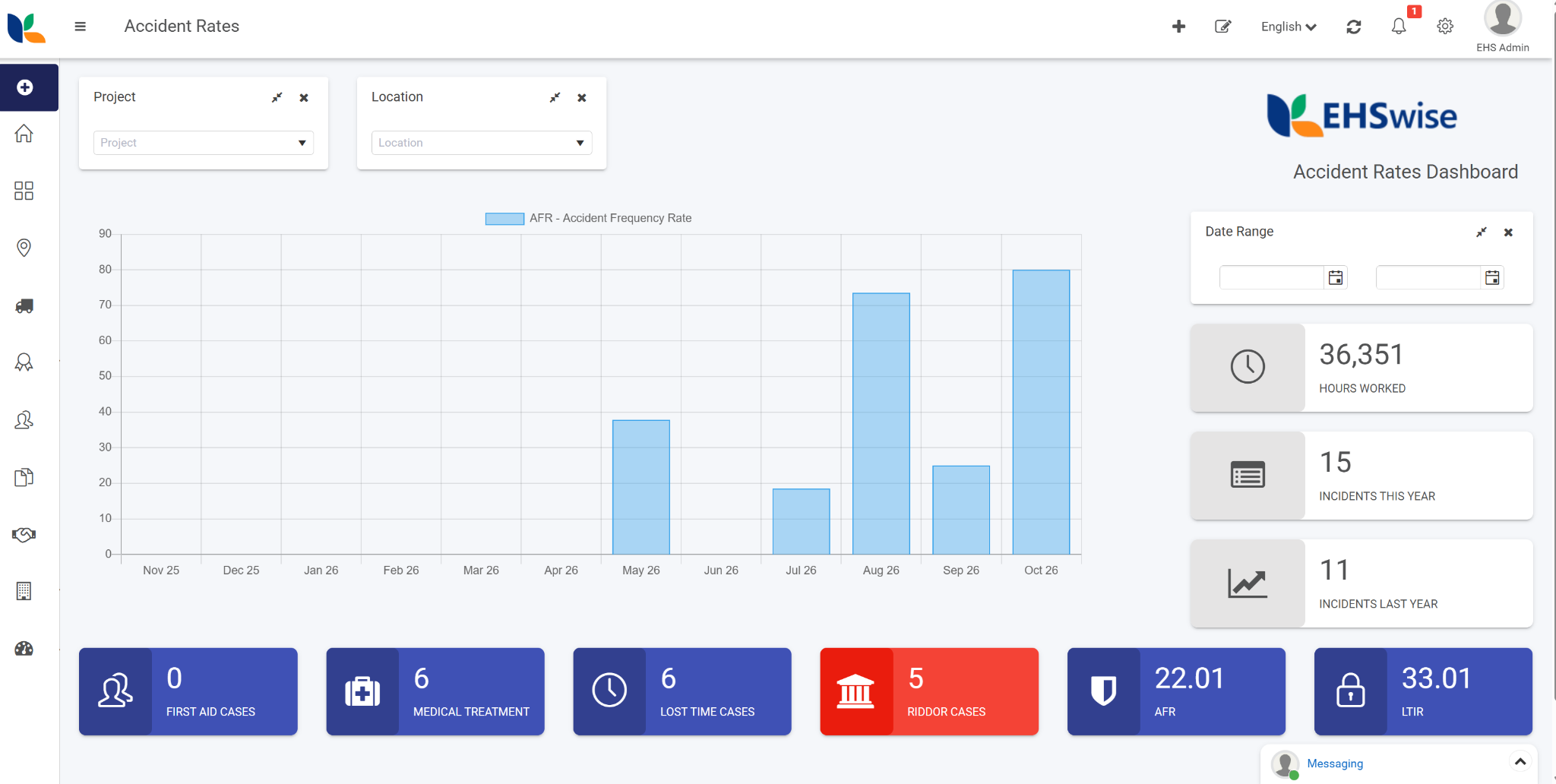
A page can combine built-in filters and tiles with a custom chart and calculated metrics. The page controls placement and presentation; each custom component controls its content and data loading. Filter effects depend on the connections configured for each target widget.
1. Create and place a page widget
Use an account with the appropriate Administrator or Developer access. See Users and groups for access management.
- Open Administration > Developer and select New widget.
- Enter a title, unique identifier, and icon. Select Widget as the widget type.
- Save the definition. Use Widget UI for the Handlebars template and Widget Code for the JavaScript component.
- Use Update after changing the component source.
- Open the target page and select Edit current page. Add the custom widget from the widget menu.
- Configure its page placement, presentation, and component-specific settings, then save the page.
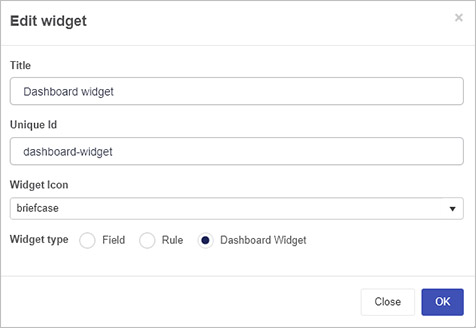
The custom component type has the form client-widget/<component-id>. For example, a definition with the unique identifier summary-metric is referenced as client-widget/summary-metric.
Distinguish the component identifier from a widget instance identifier. Several widgets on the same page can use client-widget/summary-metric; each placed widget has its own widget.id and settings. Query identities and DOM resources must respect that distinction.
Updating the component definition changes its implementation. Editing widget settings changes a placed widget’s configuration. Saving a page persists its configuration. These operations do not save or edit the process instances being reported on.
For page administration, see Pages and Edit dashboard page settings.
2. Understand the two views
Page widgets have two template branches:
| Template condition | Purpose |
displayMode === "settings" | Configure this widget in the global settings dialog. |
| Otherwise | Render the widget’s content on the page, including its appearance while the page is being designed. |
Use the standard classic component module:
import Ember from "ember";

export default Ember.Component.extend({
  // State, computed properties, lifecycle hooks, methods, and actions.
});
The template follows this structure:
{{#if (eq this.displayMode "settings")}}
  <label>
    Message
    {{input value=this.widget.settings.message class="form-control"}}
  </label>
{{else}}
  <p>{{this.widget.settings.message}}</p>
{{/if}}
The settings dialog renders a component connected to the same widget model as the component on the page. A binding to widget.settings.message therefore updates the shared setting. The dialog has its own component-local state and DOM.
Use ordinary Ember lifecycle hooks. A page widget does not need a rule-style execute() method or field-style edit() and display() methods. Guard runtime loading and third-party mounting with the settings-mode check: the settings template usually does not contain the chart or calendar element.
isDesign is a separate attribute used for page design presentation. It is not a third displayMode branch.
Kianda’s widget-base component supplies the frame, title, standard header controls, and the bridge between the page and its child widgets. Your component supplies the body content.
The host’s dynamic invocation includes these bindings:
{{component this.widget.type
  widget=this.widget
  data=this.data
  id=this.widget.id
  isDesign=this.isDesign
  showModal="showModal"
  gotoForm="gotoForm"
  connectTo="connectTo"
  sendFilterValue="sendFilterValue"}}
This is an excerpt of the host template, not code to paste into your custom widget. The action names describe bridges supplied by the host; they do not establish the argument signatures of the global navigation functions described later in this guide.
3. Build a complete summary metric
The first example displays a count, sum, or average. It demonstrates the complete page-widget path:
- The designer chooses a process, calculation, and conditions.
- Kianda binds the configuration to
widget.settings. - The runtime component handles
refresh. - It copies the current conditions, prepares date conditions, and queries summaries.
- The template displays loading, a numeric value, missing data, or an error.
No charting library is needed. The surrounding frame already provides the widget title and Refresh control.
Create a Widget named Summary metric, with the unique identifier summary-metric. Paste the following complete files into its UI and Code tabs. They are also available as summary-metric.hbs and summary-metric.js.
{{#if (eq this.displayMode "settings")}}
  <div class="form-group">
    <label>Process</label>
    {{process-picker
      processName=this.widget.settings.processName
      process=this.process
      required=true}}
  </div>

  <fieldset class="form-group">
    <legend>Calculation</legend>
    {{radio-button name=(concat this.elementId "-calculation")
      label="Count" value="count" group=this.widget.settings.tile}}
    {{radio-button name=(concat this.elementId "-calculation")
      label="Sum" value="sum" group=this.widget.settings.tile}}
    {{radio-button name=(concat this.elementId "-calculation")
      label="Average" value="avg" group=this.widget.settings.tile}}
  </fieldset>

  {{#if (and this.process (not-eq this.widget.settings.tile "count"))}}
    <div class="form-group">
      <label>Number field</label>
      {{field-picker
        includes='["fields/field-number"]'
        process=this.process
        allowText=false
        value=this.widget.settings.field
        required=true}}
    </div>
  {{/if}}

  <fieldset class="form-group">
    <legend>Record relationship</legend>
    {{radio-button name=(concat this.elementId "-relationship")
      label="All accessible" value="all" group=this.widget.settings.queryType}}
    {{radio-button name=(concat this.elementId "-relationship")
      label="Assigned to me" value="assignedTo" group=this.widget.settings.queryType}}
    {{radio-button name=(concat this.elementId "-relationship")
      label="Created by me" value="createdBy" group=this.widget.settings.queryType}}
    {{radio-button name=(concat this.elementId "-relationship")
      label="Modified by me" value="modifiedBy" group=this.widget.settings.queryType}}
  </fieldset>

  {{#if this.process}}
    <div class="form-group">
      <label>Conditions</label>
      {{rules/rule-conditions
        showProcessProperties=true
        isCompact=true
        btnText=""
        serialize=true
        conditions=this.widget.settings.conditions
        process=this.process}}
    </div>
  {{/if}}
{{else}}
  <div class="text-center" aria-live="polite" aria-busy={{this.isLoading}}>
    {{#if this.isLoading}}
      <p role="status">Loading metric…</p>
    {{else if this.errorMessage}}
      <p class="text-danger" role="alert">{{this.errorMessage}}</p>
    {{else if this.hasValue}}
      <p class="h2">{{this.formattedValue}}</p>
    {{else}}
      <p class="text-muted">No aggregate value is available.</p>
    {{/if}}
  </div>
{{/if}}
import Ember from "ember";

export default Ember.Component.extend({
  store: Ember.inject.service(),
  ruleEngine: Ember.inject.service("rule-engine"),
  process: null,
  isLoading: false,
  errorMessage: "",
  value: null,

  hasValue: Ember.computed("value", function() {
    return this.get("value") !== null;
  }),

  formattedValue: Ember.computed("value", function() {
    const value = this.get("value");
    return value === null ? "" : value.toLocaleString(undefined, {
      maximumFractionDigits: 2
    });
  }),

  init() {
    this._super(...arguments);
    this._mounted = false;
    this._revision = 0;
    this._running = false;
    this._refreshPending = false;

    // Keep the model's settings object and all existing saved values.
    if (this.get("widget.settings.tile") === undefined) {
      this.set("widget.settings.tile", "count");
    }
    if (this.get("widget.settings.queryType") === undefined) {
      this.set("widget.settings.queryType", "all");
    }
    if (this.get("widget.settings.conditions") === undefined) {
      this.set("widget.settings.conditions", []);
    }
  },

  didInsertElement() {
    this._super(...arguments);
    this._mounted = true;
    if (this.isRuntime()) {
      this.send("refresh");
    }
  },

  willDestroyElement() {
    this._mounted = false;
    this._revision += 1;
    this._refreshPending = false;
    this._super(...arguments);
  },

  isRuntime() {
    return this._mounted && !this.isDestroying && !this.isDestroyed &&
      this.get("displayMode") !== "settings";
  },

  isCurrent(revision, widget) {
    return this.isRuntime() && revision === this._revision &&
      widget === this.get("widget");
  },

  async drainRefreshes() {
    if (this._running || !this.isRuntime()) {
      return;
    }
    this._running = true;
    try {
      // Refreshes arriving during a request are coalesced into the next load.
      // Only one request for this stable aggregate ID runs at a time.
      while (this._refreshPending && this.isRuntime()) {
        this._refreshPending = false;
        await this.loadAggregate(this._revision);
      }
    } finally {
      this._running = false;
    }
  },

  async loadAggregate(revision) {
    const widget = this.get("widget");
    const publish = (properties) => {
      Ember.run.join(() => {
        if (this.isCurrent(revision, widget)) {
          this.setProperties(properties);
        }
      });
    };

    publish({ isLoading: true, errorMessage: "", value: null });
    try {
      const processName = this.get("widget.settings.processName");
      const tile = this.get("widget.settings.tile");
      const queryType = this.get("widget.settings.queryType");
      const fieldName = this.get("widget.settings.field.name");
      const conditions = JSON.parse(JSON.stringify(
        this.get("widget.settings.conditions") || []
      ));

      if (!processName || !String(processName).trim()) {
        throw new Error("Choose a process in the widget settings.");
      }
      if (["count", "sum", "avg"].indexOf(tile) === -1) {
        throw new Error("Choose Count, Sum, or Average.");
      }
      if (["all", "assignedTo", "createdBy", "modifiedBy"].indexOf(queryType) === -1) {
        throw new Error("Choose a supported record relationship.");
      }
      if (tile !== "count" && !fieldName) {
        throw new Error("Choose a number field for Sum or Average.");
      }
      if (!Array.isArray(conditions)) {
        throw new Error("The widget conditions must be an array.");
      }

      // This mutates our copy, including any relative date conditions.
      this.get("ruleEngine").parseDateConditions(conditions);
      const query = {
        action: "tile",
        info: {
          id: this.get("widget.id") + "-metric",
          process: processName,
          queryType: queryType,
          tile: tile
        },
        fields: tile === "count" ? ["__PROCESS_NAME"] : [fieldName],
        conditions: conditions,
        rowLimit: 1,
        preferOnline: true
      };
      if (tile !== "count") {
        query.info.field = fieldName;
      }

      const data = await Ember.run.join(() => this.get("store").query("summary", query));
      const raw = data.get("firstObject.properties.value");
      let nextValue = null;

      // Missing data stays missing; a returned numeric zero stays zero.
      if (raw !== undefined && raw !== null && raw !== "") {
        if (typeof raw !== "number" || !Number.isFinite(raw)) {
          throw new Error("The aggregate did not return a finite number.");
        }
        nextValue = raw;
      }
      publish({ value: nextValue });
    } catch (error) {
      publish({
        value: null,
        errorMessage: error && error.message
          ? error.message : "Unable to load this metric. Try Refresh."
      });
    } finally {
      publish({ isLoading: false });
    }
  },

  actions: {
    refresh() {
      if (!this.isRuntime()) {
        return;
      }
      this._revision += 1;
      this._refreshPending = true;
      // Kianda fires this action without awaiting it. loadAggregate catches
      // query/validation errors and publishes them in the component's view.
      this.drainRefreshes();
    }
  }
});
For a count, select a process and Count. For a sum or average, select a number field. For example, an hours-worked process can use Sum over its employee-hours field. The picker stores a field reference; the query uses the reference’s name, not its display label. After changing the selected process, reselect or verify the number field and review existing conditions: a stored reference is not automatically translated to the new process.
Add conditions through the conditions editor. Try a relative date condition, then connect a page filter to this widget. After updating configuration, use the widget’s Refresh control. This introductory implementation reads changed settings on its next refresh; it does not issue a network request on every keystroke in the settings dialog.
Keep the header visible for this example. If a design hides the standard header, provide an appropriate refresh control in the body or another deliberate trigger.
Why the implementation is structured this way
process-picker populates this.process with the process metadata needed by the field picker and conditions editor. It does not give the reporting component a current editable process instance.
serialize=true makes the conditions editor produce plain condition data suitable for the query. It does not mean that the conditions property should contain a JSON string.
parseDateConditions prepares the cloned conditions immediately before the request. The component preserves the designer’s conditions and any temporary conditions supplied by connected filters.
preferOnline: true selects the recommended single-Promise query path for custom page widgets. The component awaits that Promise inside its own loading method. Kianda does not await actions.refresh, so the component catches query errors and manages its own completion state.
The queue permits one request for this aggregate ID at a time. If several refreshes arrive while a request is running, they become one further load using the latest conditions. The revision check prevents an obsolete response from replacing a newer requested view. It does not cancel an HTTP request already in progress.
The response reader treats numeric 0 as a value. An absent aggregate remains null in local state and produces the no-data message. Do not write value || 0 unless deliberately defining a business rule that replaces missing data with zero.
4. Widget context and model reference
| Input or access path | Meaning |
widget | The placed widget model, including its identity and configuration. |
widget.settings | Shared plain configuration object, initialized by the model to {}. |
widget.page | Ember Data relationship to the containing page. A separate page input is not shown in the host invocation. |
widget.datasource | Relationship to a configured datasource, when this widget uses one. |
displayMode | Use the exact "settings" check to choose the configuration branch. |
isDesign | Whether the surrounding page is being designed. |
data | Host-provided data for integrations that use it. Its shape is not a universal page-widget result contract. The examples own their results. |
id | Passed by the host from the placed widget’s ID. |
process | Populated by the example’s process-picker for configuration controls. |
Inject the services actually needed by the component. A summaries widget commonly uses store and rule-engine; a connector-backed widget can inject datasource. An injection in another example does not make every service mandatory.
| Property | Model type or role | Default or use |
id | Ember Data identifier | Unique placed-widget identity. |
title | String | Displayed by the surrounding header. |
type | String | Component type, such as client-widget/summary-metric. |
class | String | Grid classes; default col-sm-12. |
customCssClass | String | Additional page-widget styling hook. |
visible | Boolean | Default true. |
showHeader | Boolean | Default true; design mode can still show the design header. |
isCustom | Boolean | Default false; custom placed widgets use true. |
groupName | String | Grouping metadata used by page configuration. |
colorScheme | String | Default panel-primary. |
visibleTo | hasMany('person') | Page-widget visibility configuration. |
page | belongsTo('page') | Containing page. |
datasource | belongsTo('datasource') | Optional datasource. |
settings | Attribute containing an object | A fresh {} for each model. |
The model also exposes desktopVisible, tabletVisible, mobileVisible, onlineVisible, and offlineVisible. Each reads and writes the corresponding property under settings and returns true when that setting is undefined.
These visibility properties control presentation. Summaries applies instance access permissions independently; hiding a widget or a form field is not a substitute for instance authorization.
Configuration and component state
Store serializable configuration in widget.settings: selected process names, field references, conditions, display options, and configured slides.
Keep results, loading flags, error text, request revisions, timers, chart instances, calendar instances, DOM elements, and event handlers on the component. They belong to a rendered view, not to the saved page definition.
Initialize individual settings only when they are missing. Preserve intentional values such as false, 0, or an empty optional string. Avoid replacing the settings hash, since it also contains page-level configuration and temporary filter state.
Page widgets use the global settings dialog’s native validation for required inputs and supported pickers:
{{input value=this.widget.settings.heading required=true}}

{{field-picker
  process=this.process
  allowText=false
  value=this.widget.settings.field
  required=true}}
There is no page-widget saving validation event equivalent to the custom field or rule contract. Do not copy their event-registration pattern into a page widget.
Use required controls for configuration-time completeness. Check the settings again before a request: an imported page, a changed process, or an incomplete draft may still reach runtime. Show a local actionable error, such as “Choose a number field for Sum or Average.”
The settings model is shared. Do not implement a separate page save by calling widget.save() from a picker or query callback. Let the page designer own persistence. Similarly, do not assume that closing or cancelling the dialog is a transaction boundary for arbitrary component-managed changes.
Useful configuration controls include process-picker, field-picker, rules/rule-conditions, radio-button, person-picker, icon-picker, and the platform’s rich-text and upload controls. Use a selected process definition with field-related controls. A selected field reference describes a field; its text is its label, not an instance value.
For more elaborate settings, keep per-item editor state local and define when an item is committed into a persisted array. Use Ember-aware setters or array replacement so both settings and runtime views can observe changes.
6. Connect a custom widget to page filters
A custom reporting widget participates in page filtering by implementing actions.refresh and building each query from the current widget.settings.conditions.
The runtime sequence is:
- A page filter receives a value from the user or its configured source.
- Kianda resolves
filterValue1 and, where used, filterValue2 through the filter’s design-time connections. - It merges the resulting temporary condition groups into the target widget’s
settings.conditions. - The temporary groups carry a
filterId identifying their originating filter. - Kianda fires the target widget’s
refresh action with no arguments and does not await a Promise. - The custom widget copies those conditions and loads its next result.
When a filter is cleared, Kianda removes its temporary condition groups. Before a page is saved, Kianda also removes the temporary filterId groups. The host owns that cleanup and the marker’s identifier format.
Preserve the effective conditions
Use the entire live array when creating a request:
const conditions = JSON.parse(JSON.stringify(
  this.get("widget.settings.conditions") || []
));

this.get("ruleEngine").parseDateConditions(conditions);
Keep the filterId groups in this request copy. Removing them would remove the user’s active filters. Do not edit the shared array when adding a reporting period, paging range, or other query-specific restriction.
The JSON cloning technique suits the serialized condition data used here. It is not a general-purpose way to clone Ember models, services, or arbitrary JavaScript objects.
In the filter widget’s settings, select the target widget and define how its selected value maps to a query condition. For example, a Project filter can map its selected project code to a target process’s processProjectCode field. A date-range filter can provide two values for the lower and upper boundaries.
The connection’s destination is a placed widget ID, not its reusable client-widget/... component type. If a widget responds to its own Refresh button but not to a filter, check the configured connection target before changing the query code.
An exported page is a snapshot of its configuration. A filter’s presence on the page does not prove that every neighbouring widget is connected to it.
Share filters across several datasets
A rate widget may query both an incident process and an hours-worked process. Snapshot the base conditions at the start of the refresh, then clone that snapshot independently for each query before adding its own date restriction.
Cloning does not translate fields. A shared condition on processProjectCode works for both datasets only if both processes use that field with compatible values. If the processes use different field names or meanings, implement an explicit mapping before building each query; do not send an incident-only condition to the hours-worked dataset and assume it is meaningful.
7. Query summaries from a page widget
Choose the result shape
| Action | Appropriate use | Read the result |
list | Cards, tables, calendars, and other record-based views. | Iterate summary records and read their requested properties. |
tile | Count, sum, or average. | Read firstObject.properties.value from the Ember store result. |
chart | Server-side grouping and aggregate series. | Read the first result’s properties.labels, values1, and configured additional series. |
Use a server aggregate when the view needs an aggregate. Loading thousands of complete records to calculate a total in the browser defeats the purpose of the summaries index. The rate example combines a small set of server-calculated aggregates with explicit arithmetic in the component.
The recommended client path
Inside an asynchronous component method, use:
const data = await this.get("store").query("summary", {
  action: "tile",
  info: {
    id: this.get("widget.id") + "-hours-total",
    process: "hours-worked-data",
    queryType: "all",
    field: "DATAMS_NUM_EmployeeHours",
    tile: "sum"
  },
  fields: ["DATAMS_NUM_EmployeeHours"],
  conditions: conditions,
  rowLimit: 1,
  preferOnline: true
});
This is a fragment: it assumes conditions has already been cloned and prepared, and the caller provides the error and lifecycle handling shown in the complete metric example.
preferOnline is a client-store option. It is not a member of the server’s Query model and is unnecessary in a direct HTTP request. This guide uses the single-Promise path; a custom widget does not need the built-in list’s more advanced cached/online dual-result implementation.
Use the supported queryType values all, assignedTo, createdBy, and modifiedBy. all means all records accessible to the current user. Do not introduce the legacy default value or deprecated processSource and isPartner query settings into a new example.
Give separate datasets separate identities
Ember Data identifies records by their model type and ID. Supply a different info.id for each logical aggregate dataset in one widget:
| Dataset | Example info.id construction |
| One total | widgetId + "-metric" |
| Incident count aggregate | widgetId + "-incidents" |
| Hours aggregate | widgetId + "-hours" |
| Monthly incident aggregate | widgetId + "-incidents-2026-10" |
| Monthly hours aggregate | widgetId + "-hours-2026-10" |
Use stable dataset identifiers so repeated refreshes refer to the same logical result. Do not reuse one ID for every variable in a calculated tile. Also coordinate repeated refreshes of the same dataset: ignoring an obsolete UI result and isolating distinct store records solve different problems.
Independent queries with distinct identities can run together using Promise.all. Capture their returned primitive values before constructing a derived result. A failed required query should produce an error state rather than a plausible partial total.
Dates and relative conditions
Call ruleEngine.parseDateConditions(conditions) on the copied array immediately before sending it. The client resolves date conditions into UTC boundaries. Follow the Summaries date preparation reference for the exact request semantics.
For a deliberately generated reporting period, construct explicit boundaries and state the calendar/time-zone policy. The rate and calendar downloads use UTC consistently as a tutorial choice. Do not silently mix browser-local bucket boundaries with workspace-relative date conditions if they are intended to represent the same reporting calendar.
Lists, projection, and paging
A list request must supply a nonempty fields array. Request the fields needed by the view. A calendar, for example, needs its title and date fields; a compact card may need only a title, status, and reference.
The following fragment builds one page. processName, fieldNames, conditions, page, and pageSize are caller-supplied values:
const query = {
  action: "list",
  info: {
    process: processName,
    queryType: "all",
    id: this.get("widget.id") + "-records",
    isListWidget: true,
    isOData: true,
    page: page
  },
  fields: fieldNames,
  conditions: conditions,
  orderBy: "__NAME",
  orderAscending: true,
  rowLimit: pageSize,
  preferOnline: true
};

const data = await this.get("store").query("summary", query);
Pages are zero-based. Use deterministic ordering when retrieving several pages, and reset to page 0 when changing filters. The default text representation is appropriate for __NAME; use the documented date or number sort type when sorting those values.
The raw REST response reports the total through the total-items header. Ember results can carry client metadata under data.meta; the raw JSON body does not gain that object. Use an established adapter metadata contract if building a total-count pager. Do not assume a property such as data.meta.totalItems solely because it appears conventional.
A bounded loader can instead request successive pages until one contains fewer than rowLimit records. If the result is an exact multiple of the page size, this requires one final empty page. Use a clear overall limit for a dense view and report when the result exceeds it. Page-number queries are not an immutable snapshot: concurrent edits can change page boundaries, so avoid presenting this approach as a transactional export.
With isListWidget: true, a summary’s store id can include the query’s widget identity. Use summary.name for instance operations. Do not assume the store ID is the original instance name.
isOData: true can supply typed companion properties such as <fieldName>_utc for dates and <fieldName>_number for numeric fields. It does not change the API into an OData response envelope. Check that a companion value exists before using it.
8. Manage asynchronous refreshes and lifecycle
The page and filter bridge fires Ember actions. It neither passes refresh arguments nor serializes asynchronous work on the widget’s behalf.
| Responsibility | Where it belongs |
| First load | Runtime didInsertElement, or another explicit runtime trigger. |
| Filter/header refresh | actions.refresh. |
| Validation, date preparation, request, result parsing | An internally error-handled async method. |
| Loading, error, and empty presentation | Component-local state and runtime template. |
| Changes to fetched data after editing settings | The next explicit refresh, or a targeted observer you implement. |
| Repeated refreshes | A queue, coalescing strategy, or another deliberate concurrency policy. |
| Chart/calendar mounting | After insertion into the component’s own runtime DOM. |
| Timers, handlers, and external instances | Cleanup in willDestroyElement. |
Call this._super(...arguments) when overriding lifecycle hooks. Use a component-scoped lookup such as this.element.querySelector(...) or this.$(...) for DOM resources. An ID that is unique only to the widget definition will collide when the same type is placed twice.
Wrap model/UI changes from native Promise continuations or external-library callbacks in an Ember run-loop boundary, as the examples do with Ember.run.join. Check that the component is still active before publishing asynchronous results. The Ember 2.18 lifecycle guide and run-loop guide explain these framework hooks.
Do not start a new fetch unconditionally from didRender: a fetch changes local state, which renders the component again and can create a loop. Likewise, the fact that widget.settings is shared does not make a previously loaded dataset recompute automatically.
The introductory metric clears its previous value while refreshing. That is an explicit presentation policy. Another view may retain its previous result, but should identify it as previous data while loading or after a failure.
9. Calculate a rate from several processes
The accident-rate example combines two summaries per reporting period:
| Input | Example process | Example number field |
| Incident numerator | incident | injuredPeopleCount |
| Hours denominator | hours-worked-data | DATAMS_NUM_EmployeeHours |
It calculates:
rate = (incident total × scale factor) / hours total
The example uses 100000 as its configured scale factor. This is part of the example’s reporting definition; choose the measure, numerator, denominator, and normalization appropriate to the report you are implementing.
Use explicit arithmetic:
function calculateRate(incidents, hours, scale) {
  if (incidents === null || hours === null || hours <= 0) {
    return null;
  }
  const value = (incidents * scale) / hours;
  return Number.isFinite(value) ? value : null;
}
A present numerator of zero and a positive denominator produce zero. A missing input or nonpositive hours value produces a gap. Keep numeric values as numbers for charting; format them for text presentation separately.
Complete chart example
Download accident-rate.js and accident-rate.hbs. Create a separate Widget definition and paste those files into its Code and UI tabs.
The example offers configurable process and field names, a period count, and a scale factor. Its defaults match the two datasets above, use processDate for both date fields, and show twelve monthly UTC buckets including the current month. Replace those names with fields present in your workspace. The example accepts 1–24 months to keep its request fan-out predictable; this is not a Summaries API limit. It queries each complete month, so the current month’s total includes matching future-dated records already entered for that month.
For each period it copies the same base filter snapshot independently, adds a period restriction, and requests both sums with distinct IDs. Its IDs also include a stable identity for the rendered component, isolating a remount from unfinished requests belonging to an earlier component. It runs the two period queries together and waits for both to settle, even if one fails, before processing another period or a queued refresh. Results remain component-local; Chart.js receives the finished numeric series, and the template also exposes the values in a table.
Edits to the rate’s process names, field names, period count, and scale trigger a debounced reload. Page filters continue to use the host’s refresh action. This is an explicit extension of the introductory metric’s refresh behaviour.
The canvas is scoped to the component, and the chart is destroyed on teardown. It remains in the runtime DOM while loading and error state changes, avoiding an external chart instance pointing at an element removed by an if block.
Adding a period without changing condition logic
The rate and calendar downloads require their top-level condition groups to join with and before appending additional range groups. They show an actionable error for top-level or combinations. Conditions inside an existing group may still use or.
This is a boundary of these worked examples, not a restriction of the Summaries API. Arbitrary expressions such as (A) OR (B) need deliberate grouping when adding a common range. Appending AND range without preserving the original grouping can change which records match. The examples avoid inventing nested condition-group syntax.
For multiple reporting processes, choose common filter fields that exist in both or provide an explicit per-dataset translation. A query’s info.process restricts its scope; it does not reinterpret another process’s field names.
10. Render summary records in a calendar
A calendar changes the presentation of a list result. It still queries action: "list", requests the necessary fields, and uses the returned instance name when opening a record.
Download summary-calendar.js and summary-calendar.hbs. This example targets the FullCalendar v6 global FullCalendar.Calendar interface and is intended for all-day events.
Select a process, title field, and start-date field. The end-date field is optional. Supply a pinned FullCalendar v6 global bundle containing the DayGrid views used here: dayGridMonth, dayGridWeek, and dayGridDay. Supply a matching stylesheet URL if the chosen bundle requires one. Configure one FullCalendar version across the page and reload the page after changing that version. See FullCalendar v6 global initialization. FullCalendar is an external dependency, not one of Kianda’s bundled libraries.
The example interprets dates using a consistent UTC calendar. A missing end produces a one-day event. When an end is present, it is treated as an inclusive all-day end in the process data and converted to FullCalendar’s exclusive end by adding one day. This is an explicit mapping for the example, not a general rule for timed events or every process date field.
FullCalendar v6’s event parsing and event-source callback document its exclusive end semantics. If a process stores local calendar dates, or needs timed events, choose a consistent workspace-aware conversion and revisit both the query boundaries and event mapping.
Load the entire visible range
Filtering only on “start is inside the visible range” omits an event that began earlier and continues into that range. The example covers two disjoint sets:
- Events whose start falls within the visible range.
- Events whose start precedes the range and whose optional inclusive end reaches the range.
Each set uses a separate query identity, retains the base page filters, and loads 100 records per page, sorted by __NAME. The second query is unnecessary when no end field is configured. The loader deduplicates instance names and accepts at most 2,000 events across both branches. Each branch is bounded to 20 full pages; when its twentieth page is full, one additional request checks that the following page is empty. More matching records produce an actionable error instead of a partial successful calendar. These are limits chosen for the example, not limits of the Summaries API.
Both branches use the top-level and condition-group requirement described in the rate example. The visible range may include days from neighbouring months, so use FullCalendar’s supplied range rather than reconstructing only the named month.
The calendar is read-only: dragging, resizing, and direct instance updates are disabled. When opening forms on click is enabled, clicking an event opens the full Kianda form through showModalForm. Permissions and form state then determine the available editing behaviour and rule execution.
The example uses the modal callback to request a refresh. It does not assume a particular callback payload, infer that every callback means a successful save, or await an undocumented modal Promise. Summary indexing is asynchronous, so a just-saved edit may require another refresh before it appears in a report.
This keeps the component focused on reporting while the form handles the business operation. A separately designed direct-editing calendar would need its own supported update, rule-execution, validation, and failed-save behaviour.
11. Build a carousel for page content and navigation
Page widgets can also guide users to applications or show configured content. A carousel is useful for highlights, announcements, and links to commonly used processes.
Download page-carousel.js and page-carousel.hbs. This focused example uses Ember timers and bundled styling; it does not require another carousel library.
Each saved slide contains a title, description, optional image and image description, and an optional navigation button. The target can be a Kianda page, a process to start, or a complete HTTP(S) URL. Rotation defaults to eight seconds; the settings require an interval of at least five seconds.
The runtime keeps its active slide, timer, and pause state on the component. Previous and Next pause rotation; keyboard or pointer entry also pauses it until the user selects Resume. A reduced-motion preference starts it paused. Timers stop when the component is removed.
Titles and descriptions use ordinary escaped Handlebars expressions. Runtime substitutions belong in local derived state; do not attach rendered titles or browser objects to the saved slide configuration and hide them with serialization workarounds.
Add datasource content when needed
The richer carousel integration can select content from a configured datasource. That query path is separate from the Summaries action model. A component can inject the datasource service and, inside an error-handled async method, use a request such as:
const result = await this.get("dataService").query(
  this.get("widget.datasource"),
  {
    action: "select",
    info: this.get("widget.settings.list"),
    fields: ["code", "displayName"],
    conditions: conditions,
    rowLimit: 1
  }
);

const items = result.items;
This fragment assumes a datasource that supports select, a configured list descriptor, and prepared conditions appropriate to that datasource. Its service injection is dataService: Ember.inject.service("datasource").
select and result.items belong to this datasource integration. They are not a fourth Summaries action or an alternative Summaries response envelope. Use the Summaries store path when reporting over Kianda instance summaries.
For placeholder substitution, preserve values such as 0 and false, and render the resulting text with escaped bindings. If an application deliberately accepts HTML content, define its trusted source and sanitization policy before rendering it as HTML.
12. Open pages and process forms
Kianda exposes these top-level functions:
window.showModalForm(nameOrUrl, isNew, params, isUrlPredefined, callBack, isStatic);
window.gotoForm(name, isNew, partnerId, queryParams, reload);
window.gotoDashboard(name, queryParams);
These are signatures, not calls to copy with undeclared variable names. The examples below use the ordinary page/process-name paths. Optional partner, predefined-URL, reload, and static-modal behaviours should be used only when the integration needs their established semantics.
| Task | Example |
| Open an existing instance in a modal | window.showModalForm(instanceName, false, "", false, callback, false) |
| Start a process in the main form view | window.gotoForm(processName, true, null, queryParams, false) |
| Navigate to a page | window.gotoDashboard(pageName, queryParams) |
For an existing summary record, derive instanceName from summary.get("name"). For a new process, use the process definition’s name. Do not substitute the summary’s widget-specific store ID.
Query parameters are strings such as project=site1&location=location1. Encode values when constructing them:
const queryParams = "project=" + encodeURIComponent(projectCode) +
  "&location=" + encodeURIComponent(locationCode);

window.gotoDashboard("accident-rate", queryParams);
Pass the intended parameters explicitly. If an application merges current-page parameters with button parameters, choose which source wins for duplicate keys and use a query-string parser; concatenating two serialized strings without a separator produces invalid parameters.
Preserve the case of external URLs. Validate their scheme and open them from the user’s interaction handler. The carousel uses HTTP(S) destinations and avoids carrying query parameters from the current page to unrelated web addresses.
Declare every action referenced by your template. A name such as tileClick is not automatically implemented merely because a custom tile template invokes it.
13. Layout, libraries, and offline behaviour
Page layout and the widget frame
A page can define named containers under page.settings.containers. Each container has a name and responsive grid classes. A widget chooses a container through widget.settings.container and supplies its own grid classes through widget.class.
This simplified configuration follows the dashboard shown above:
{
  "containers": [
    { "name": "Left", "mobileClass": "col-sm-7", "desktopClass": "col-lg-9" },
    { "name": "Right", "mobileClass": "col-sm-5", "desktopClass": "col-lg-3" },
    { "name": "Middle", "mobileClass": "col-sm-12", "desktopClass": "col-lg-12" }
  ]
}
Those keys are part of the page configuration; the actual responsive breakpoints follow the assigned grid classes. They are not fixed pixel dimensions a component should hard-code.
The frame uses widget.showHeader and widget.settings.hideFrame for header/panel presentation. Keep content responsive within the provided container. Scope CSS to your component’s root class; broad .carousel, .panel, or canvas selectors can alter other widgets.
When integrating a canvas or calendar, let its container determine width and provide a deliberate height or aspect ratio. Test two instances of the same component side by side and at narrow widths. Avoid selectors that depend on undocumented levels of the surrounding frame’s DOM.
Bundled and external dependencies
Kianda bundles the following libraries in its vendor assets:
| Library | Common use |
| Chart.js | Charts. |
| Bootstrap and BootstrapDialog | Layout, controls, and dialogs. |
| Kendo | Data/UI facilities and formatting. |
| Moment | Date handling. |
| jQuery and jQuery UI | DOM integrations and UI behaviours. |
| Summernote | Rich-text editing. |
| Babel | Widget-source compilation support. |
Target the versions supplied by the workspace for bundled libraries. Bundled availability does not imply that examples from an unrelated major version use compatible options. The rate example uses the basic Chart.js interface. The calendar uses the external FullCalendar v6 global API and requires its DayGrid views.
Additional scripts and styles can be loaded from a trusted CDN or a Kianda public file. Load a dependency once, share an in-flight load where appropriate, handle failure, and check that the widget still exists before mounting it. Destroy the component’s external instance on teardown; do not remove a shared library used by other widgets.
Public-file caching and query availability
Kianda public files participate in the service worker’s offline-first caching. Hosting a dependency as a public file allows its cached bytes to remain available without a network connection after they have been obtained.
Cached library code and cached report data are different dependencies. A cached FullCalendar script does not prove that a new Summaries request can be answered offline. These examples teach preferOnline: true; do not promise complete offline reporting from script caching alone. The widget’s onlineVisible and offlineVisible settings control whether it is shown in those modes, not whether a query is guaranteed to succeed.
14. Compile, debug, and verify
Use Update in the Developer editor to compile the component source. Kianda’s widget workflow uses Babel and generated source maps for debugging. See Custom widget debugging for locating widget sources and using browser developer tools.
Inspect the component state with Ember Inspector and inspect the request in the browser’s Network panel. For a summary query, check the selected process, info.id, fields, prepared conditions, and result shape. If the API fails, the server records the error under support/logs, category Instance | Summary find(Query). The component still needs to catch the client-side failure and show a useful message.
Troubleshooting
| Symptom | Check |
| Settings open but a chart or calendar throws | Runtime mounting must be skipped in displayMode: "settings". |
| A filter changes but the result does not | Verify the target widget ID, actions.refresh, and use of the live conditions array. |
| Clearing a filter leaves a restriction | Query from a new copy of current conditions, not a cached or independently mutated array. |
| A relative date filter becomes stale | Prepare dates immediately before the request. |
| Two calculated inputs unexpectedly share a value | Give separate datasets distinct info.id values. |
| An older result replaces a newer requested view | Coordinate overlapping refreshes and guard publication of stale results. |
| A valid zero appears as missing | Test null/undefined explicitly rather than using truthiness. |
| A missing aggregate appears as a real zero | Remove unconditional ` |
| A widget fails only when placed twice | Check global DOM IDs, selectors, timers, and shared query identities. |
| A calendar omits records | Check paging, its overall bound, and events starting before the visible range. |
| A record cannot be opened | Use the summary’s instance name, not its store id. |
| A picker has no process fields | Bind it to the process populated by process-picker. |
| A field is missing from a summary | Check requested fields and supported indexed coverage; table contents and client-calculated columns have separate limitations. |
| Settings change but the fetched value stays the same | Use Refresh or implement a targeted reload trigger. Shared settings do not automatically repeat a fetch. |
| A dependency loads offline but data fails | Check data availability separately from public-file caching. |
| A query succeeds but a template action fails | Implement the named action or use a confirmed host/global helper. |
Before reuse, exercise the configuration and runtime paths that matter to the component:
- Open settings, configure required inputs, and refresh after changes.
- Try initial loading, an empty result, a returned zero, and a failed request.
- Change and clear each connected filter; confirm the request reflects the latest conditions.
- Trigger several refreshes quickly and navigate away while a request or script load is pending.
- Place two instances of the same custom type and confirm independent settings, queries, and DOM resources.
- For the rate, test missing inputs, zero hours, and valid zero incidents.
- For the calendar, test more than one page of events, missing end dates, a multi-day event crossing the range, and editing through the form.
- For the carousel, test keyboard controls, pause/resume, destination parameters, and timer cleanup.
Syntax checks and template compilation are useful before deployment. They do not replace testing the actual Kianda host, adapter, configured process fields, permissions, and library versions.
4 - Global CSS file
Customize Kianda’s look site-wide by adding global CSS to style elements and define reusable classes
Kianda’s visual style is built on standard web technologies—primarily CSS and the Bootstrap framework. By default, Kianda applies a site-wide style that gives your workspace a consistent look and feel. However, as a workspace Administrator, you can override these defaults by using the Global CSS file. This lets you adjust aesthetics, tweak layouts, and even enhance functionality for your forms, processes, and dashboards.
Why Use the Global CSS File?
Global CSS lets you implement style changes that appear throughout your entire Kianda workspace. Rather than adjusting individual elements in each process or dashboard, you can create a unified look or add distinctive branding across all pages at once.
For example, you can:
- Apply consistent branding: Match your company’s color palette, typography, and visual identity.
- Improve usability: Make key buttons larger, adjust spacing for better readability, or change how messages are highlighted.
- Add functional styling: Hide certain elements until triggered by JavaScript, or highlight form fields based on conditions.
Before You Begin
Plan your design. Decide in advance what changes you want to make, and consider creating mock-ups to visualize the final look. Having a clear design direction helps ensure your CSS changes are cohesive and meaningful.
If you’re new to CSS or Bootstrap, you might review basic CSS and Bootstrap documentation first. Since Kianda is built on Bootstrap, you can use familiar classes, breakpoints, and responsive utilities to craft a user-friendly layout.
Where to Find and Edit the Global CSS File
-
As an Administrator, go to Administration > Developer.
-
Click on Edit Global CSS.
-
The global CSS file editor opens allowing a developer to edit the global CSS file.
-
When finished, click OK, then Save Changes in the Look and Feel section. Refresh Kianda to ensure the changes load.
Effective Use of CSS Classes
CSS classes let you define a style rule once and apply it to multiple elements. For instance, to create a “tile” style that you can reuse across many forms:
.tile {
  border-radius: 12px;
  border: 1px solid #e7eaee;
  background: white;
  margin-bottom: 15px;
  padding: 18px 15px 2px 15px;
}
Next, apply this class to any element in Kianda by typing “tile” into the Custom CSS class name field in the process designer.
Tip: Use clear, descriptive class names. They help you maintain consistency and make future adjustments easier.
Beyond Look and Feel: Using CSS for Functionality
While CSS is primarily for styling, you can also pair it with JavaScript to achieve functional effects. For example, you could:
- Hide elements: Use
display:none; in CSS to initially hide a button, then show it dynamically through JavaScript. - Highlight states: Combine CSS classes with conditions in Kianda’s logic to emphasize fields that need attention.
This blend of styling and scripting can improve your workflows without cluttering your markup.
Working with Bootstrap
Since Kianda uses Bootstrap, you can leverage Bootstrap’s utility classes to quickly style elements without custom CSS. For example, use .text-center to center text or .d-none to hide elements. If you do need custom rules, try extending or overriding Bootstrap styles sparingly. Keep these tips in mind:
- Avoid deep overrides: Stick to high-level classes or create new classes rather than overriding too many built-in Bootstrap rules. This reduces complexity.
- Responsive design: Use Bootstrap’s responsive classes and media queries to ensure your workspace looks good on all devices.
Using Font Awesome Icons
Icons can improve usability and help users instantly recognize actions:
a:before {
  font-family: "Font Awesome 5 Free";
  content: "\f007";
  display: inline-block;
  padding-right: 10px;
  vertical-align: middle;
  font-weight: 900;
}
This rule displays a user icon before any link (<a> element). Adjust icons by changing the Unicode value or adding conditions. For more details, see Font Awesome’s pseudo-elements guide and cheatsheet.
Local vs. Global CSS
While the Global CSS file affects your entire Kianda workspace, sometimes you want to make changes only in one process or dashboard. In that case, add <style> tags directly into a Rich Text field in that process or dashboard. This local approach ensures your changes are contained and won’t impact other parts of the system.
For example, to color all buttons magenta in a specific process:
- Add a Rich Text field to your process.
- Open Code View and wrap your CSS in
<style></style> tags. - Add your button styling inside the tags.
- Save and preview the process—the buttons will now have a magenta background, without altering buttons in other processes.
Naming Conventions and Maintenance
Over time, your Global CSS file can grow. Keep it maintainable by:
- Using meaningful names: Class names like
.primary-btn or .invoice-tile convey purpose. - Grouping related styles: Organize your file so that similar rules (e.g., buttons, panels, modals) are together.
- Commenting your code: Document why certain overrides exist. This helps future administrators or developers understand your intentions.
Testing and Iteration
After saving changes, always refresh Kianda and test your workspace on different devices or browsers. Check that your modifications didn’t unintentionally affect other elements. If you notice unwanted changes, refine your selectors or consider using local CSS for more targeted modifications.
In summary, the Global CSS file is a powerful tool that helps you shape your Kianda environment. By planning ahead, using descriptive classes, taking advantage of Bootstrap utilities, and keeping your code organized, you’ll create a more engaging, visually appealing, and functional workspace for your users.
5 - Global JavaScript file
Add global JavaScript for custom logic and reusable functions available across your entire Kianda workspace
The Global JavaScript file in Kianda gives you a central place to add custom JavaScript code that will be loaded and available across your entire workspace. Whether you want to create helper functions, bind custom actions to user interactions, or integrate with front-end frameworks at a deeper level, this file provides a convenient, site-wide JavaScript environment.
Because it’s globally accessible, you can think of this file as your own mini library of utilities and features that any process, form, or dashboard in Kianda can tap into. For example, you could define functions to:
- Manipulate DOM elements dynamically,
- Handle global events or user interactions,
- Integrate external APIs or services consistently,
- Hook into the Ember.js application lifecycle that Kianda’s front-end runs on.
Why Use a Global JavaScript File?
Reuse and maintainability: Instead of duplicating code across multiple processes or forms, write it once here. Any code in this file can be called from anywhere else, reducing repetition and simplifying long-term maintenance.
Centralized customization: Keep your custom logic organized in one place. If you need to adjust a commonly used function, updating it in the Global JavaScript file instantly applies the change throughout the workspace.
Deep integration: Kianda is built on Ember.js. By hooking into the Ember application through the global file, you can access app instances, sessions, and stores, letting you implement advanced custom behaviors that integrate with Kianda’s internal mechanisms.
Getting Started
-
Access the Developer Page:
As an Administrator, go to Administration > Developer in the Kianda menu.
-
Open Global JavaScript Editor:
Click Edit Global JavaScript to open the JavaScript editor. If you’ve already added code, it will appear here; if not, you can start from scratch.
-
Add or Modify Code:
Write or paste your JavaScript. You can define functions, create event listeners, or even hook into Ember’s initialization sequence. For example:
function testClick() {
  alert("Testing a button click");
}

// Ember app hooks for advanced integration
window.kiandaApp = {
  init: function (app) {
    app.boot().then(async () => {
      var appInstance = app.__container__.owner;
      var session = appInstance.lookup("service:session");
      var store = appInstance.lookup("service:store");
      // Add custom logic here if needed
    });
  },
  didInit: function(appInstance) {
    // Fires after the app has initialized
    // Ideal place for actions that require a fully loaded environment
  }
};
-
Save and Apply Changes:
Click OK, then Save Changes in the Subscription Details page. After saving, refresh your workspace to ensure the new code is loaded globally.
-
Use the Generated URL (If Needed):
A URL is generated for the Global JavaScript file. Typically, you don’t need to reference this URL directly within Kianda, but it’s available for troubleshooting or external references.
Best Practices
- Keep it organized: Group related functions together and comment your code, so it’s easier to maintain as your workspace grows.
- Use namespaces: To avoid naming conflicts, consider wrapping related functions in a single object or namespace. For example:
window.myCompanyUtils = {
  setHeader: function(elementId, text) {
    const headerElement = document.getElementById(elementId);
    if (headerElement) {
      headerElement.innerHTML = text;
    }
  }
};
- Embrace Ember hooks: The
window.kiandaApp object gives you direct access to Ember’s lifecycle. Use init or didInit to run code at startup, obtain services, or dynamically modify application behavior. - Leverage jQuery/Vanilla JS: Kianda includes jQuery, but you can also use modern JavaScript APIs (
document.querySelector, etc.). Prefer modern APIs when possible for cleaner, more performant code.
Example: Dynamic Interaction with a Dashboard
Here’s a more detailed example of a global function that updates a dashboard header based on a user’s selection in a dropdown:
function setHeader(elementId) {
  // Assuming the dropdown has a Kendo UI component or a similar API
  var dropdown = $('filter.dropdown [data-role=dropdownlist]').data("kendoDropDownList");

  dropdown.bind("cascade", function () {
    var selectedText = dropdown.text();
    var headerElement = document.getElementById(elementId);
    if (headerElement) {
      headerElement.innerHTML = selectedText;
    }
  });
}
How This Helps:
When a user selects a new filter in the dropdown, setHeader runs automatically (after binding), updating the displayed header dynamically. This logic can be easily reused in multiple dashboards or pages—just call setHeader with the correct element ID in each case.
Additional Ideas
- Data formatting functions: Create global helpers for formatting dates, numbers, or strings consistently across all processes.
- Event-based logic: Attach global event listeners to window or document, and run specific functions in response to custom events fired within Kianda.
- Complex integrations: Use
fetch or AJAX calls to integrate with external APIs, then store or display the returned data in various parts of your workspace.
In summary, the Global JavaScript file in Kianda is your toolbox. By placing commonly used functions, event handlers, and Ember lifecycle hooks here, you maintain a cleaner, more efficient codebase and give yourself the flexibility to implement custom logic throughout your workspace with minimal repetition.
6 - List widget template customisation
Learn how to customize Kianda list widget with Handlebars templates
The List widget is a powerful dashboard component that displays process records or instances in an organized, visual format. For example, a “Training Requests” list can show each request’s ID, status, and the employee’s name who submitted it—all in one convenient place:
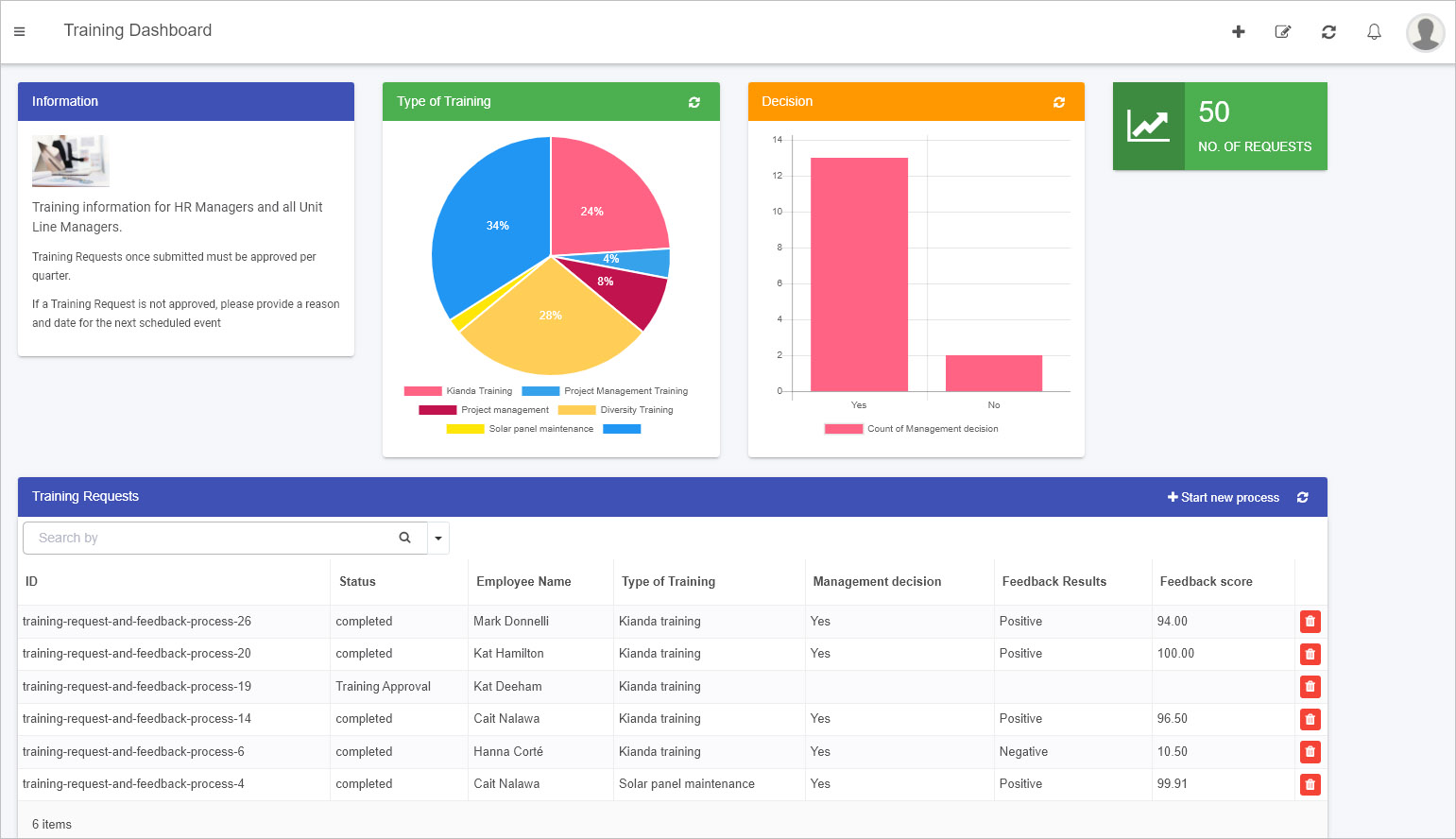
You can configure the List widget with no-code steps—such as filtering data, displaying specific fields, and enabling sorting or search features. For details, see Configure your widget.
However, to truly make the widget your own, you can customize it using HTML and Handlebars templates. This approach lets you change its look and feel, add icons, or even integrate dynamic behavior. In the following sections, we’ll walk you through how to get started with these customizations.
As with any of Kianda’s predefined dashboard widgets, you can add a List widget to your dashboard with just a few clicks. For details on adding widgets, see How to add widgets to a dashboard page.
The standard List widget already provides extensive configuration options—like conditions, sorting, and filtering—that leverage both design fields and Kianda’s built-in process fields. Yet, if you have an Administrator role, you can take this further by customizing how the List widget displays its data:
-
Go to an existing dashboard page or create a new one. Click Edit current page  to enter Edit mode.
-
Add a new List widget from the dashboard widget menu if none exists, or edit an existing one by clicking its Edit/pen icon.

-
In the Edit widget dialog, configure the widget by selecting which fields to display and how you’d like the data to appear. For guidance, see Configure your widget.
-
Once your fields are selected, click on List fields in the Edit widget dialog. Here, you’ll find two important buttons:
- Add column: Lets you add a new column with custom HTML or Handlebars code.
- Add action: Lets you attach a button to trigger rules or actions from the dashboard.
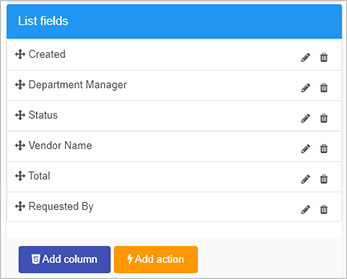
-
Add column  :
:
Clicking this opens a code editor where you can customize the presentation of your data. Insert HTML, Handlebars expressions, and even Font Awesome icons for visual cues. You can also hide a column if needed.
For example:
<div class="panel panel-primary">
  <button class="btn btn-warning">
    {{#if (eq row.properties.InternalStatus "completed")}}
      <span class="fa fa-check-circle"></span>
    {{else if (eq row.properties.InternalStatus "PO Request")}}
      <span class="fa fa-question-circle"></span>
    {{else if (eq row.properties.InternalStatus "Approval")}}
      <span class="fa fa-thumbs-up"></span>
    {{else if (eq row.properties.InternalStatus "Supplier Invoice")}}
      <span class="fa fa-newspaper-o"></span>
    {{else if (eq row.properties.InternalStatus "Payment")}}
      <span class="fa fa-money"></span>
    {{/if}}
  </button>
</div>
-
Add action  :
:
Use this feature to add a dashboard button that, when clicked, triggers specific rules or actions associated with a field in the underlying process. For example, you could re-run a “Submit” action even after a process instance is complete.
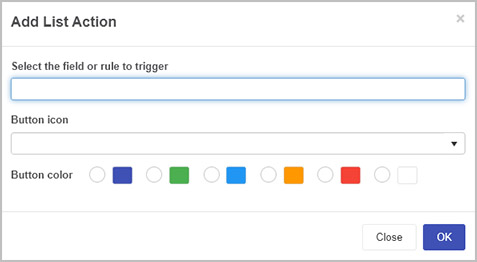
Choose a field or rule to trigger, assign an icon, and pick a button color. Your dashboard users will then be able to perform these actions directly from the list.
-
After making your changes, click OK to confirm. Then save your dashboard page changes by clicking the Save button  . You’ll see a “Page saved successfully” message.
In the sample code above, we used Handlebars logic ({{#if}} conditions) to display different Font Awesome icons depending on the process instance’s status. For instance:
- PO Request: Shows a question-circle icon.
- Approval: Shows a thumbs-up icon.
- Supplier Invoice: Shows a newspaper icon.
- Payment: Shows a money icon.
- Completed: Shows a check-circle icon.
Since Kianda already loads Font Awesome, you can easily map different icons to different states, giving users a quick visual cue about each record’s progress.
When you follow the steps described and apply code via Add column, your dashboard might look like this:
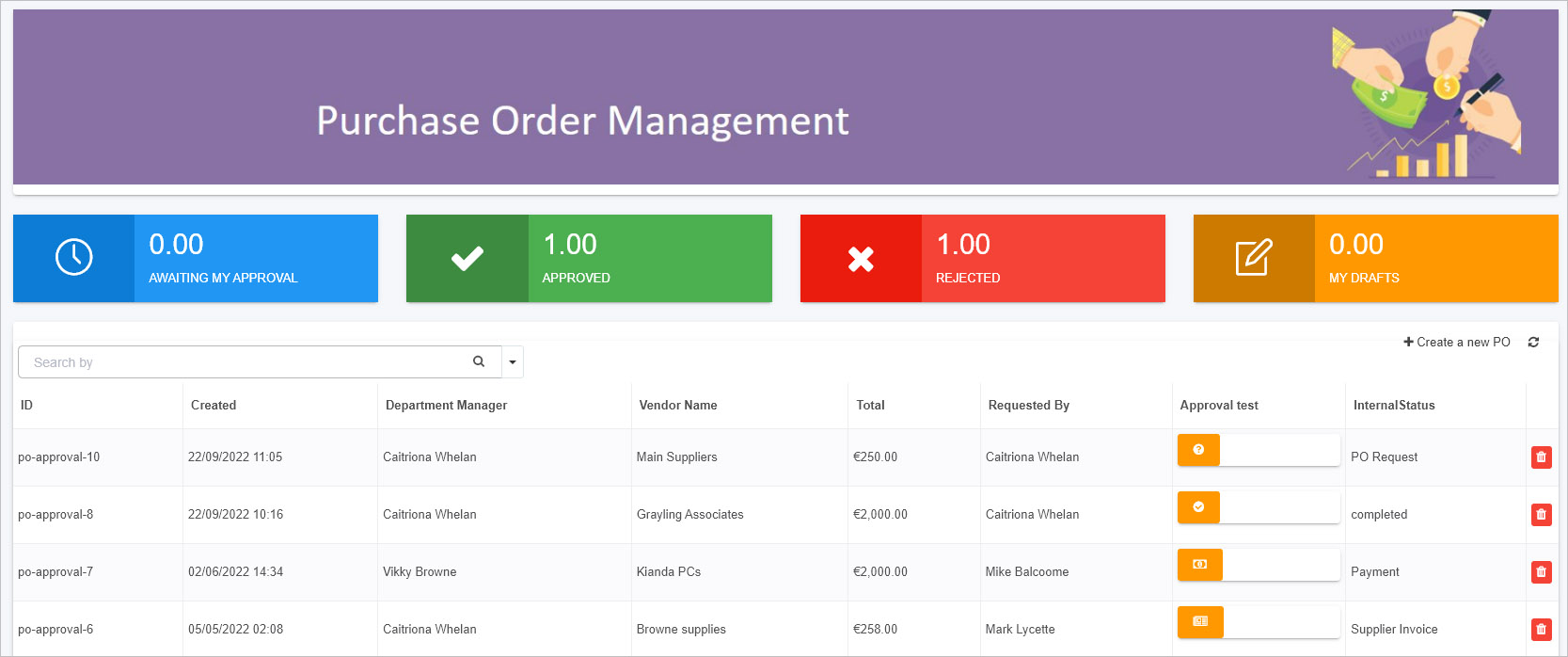
You can also use JavaScript to enhance the widget’s functionality. For example, you could write custom actions in your Global JavaScript file (see Global JavaScript file) and then call them from within the Handlebars template. This flexibility means you’re not limited to static displays—you can introduce interactivity and dynamic content tailored to your specific requirements.
By blending Kianda’s built-in configuration options with custom HTML, Handlebars templating, and JavaScript actions, you can create a List widget that perfectly suits your reporting and visualization needs. This approach keeps development simple (just like regular front-end work) while unlocking a rich set of possibilities for your business dashboards.
7 - Kianda as a Progressive Web Application (PWA)
Learn about the benefits of PWA for enterprise mobile solutions deployment
What is a PWA?
A Progressive Web Application (PWA) is a web-based application that delivers a native app-like experience on any device—mobile, tablet, or desktop—without requiring an app store download. PWAs leverage modern web technologies to offer features such as offline availability, push notifications, and fast load times, all while maintaining the convenience and accessibility of a standard website.
By running Kianda as a PWA, you gain a flexible, secure, and user-friendly solution for enterprise mobility without the overhead of traditional mobile app distribution. Accessing Kianda through a PWA feels like using a native app, but with the continuous updates and centralized maintenance of a cloud-based web application.
Why Choose a PWA for Enterprise Applications?
-
No App Store Submission:
Distribute and update your enterprise application directly. Users can “install” Kianda from their browser without going through an app store.
-
Offline Capability:
Work seamlessly—even without network access. Tasks, forms, and process instances can be completed offline and automatically synced when connectivity returns.
-
Fast and Responsive:
Thanks to caching and efficient resource handling, PWAs load quickly. Users benefit from smoother interactions and better performance on all devices.
-
Engaging User Experience:
Receive timely push notifications and view content in a user-friendly interface that adapts to any screen size. Add your brand’s icon and color scheme for a polished, consistent experience.
-
Enhanced Security:
PWAs use secure HTTPS connections, leveraging browser-level security features like SSL encryption to protect data in transit.
Key Benefits of Using Kianda as a PWA
Offline Use
If users are in areas with limited or no connectivity—such as remote worksites or underground facilities—the PWA ensures they can still fill out forms, submit inspections, or log tasks. Changes made offline sync automatically when the device reconnects, eliminating data loss and downtime.
PWAs cache essential resources locally, reducing load times and improving reliability. Users enjoy instant access to Kianda processes and forms, contributing to better productivity and user satisfaction.
Easy Installation and Maintenance
Installing Kianda as a PWA is as simple as adding it to your home screen. Since updates happen behind the scenes over the web, there’s no need for users to download updates manually. Your IT team can roll out new features or fixes instantly, ensuring everyone is always on the latest version.
Brand Consistency and Engagement
Customize the PWA’s splash screen, icons, and theme colors to match your company’s identity. With push notifications enabled, you can engage your workforce, sending timely updates or alerts that improve communication and responsiveness.
Kianda’s interface adapts to various screen sizes and devices. Whether users access it from a smartphone, tablet, or desktop browser, they enjoy a consistent, intuitive experience. This adaptability also reduces development costs and complexity.
How to Install the Kianda PWA
General Requirements
- Ensure you have the latest version of your device’s operating system.
- Obtain your unique Kianda workspace URL, typically
https://<businessName>.kianda.com.
Android Installation
-
Navigate to the Kianda Workspace:
Open your preferred browser (e.g., Chrome) and go to https://<businessName>.kianda.com.
-
Prompt to Add to Home Screen:
On Android devices, you may be automatically prompted to add Kianda to your home screen. Tap Add [Business Name] to Home screen, then confirm by tapping Install.
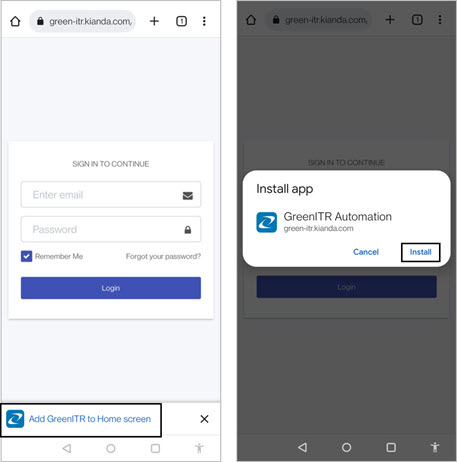
-
Confirmation and Access:
Once installed, a notification confirms the addition. An app-like icon with your brand’s image appears among your installed applications. Tapping the icon opens a loading screen with your chosen branding, then prompts for login credentials.

Manual Installation (Android)
If the automatic prompt doesn’t appear, follow these steps:
- Navigate to
https://<businessName>.kianda.com in your browser. - Tap the menu icon
 and select Add to Home screen.
 - Confirm by tapping Add.
iOS Installation
-
Open Kianda in Safari:
Navigate to https://<businessName>.kianda.com using Safari on your iPhone or iPad.
-
Add to Home Screen:
Tap the Share/Action button  , then select Add to Home Screen.
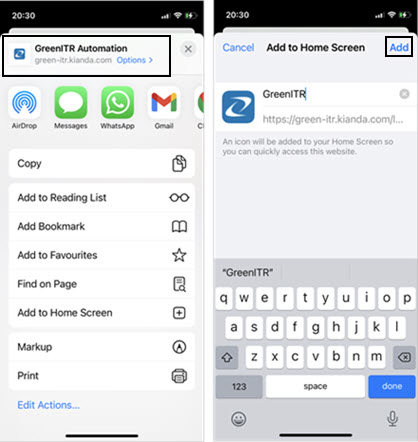
-
Confirm Installation:
Tap Add. The Kianda icon now appears on your home screen. Launching it opens your branded splash screen and then the login prompt. After logging in, you can access your processes as you would on any native app.
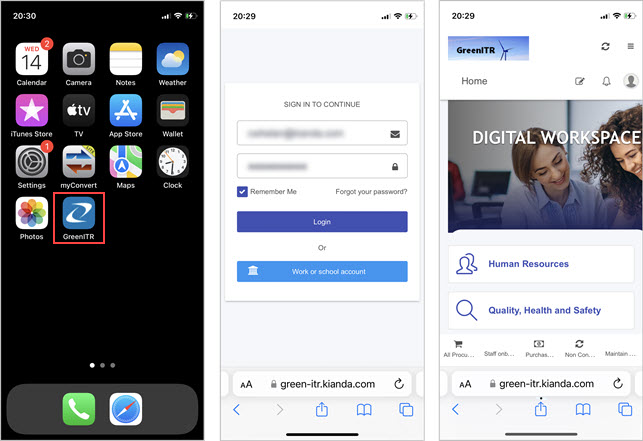
Tips and Best Practices
-
Encourage Users to Install the PWA:
Provide instructions or internal communications explaining how easy it is to install Kianda as a PWA, ensuring widespread adoption.
-
Manage Push Notifications:
If your organization uses push notifications, remind users that they can disable them if desired. For users who opt-in, timely and relevant notifications can improve engagement and responsiveness.
-
Regular Updates:
Keep refining and updating your Kianda processes. Since PWAs update automatically, users always have access to the latest forms and features without manual intervention.
-
Offline Testing:
Periodically test offline scenarios to ensure forms and tasks behave as expected without connectivity. This helps maintain user trust and productivity.
In Summary:
Turning Kianda into a Progressive Web Application provides a smooth, offline-capable, and engaging experience that feels just like a native mobile app—without the overhead of app store submissions or complex installations. By following the steps above and leveraging Kianda’s responsive, secure design, you can deliver a seamless, modern, and enterprise-ready application experience to your users.
8 - Webhooks
Learn how to configure webhooks to receive web callbacks from record creation
Webhooks in Kianda provide a straightforward way to notify external applications in real time when certain events occur within your workspace. Rather than constantly polling Kianda for updates, webhooks allow you to react immediately whenever process instances are created, updated, or deleted. This makes event handling efficient and responsive.
When a webhook event fires, Kianda sends an HTTP GET request to the configured URL(s), passing along essential details such as the process name, instance ID, and the type of event. Your external application can then use this information to update its own records, trigger workflows, or perform any other actions needed.
Note: The callback request has a timeout of 10 seconds. If your external service does not respond within this time, the request may fail.
Setting Up Webhooks in Kianda
To implement webhooks, you need an Administrator or Developer role. For more details on roles, see Users & Groups.
-
Open the Developer Resources:
- Go to Administration in the left-hand sidebar.
- Click on Developer to open the Developer resources page.
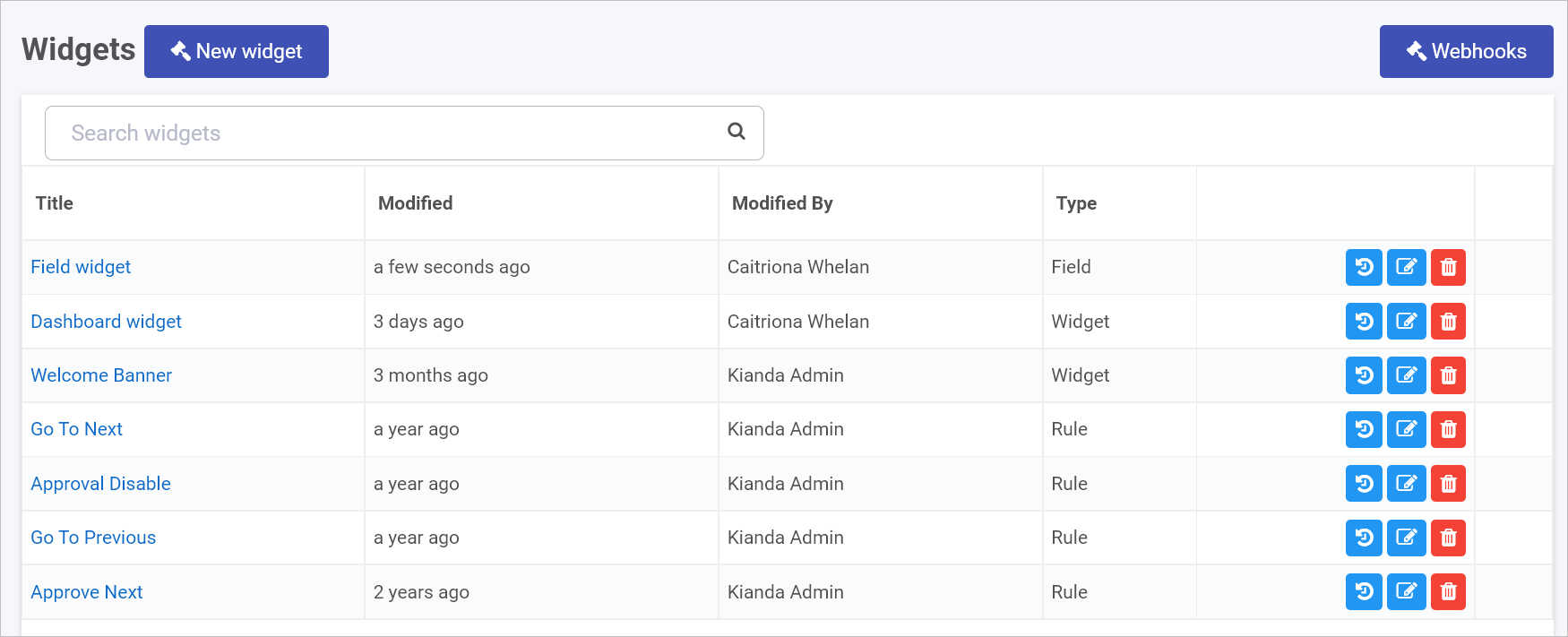
-
Access Webhooks:
- Click on Webhooks to configure callback URLs.
-
Configure Instance Callback URLs:
-
Enable and Specify Callbacks:
Turn on the relevant callback(s) using the sliders, then provide the URL(s) that Kianda should call when the selected event occurs.
-
Created Callback: Fires whenever a new process instance is created.
- Kianda sends a HTTP GET request with parameters:
instanceID={instanceID}&processName={processName}&eventType=created
-
Updated Callback: Fires whenever a process instance is updated.
- Kianda sends a HTTP GET request with parameters:
instanceID={instanceID}&processName={processName}&eventType=updated
-
Deleted Callback: Fires whenever a process instance is deleted.
- Kianda sends a HTTP GET request with parameters:
instanceID={instanceID}&processName={processName}&eventType=deleted
For each event type, you can enter one or more URLs (one URL per line) to notify multiple services simultaneously.
-
Help and Guidance:
If you need more details, click the Help button  to see additional instructions and examples.
-
Save Your Settings:
- Click OK to confirm your settings.
- Click Close if you want to exit without saving.
Once configured, Kianda will send HTTP GET requests to the specified URLs whenever the corresponding event occurs. You can then build logic in your external application(s) to handle these events—updating records, triggering other workflows, or integrating with third-party services.
In summary, Kianda’s webhook functionality allows your workspace to seamlessly connect with external applications in real time, reducing the need for constant polling and making it easier to maintain synchronized data and processes across systems.
9 - Introduction to Ember.js in Kianda
Learn about the emberjs in Kianda
Kianda’s front-end is built on Ember.js, a framework designed for creating rich, interactive web applications. Ember provides a powerful structure for building interfaces that dynamically respond to user input and data changes. To produce its UI, Ember uses Handlebars, a templating language that makes it easy to bind data models to your HTML.
If you’re familiar with modern web development, you’ll find Ember’s approach intuitive: templates, components, and data binding come together to create a smooth, dynamic user experience within Kianda’s low-code environment.
Handlebars: Templating Made Easy
Handlebars is a templating language that lets you write declarative HTML with embedded expressions. These expressions—enclosed in {{double curly braces}}—are automatically replaced by values from your data models.
For example:
<p>{{firstname}} {{surname}}</p>
If the data model provides:
{
  firstname: "Ryan",
  surname: "B'Oul"
}
The rendered HTML is:
This simple approach makes it easy to display dynamic data without writing complex logic. When data updates, the template refreshes automatically, ensuring users always see the latest state.
Using Properties and Dot Notation
Handlebars supports “dot notation” to access nested properties in objects:
<p>{{person.firstname}} {{person.surname}}</p>
If person is an object with firstname and surname properties, Handlebars will replace them in the template, keeping your markup clean and readable.
Built-in Helpers
Ember and Handlebars include helpers—functions used inside templates to handle common tasks. For example, each lets you iterate over arrays:
<ul>
  {{#each employee as |name|}}
    <li>{{name}}</li>
  {{/each}}
</ul>
Given:
{
  employee: ["Ryan B'Oul", "Mike Balcoome", "Maddie Lehane"]
}
The template renders:
<ul>
  <li>Ryan B'Oul</li>
  <li>Mike Balcoome</li>
  <li>Maddie Lehane</li>
</ul>
Similarly, if conditions let you show or hide content based on data:
{{#if manager}}
  <h1>{{firstname}} {{lastname}}</h1>
{{/if}}
If manager is true, the heading appears; if not, it’s hidden. Helpers let you add simple logic to templates without cluttering your code.
Creating Custom Helpers
You can extend Ember’s capabilities by writing your own helpers. For instance, you might create a helper to format dates or combine multiple properties. This keeps your templates clean and your logic reusable.
Inspecting the App with Ember Inspector
To better understand Kianda’s components and data, you can use the Ember Inspector—a browser add-on that helps you explore the internal structure of Ember apps. With it, you can:
- Inspect components and their properties.
- Understand the data models and routes.
- See which templates are used for specific UI elements.
How to Get Started with Ember Inspector:
- Install the Ember Inspector from the Chrome Web Store or your browser’s add-ons marketplace.
- Open your Kianda workspace and log in.
- Right-click on the page and select Inspect.
- Navigate to the Ember tab in the developer tools.
- Explore components, routes, and data to learn how Kianda’s UI is constructed.
Components and Properties
In Kianda, many UI elements—like fields, rules, and dashboard widgets—are implemented as Ember components. By inspecting them with the Ember Inspector, you can discover their properties and understand how they’re rendered. This knowledge can guide you when creating your own custom widgets or applying advanced customizations.
In Summary:
Ember.js and Handlebars provide a robust foundation for Kianda’s dynamic interfaces. Handlebars lets you write simple, declarative templates tied directly to your data, while Ember’s helpers and components help keep your application organized and responsive. Combined with tools like the Ember Inspector, these technologies give you the power to understand and customize Kianda’s front-end to suit your needs.
10 - Custom Connector Development
Learn about custom connectors, what they are and why they are used
What are Custom Connectors?
Kianda provides predefined datasource connectors such as the SQL server and SharePoint to allow you to connect your processes to particular data sources. A complete list of these predefined datasources is available at Data connectors. In addition to these predefined connectors, you can also create Custom connectors to enable you to configure your own connector to suit your needs.
Connectors in Kianda rely on a secure micro-service architecture that uses HMAC 256 to allow the configuration and connection to data sources.
Custom connectors work in the same way as other Kianda connectors, but with the added benefit of customisation.
The key components for a connector are:
- Backend micro-service to handle the actual connection to data sources
- Front-end data source configuration component (Handlebars + JavaScript)
- Security Keys (ClientID + Secret Key)
What are Custom Connectors used for?
Custom connectors provide the infrastructure to allow developers to create a custom datasource, it provides hooks for pre- and post-processing of the query and the ability to customise the datasource settings for the connector.
Custom Connector VS Datasource
As previously mentioned, the Kianda platform provides a list of predefined datasource connectors, such as SharePoint, SQL server and SAP. These however cannot be customized for an individual companies needs.
Custom Connectors provide end-to-end customisation for datasource connections. The Custom Connector provides the architecture to allow customisation of pre- and post-processing of database queries.
For example when using a SharePoint data source you can use parameters for example selection of the environment and user credentials, but if you needed extra parameter, you could use the custom connector to provide this ability.
How to get started
There are three key steps that need to be implemented in order to create and use a customised connector as follows:
-
Microservice - create a microservice that will implement metadata, query and test functions. <!– click on the Microservice link to get further details. –>
-
Use Kianda features to create and test your customised connector - use Developer to register a new connector<!– register a new connector –> and use Data sources to <!– create a datasource –> create a datasource for the newly customised connector. Both of these features are available under Administration
-
Process - use the custom connector to bring data into a process and use the query hook to filter the data. Use Kianda Designer to connect your data source to Kianda forms, for example a List control can connect to a datasource, see step 9 in List control.
What’s next 
To create a test service, follow the 3 steps above, or if you have already created a microservice go straight to steps to create a custom connector to learn how to create a custom connector.
10.1 - Microservice Creation
What is a Microservice
A microservice is a self contained independent service, usually hosted in the cloud, which can integrate with applications through REST APIs. Microservices allow developers to focus on developing a service without worrying about dependencies.
A microservice can be developed using almost any programming language.
Prerequisites
Before you get started, check that the following prerequisites are in place:
- Ability/permissions to create resources with a cloud platform, for example, Google Cloud, AWS or Azure
- Administration role or permissions within an Admin group within Kianda, see Users and Groups for more information
- Visual Studio installed or other text editor for your chosen programming language
Microservice Requirements
Your microservice should implement the following three functions:
- Test
- Metadata
- Query
It is required that the microservice uses security best practices, to encrypt sensitive data using AES encryption and verify that each request and response is secure using a HMAC signature.
Microservice Development
The following steps for development will use Microsoft Azure cloud as an example, however, other cloud computing platforms with similar features can be used resulting in different naming conventions. The key steps are:
-
Create a serverless Azure function app in Visual Studio by creating a new project, searching for Azure functions and using this as a template to get started. As well as the pre-defined libraries in the template, you must also add the following:
using System.Security.Cryptography;
using System.Text;
using Newtonsoft.Json.Linq;
using System.Collections.Generic;
using System.Linq;
-
Implement the functions for Test, Metadata and Query. Click on each of the links to read more. The steps highlighted in bold are unique to the specific function, while the other steps are repeated in all three functions.
-
Debug locally and test using a tool such as Postman or download Kianda Cloud Connect.
-
Deploy to Azure.
Test
The Test function ensures that the user is authorized to use the datasource. If they are not authorized then this function can be used to authorize the user and retrieve an access token for any further requests.
The steps involved in creating the test function are as follows:
-
Deserialize the data in the custom connector request - see schema for details and Test sample code.
-
Decrypt the encrypted settings property bag using the shared secret key and the Decrypt function, see Encryption/Decryption sample code for an example.
-
Authorize the user and retrieve bearer token for subsequent requests and save the token to the settings property bag.
-
Add the oauth token to the settings property bag and encrypt using your secret key.
-
Create custom connector response and include success message to indicate test succeeded/failed.
-
Sign the response using the EncryptdatawithHMACSHA256 method and include in the custom connector response, see Encryption/Decryption sample code for an example.
To help you get started, see sample code for the Test function by going to Test sample code.
The Metadata function provides the list of available endpoints in the microservice and is called when selecting the datasource in a Kianda process, for example use a particular datasource to populate a List field in a Kianda form.
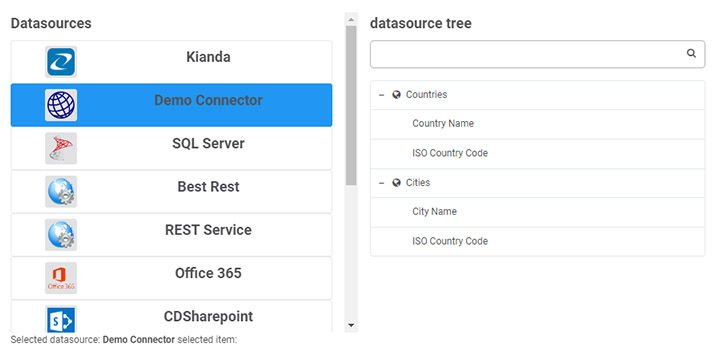
The steps involved in creating the metadata function are as follows:
-
Deserialize the data in the custom connector request - see schema for details.
-
Decrypt the encrypted settings property bag using the shared secret key and the Decrypt function see Encryption/Decryption sample code for an example.
-
Create a JSON tree structure similar to the one found at Tree schema.
-
Create custom connector response and include success message to indicate success/failure.
-
Create a signature string using the EncryptdatawithHMACSHA256 method and include in the custom connector response, see Encryption/Decryption sample code for an example.
To help you get started, see sample code for the Metadata function by going to Metadata sample code.
Query
The Query function is where the execution of the datasource methods occurs, the metadata function provides the list of available methods.
The steps involved in creating the query function are as follows:
-
Deserialize the data in the custom connector request - see schema for details.
-
Decrypt the encrypted settings property bag using the shared secret key and the Decrypt function - see Encryption/Decryption sample code for an example.
-
Get the query object from the request - see schema for details, and call the function related to the query in the datasource .
-
Create custom connector response and include success message to indicate query succeeded/failed.
-
Create the query result object - see schema for details, and include in the custom connector response.
-
Sign the response using the EncryptdatawithHMACSHA256 method and include in the custom connector response, see Encryption/Decryption sample code for an example.
To help you get started, see sample code for the Query function by going to Query sample code.
Security
AES256
Advanced Encryption Standard (AES) is the technique used to encrypt sensitive data. This is a symmetric encryption technique, which means the same key is used to encrypt and decrypt the data, it is also a 2-way encryption algorithm.
HMAC
Hash based Message Authentication Code (HMAC) is used to ensure query responses are coming from the correct end point. HMAC is also an encryption algorithm but unlike AES it’s one-way encryption, meaning it isn’t decrypted on the other side. It is used for verification, for example if we encrypt a secret key using HMAC with a request id and then do the same in the response, we can verify that we have got the response back from the correct endpoint and know that it has not been tampered with because both hashes will match. The hash used is SHA256.
With AES we are encrypting and decrypting data and this method is fast and secure for large data, while with HMAC we use it to simultaneously verify both the data integrity and authenticity of a message.
Schemas required for Custom Connectors
Custom Connector Request
	public class CustomConnectorRequest
        {
            public string subscriptionId { get; set; }
            public string userId { get; set; }
            public string requestId { get; set; }
            public string action { get; set; }
            public string encryptedSettingsPropertyBag { get; set; }
        	public byte[] iv { get; set; }
            public Query query { get; set; }
        }
Request Query Object
   public class Query {
        public string id { get; set; }
        public string action { get; set; }
        public JObject info { get; set; }
        public string orderBy { get; set; }
        public bool orderAscending { get; set; }
        public string paging { get; set; }
        public int rowLimit { get; set; }
        public List<string> fields { get; set; }
        public Dictionary<string, object> mappings { get; set; }
        public string filter { get; set; }
        public string filterBy { get; set; }
        public string filterMode { get; set; }
        public string signature { get; set; }

    }
Custom Connector Response
public class CustomConnectorResponse
    {
        public string requestId { get; set; }
        public string signature { get; set; }
        public string encryptedSettingsPropertyBag { get; set; }
    	public byte[] iv { get; set; }
        public QueryResult queryResult { get; set; }
    }
Response QueryResult
public class QueryResult
        {
            public bool success { get; set; }
            public string message { get; set; }
            public JObject data { set; get; }
            public List<JObject> items { get; set; }
            public string resultCount { get; set; }
            public string signature { get; set; }
        }
Retrieving URLs for Custom Connector settings
When you have created the Test, Metadata and Query functions and your microservice is running, you should receive an output similar to the following shown using Azure functions:
These URLs will be used in the Connector Settings tab when creating the Custom Connector.
What’s next
Once your Microservice is deployed, you are ready to start creating a custom connector go to steps to create a custom connector.
10.2 - Sample schemas
This page features sample schemas for parameters used in the Query Code tab when creating a customised data connector.
Each section below features exemplar schemas and parameters to help you when creating code for your hooks in the Query Code tab.
The Metadata hook in the Query Code tab typically looks like the following, using two parameters: tree and datasource.
metaData(tree, datasource) {
    return tree;
  }
Sample schemas for tree and datasource are available by clicking on the links.
Tree schema
{
    "text": "Countries And Cities",
    "name": "countriesAndCities",
    "icon": "fa fa-database",
    "selectable": false,
    "nodes": [
        {
            "text": "Countries",
            "icon": "",
            "desc": "",
            "nodes": [
                {
                    "text": "Country Name",
                    "name": "countryName",
                    "type": "string",
                    "desc": "",

                },
                {
                    "text": "ISO Country Code",
                    "name": "ISOCode",
                    "type": "string",
                    "desc": ""
                }
            ]
        },
        {
            "text": "Cities",
            "name": "cities",
            "icon": "",
            "desc": "",
            "nodes": [
                {
                    "text": "City Name",
                    "name": "cityName",
                    "type": "string",
                    "desc": ""
                },
                {
                    "text": "ISO Country Code",
                    "name": "ISOCode",
                    "type": "string",
                    "desc": ""
                }
            ]
        }
    ]
}
To return to Microservice development, click on the Microservice link.
Datasource schema
Note: The same structure below can be used used in both Query hooks and Query success hooks, although data will vary slightly.
{
  "id": "2fe2d2c7-4feb-4c92-ac4c-fed4623d2d6e",
  "title": "Demo Connector",
  "type": "client",
  "typeIcon": "http://localhost:4171/public-file/322f14a6-63a0-4c68-b53e-4ca041c0e9ae/Geo-Connector-Icon.png",
  "typeTitle": "Demo Connector",
  "candelete": false,
  "readOnly": false,
  "status": "ready",
  "useConnector": false,
  "connectorId": "",
  "clientConnectorId": "19275478-68a9-43be-b8fb-54dc310cc0d6",
  "settings": {},
  "modified": "2022-11-11T15:12:44.173Z",
  "enableB2B": true,
  "enableFiltering": false,
  "b2bMappings": [],
  "modifiedBy": "5650d471-8c41-49b6-8f72-b77dddf3b956",
  "admins": [],
  "allowedUsers": [],
  "exclusionUsers": []
}
The Query hook in the Query Code tab typically looks like the following, using four parameters: datasource, query, rule and process.
 query(datasource, query, rule, process) {
     return query;
  }
Sample schemas each are available by clicking on the relevant links: datasource, query, rule, and process are available by clicking on the links.
Query schema
{
   "action": "select",
   "info": {
      "text": "Cities",
      "name": "Cities",
      "type": "item"
   },
   "rowLimit": 100,
   "conditions": [
      {
         "group": "and",
         "conditions": [
            {
               "id": "b3fe6a0b-c455-4560-abde-b5b7291d1ca8",
               "operator": "eq",
               "arg1": {
                  "name": "countryName",
                  "text": "Country Name",
                  "title": "Country Name",
                  "icon": "",
                  "type": "string",
                  "desc": ""
               },
               "arg2": {
                  "text": "Name",
                  "name": "name",
                  "type": "field",
                  "id": "07b1e8ab-9260-478c-a3e2-487aa0ee56f8",
                  "fieldType": "fields/field-textbox",
                  "date1": null,
                  "date2": null,
                  "value": "London"
               },
               "group": "and"
            }
         ],
         "id": "b6597e4d-60f1-44da-863a-e15287f72f1a"
      }
   ],
   "orderAscending": false
}
Rule schema
Note: This is similar to the rule used in the Query success hook.
The following sample rule schema is for a find-items rule which maps the response from the connector query to a table, notice the inputmapping and output mapping.
{
  "title": "Find items 3",
  "action": "rules/rule-finditems",
  "originalId": "5e6d1abc-1c5f-471c-b1f2-4bc038d7aefd",
  "enabled": true,
  "schedule": "default",
  "settings": {
    "inputMapping": [
      {
        "lefterror": "has-error",
        "righterror": "has-error"
      }
    ],
    "outputMapping": [
      {
        "left": {
          "text": "Country Name",
          "name": "country-name",
          "id": "6070ad52-7e4e-4a96-aa6b-320266644d93",
          "type": "field",
          "fieldType": "fields/field-textbox",
          "selectable": true,
          "icon": "fa fa-text-height"
        },
        "right": {
          "text": "Country Name",
          "name": "countryName",
          "type": "datafield"
        },
        "lefterror": "",
        "righterror": ""
      },
      {
        "left": {
          "text": "ISO Country Code",
          "name": "ISOCode",
          "id": "c2246c9a-af60-4fd0-9ac6-3195c456d3ff",
          "type": "field",
          "fieldType": "fields/field-textbox",
          "selectable": true,
          "icon": "fa fa-text-height"
        },
        "right": {
          "text": "ISO Country Code",
          "name": "ISOCode",
          "type": "datafield"
        },
        "lefterror": "",
        "righterror": ""
      }
    ],
    "errorMapping": [],
    "rowLimit": 100,
    "list": {
      "text": "Countries",
      "name": "Countries",
      "type": "item"
    },
    "mapToTable": "yes",
    "offlineCache": "no",
    "overrideTable": "yes",
    "serverPaging": "no",
    "table": {
      "text": "Table 1",
      "name": "form1-f4",
      "id": "7746f138-a913-4438-ba65-4905d8453d57",
      "type": "field",
      "fieldType": "fields/field-table",
      "selectable": true,
      "icon": "fa fa-table",
      "nodes": [],
      "visible": true,
      "rows": [
        {
          "text": "row1",
          "name": "form1-f4-row1",
          "id": "219e1d44-a997-4f76-b815-f409fdcb4774",
          "type": "field",
          "fieldType": "fields/table-row",
          "selectable": false,
          "nodes": [
            {
              "text": "Country Name",
              "name": "country-name",
              "id": "6070ad52-7e4e-4a96-aa6b-320266644d93",
              "type": "field",
              "fieldType": "fields/field-textbox",
              "selectable": true,
              "icon": "fa fa-text-height"
            },
            {
              "text": "ISO Country Code",
              "name": "ISOCode",
              "id": "c2246c9a-af60-4fd0-9ac6-3195c456d3ff",
              "type": "field",
              "fieldType": "fields/field-textbox",
              "selectable": true,
              "icon": "fa fa-text-height"
            }
          ],
          "visible": true,
          "state": {
            "expanded": true
          }
        }
      ]
    },
    "lastExecuted": "2022-12-14T17:29:42.425Z"
  },
  "elseSettings": {},
  "hasElse": false
}
Process schema
Note: This is similar to the process used in the Query success hook.
{
  "processVersion": "1.1",
  "processName": "connector-example",
  "isCreated": false,
  "isOfflineCreated": false,
  "isOfflineUpdated": false,
  "uniqueID": "45758d2b-f713-44c9-81dc-0e4cb7618902",
  "title": "connector example",
  "type": "Process",
  "name": "connector-example",
  "desc": "",
  "version": "1.0",
  "modified": "2022-11-14T09:33:46.254Z",
  "created": "2022-11-11T15:13:28.108Z",
  "status": "form 1",
  "securityMode": null,
  "enableSecurity": false,
  "deleted": false,
  "rejected": false,
  "completed": false,
  "settings": {
    "keepRuleExecutionOrder": "yes",
    "buttonDisplayFlag": true,
    "mobileNav": "yes",
    "comments": "",
    "offline-tag": "45758d2b-f713-44c9-81dc-0e4cb7618902"
  },
  "partnerId": null,
  "instanceIDFormat": null,
  "customInstanceIDFormat": null,
  "isPartner": false,
  "isDraft": true,
  "publish": false,
  "allowNew": false,
  "visMode": null,
  "group": null,
  "fieldsUpdated": null,
  "modifiedBy": null,
  "createdBy": null,
  "currentForm": "5af0c34e-28ea-4404-bba3-a8cf2df8eaff",
  "partner": null
}
The Query success hook in the Query Code tab typically looks like the following, using four parameters: datasource, result, rule and process.
 querySuccess(datasource,result,rule,process) {
    // this.get("dataservice").mapSuccess(result,rule,process); //uncomment to use default mapping behaviour
   return result;
  }
Sample schemas each are available by clicking on the relevant links: datasource, result, rule, and process are available by clicking on the links.
Result schema
{
    "success": true,
    "items": [
        {
            "countryName": "England",
            "ISOCode": 123
        },
        {
            "countryName": "Ireland",
            "ISOCode": 124
        }
    ]
}
What’s next
To discover how to use your customised data connector widget in Kianda process design, go to Kianda application designer.
To create other widgets go to Custom field widget, Custom dashboard widget and Custom rule widget pages to find out more.
To return to the previous pages click on the links below 
10.3 - Steps to create a custom connector
This section will detail how to create a new Custom Connector which is a customised data connector for your organisation.
Note: You must be have an Administrator or Developer role to create a custom connector.
Before you begin
Please note before you begin that there are three key steps that need to be implemented in order to create and use a customised connector.
-
Microservice - create a microservice that will implement metadata, query and test functions, click on the Microservice link to get further details.
-
Use Kianda features to create and test your customised connector - use Developer to register a new connector and use Data sources to create a connector datasource for the newly customised connector.
-
Process - use the custom connector to bring data into a process and use the query hook to filter the data.
Register a new connector
To create a new customised connector, follow the steps below:
- From the left-hand side menu, go to Administration > Developer then within the Connectors panel click on New Connector.
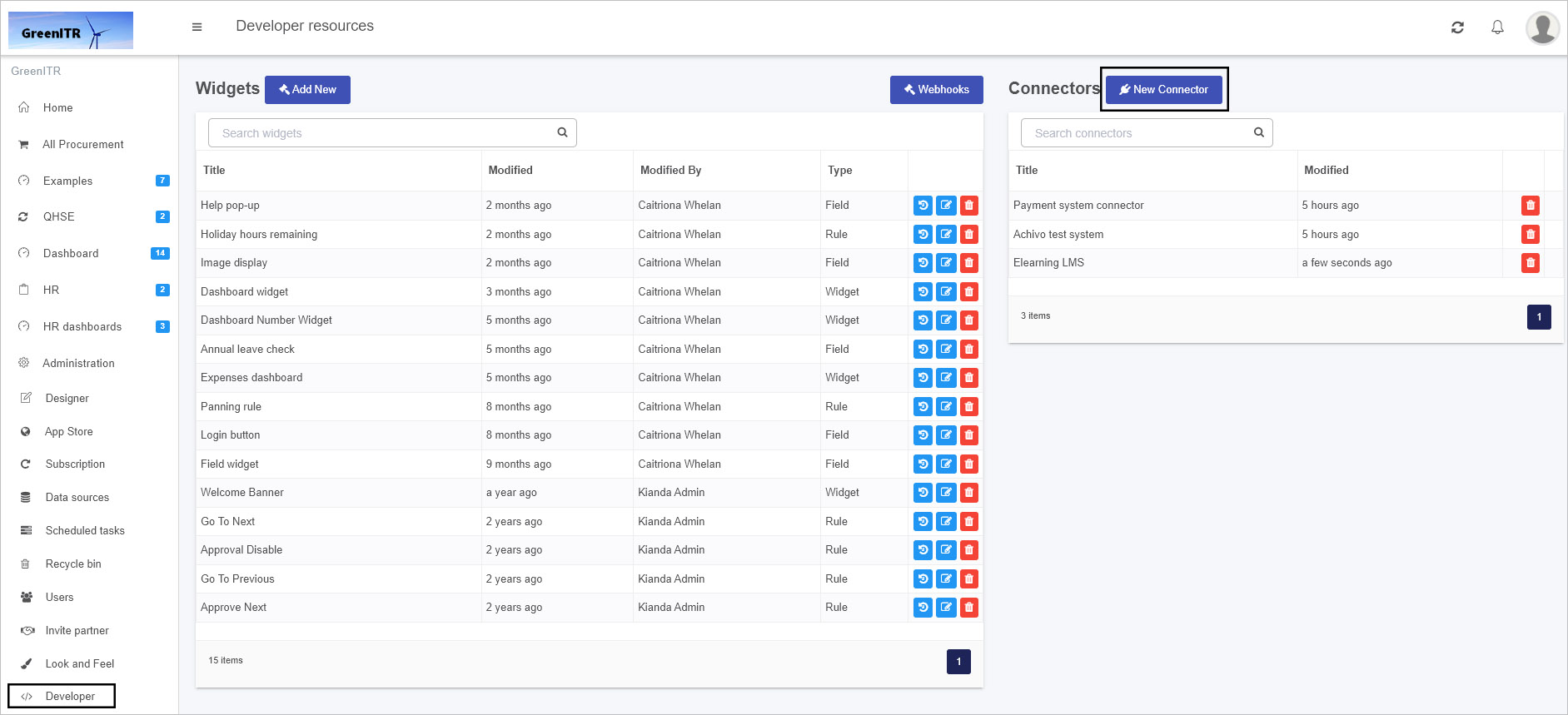
-
In the Create Connector dialog box, add a Title and browse for an Icon URL for your connector. The Connector Unique ID is automatically generated by the system.
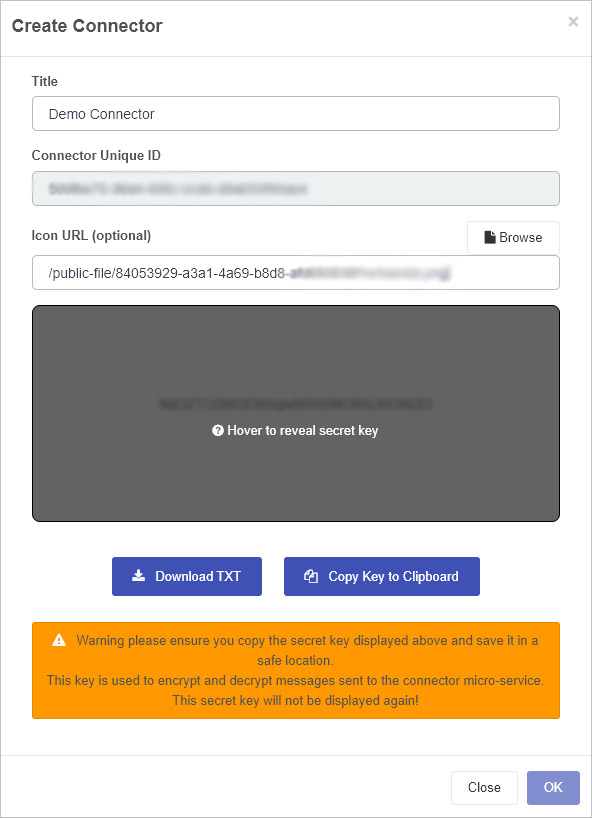
-
Make sure to copy the secret key to a safe location where you will find it as it will be needed later. You can do this by a) clicking on Download TXT which will result in the Secret Key being downloaded as a CSV file or b) clicking on Copy Key to Clipboard, then click on OK when done.
-
Ensure that this secret key is added to your Microservice code, see Encryption and Decryption sample code, where you need to replace the string in the GetSecretKey function as shown below:
 private static string GetSecretKey()
        {
            return "{secret key generated from Kianda}"; //REPLACE ME
        }
-
After populating the initial dialog box, the next screen will show you the title of the connector and contains four tabs: Connector Settings, Settings UI, Settings Code and Query Code.
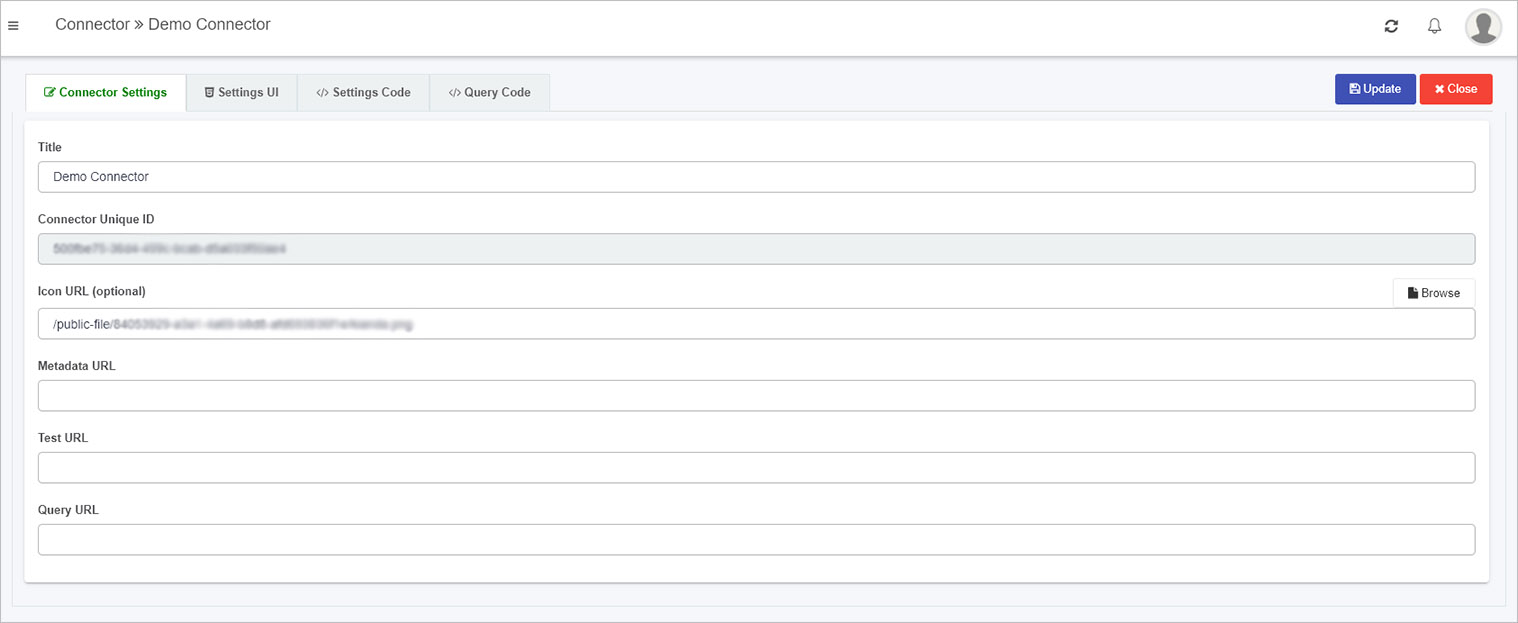
The details of these tabs are found in the following sections.
Connector Settings tab
This is where the Connector Title and Icon can be changed. These details will be seen in the Data connectors function, once the customised connector is created.
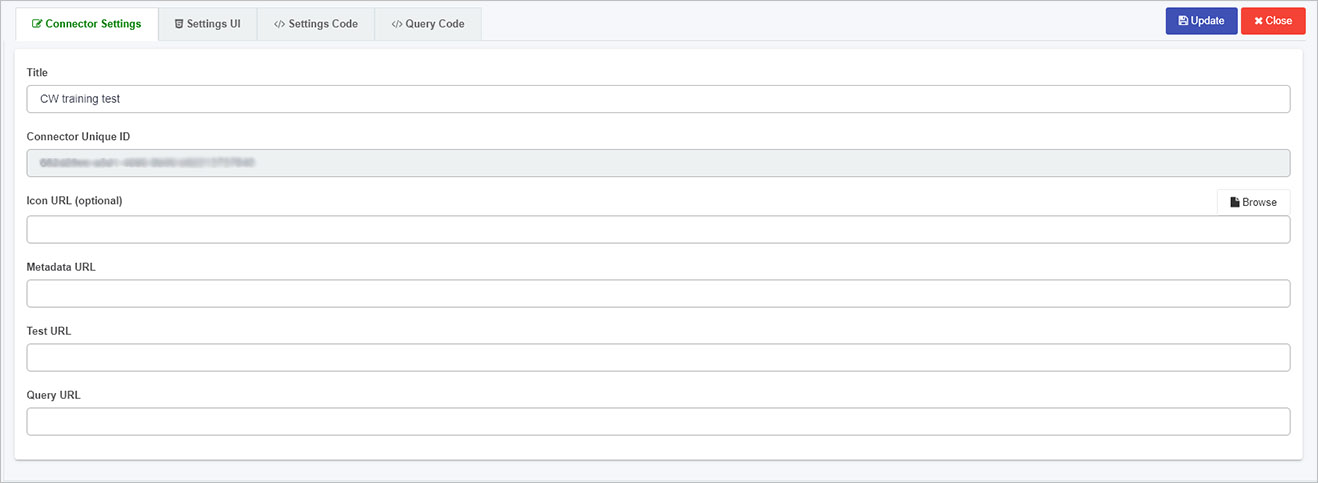
The URLs for metadata, test and query can be edited here too. The Metadata, Test and Query URL’s can be populated when the microservice is created, see Create a Microservice link for more details.
For example when your Microservice is running you should receive an output similar to the following shown using Azure functions and use these URLs in the Connector Settings tab.
To save details click on Update, then click on Close to return to the Developer resources page.
Settings UI tab
The Settings UI sets the user interface for a customised data connector within the Data sources function, found within Administration in the left-hand pane. By default there is sample code in this tab. This code will be rendered when the datasource for this connector is activated.
<div class="form-group">
   <label class="control-label">Client ID</label>
   {{input type="text" value=datasource.settings.clientID class="form-control"}}
</div>
<div class="form-group">
   <label class="control-label">Readwrite </label>
   {{radio-button default=true name='readwrite' label='No' value='no' group=datasource.settings.readwrite}}
   {{radio-button name='readwrite' label='Yes' value='yes' group=datasource.settings.readwrite}}
</div>
<div class="form-group">
   <button type="button" class="btn btn-primary" {{action 'authorize'}}>
   {{#if datasource.settings.authorized}}
   Re-Authorize
   {{else}}
   Authorize
   {{/if}}
   </button>
</div>
This code creates the content on the screen seen below, available in the Data sources function on the Datasource details page. Within the class form-group listed in the code above there is an Environment setting with labels ‘Demo’ and ‘Live’ which can be seen in the screen below. Also note an Authorize button added in the code above which has an action ‘authorize’ which is handled by the code in the Settings Code tab.
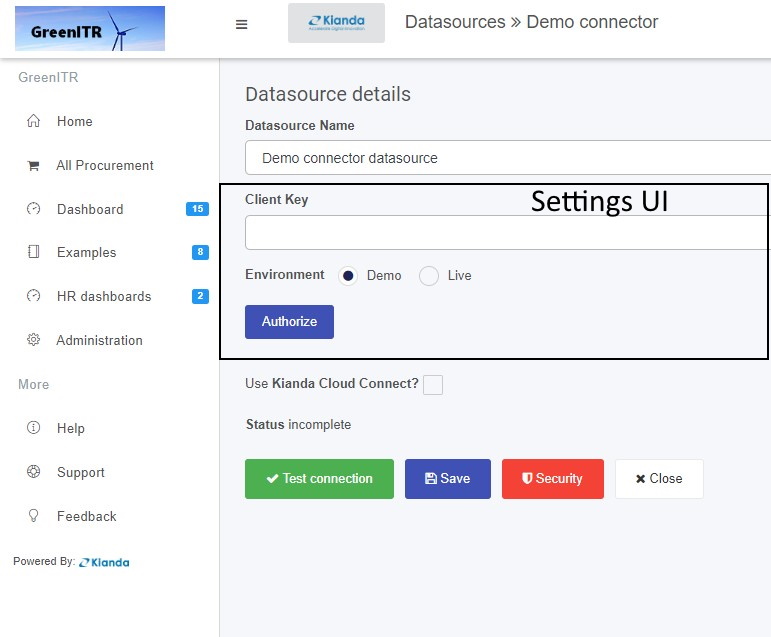
Other details on the screen above, like the name of the page Datasource details, Use Kianda Cloud Connect and buttons Test connection, Save, Security and Close are automatically part of the UI for customised data connectors. However, custom handlebars can be added for the settings of the connector datasource using code in the Settings UI tab, namely fields like Datasource Name and Client Key as shown in the image above. This principle works the same as Widget UI, which is seen when creating custom rule widgets or field widgets for example.
Settings Code
In a similar manner to creating custom rule widgets or field widgets where there are Widget code tabs, the connector widget has a tab called Settings Code which is used to create the JavaScript code for the settings UI.
By default there is code in this tab, for example the Authorize button shown in the Datasource details page above has an ‘authorize’ function which is the first segment of code below.
{
   actions: {
      authorize() {
         let clientId = this.get("datasource.settings.clientID");
         let redirectUri = 'https://app.kianda.com/index.html';
         let scope = 'openid User.Read.All Directory.Read.All ';
         var readWrite = this.get("datasource.settings.readwrite");
         if (readWrite === 'yes') {
            scope += 'Directory.ReadWrite.All Group.ReadWrite.All User.ReadWrite.All Directory.AccessAsUser.All';
         }
         this.set("scope", scope);
         let guid = uuidv4();
         let consentUrl = 'https://login.microsoftonline.com/common/oauth2/v2.0/authorize?' +
            'client_id=' + clientId +
            '&response_type=code' +
            '&redirect_uri=' + redirectUri +
            '&response_mode=query' +
            '&scope=' + scope +
            '&state=' + guid +
            '&prompt=login';
         var authWindow = window.open(consentUrl, '_blank', 'height=750,width=700,scrollbars=yes,location=yes');

         try {
            authWindow.focus();
         } catch (e) {
            $.notify('Error during authentication, please try again', {
               status: 'warning'
            });
         }
         var that = this;
         var handleCallback = function (evt) {
            if (that.isDestroyed !== true && evt.origin.indexOf('kianda.com') > -1 && evt.data) {

               let accessCode = evt.data;

               let scope = that.get("datasource.settings.scope");
               let openid = that.get("datasource.settings.openid");
               that.set('datasource.settings.accessCode', accessCode);
               that.set('datasource.settings.accessToken', null);
               that.set('datasource.settings.refreshToken', null);
               that.set('datasource.settings.authorized', false);
               that.set("datasource.settings.scope", scope);
               that.datasource.save().then(function () {
                  that.sendAction('test', that.datasource);
               });
            }


            window.removeEventListener('message', handleCallback);
         };
         window.addEventListener('message', handleCallback, false);
      }
   }


}
Other aspects to note in this sample code are the datasource settings, for example datasource.settings.accessToken and datasource.settings.environment denoting that you can add whatever settings you want to the UI within the Datasources details page using this type of code. These settings could be then used in a Microservice to create an action based on a chosen setting.
Query Code
When using a data source, all data sources will have built-in metadata, query and querySuccess functions to allow content searches, including metadata content or information about the content, such as title, author and creation date. The Query code tab contains the code needed for these three functions. Default code is provided to help you get started, see below.
{
  metaData(tree, datasource) {
    return tree;
  },
  query(datasource, query, rule, process) {
    return query;
  },
  querySuccess(datasource,rule,result,process) {
     //this.get("dataservice").mapSuccess(result,rule,process); //uncomment to use default mapping behaviour
    return result;
  }
}
The default code contains three hooks that allow you to tap in to a module to trigger certain behaviours or actions. These hooks are:
Click on each of the links above to see further details.
In Ember, bubbling will search for each of the actions in the code above, and if not found, then a default action is used, but if found the default is overwritten. This principle is useful when something is created multiple times which is the case when creating custom data connectors.
The Metadata hook is where the return of the tree or metadata call can be altered for a chosen datasource used in Kianda form design.
The treeparameter as part of this hook is seen in the sample code snippet below.
  metaData(tree, datasource) {
    return tree;
  }
An example of the tree structure is shown below.
The tree follows the structure that there is a root node, in this example Countries and Cities is the root. The tree can be customised by adding an icon and making nodes selectable.
{
  "text": "Countries And Cities",
  "name": "countriesAndCities",
  "icon": "fa fa-database",
  "selectable": false,
  "nodes": [
    {
      "text": "Countries",
      "icon": "",
      "desc": "",
      "nodes": [
        {
          "text": "Country Name",
          "title": "Country Name",
          "name": "countryName",
          "type": "string",
          "desc": ""
        },
        {
          "text": "ISO Country Code",
          "title": "ISO Country Code",
          "name": "ISOCode",
          "type": "string",
          "desc": ""
        }
      ],
      "fields": [
        {
          "text": "Country Name",
          "title": "Country Name",
          "name": "countryName",
          "type": "string",
          "desc": ""
        },
        {
          "text": "ISO Country Code",
          "title": "ISO Country Code",
          "name": "ISOCode",
          "type": "string",
          "desc": ""
        }
      ]

    },
    {
      "text": "Cities",
      "name": "cities",
      "icon": "",
      "desc": "",
      "nodes": [
        {
          "text": "City Name",
          "title": "ISO Country Code",
          "name": "cityName",
          "type": "string",
          "desc": ""
        },
        {
          "text": "ISO Country Code",
          "title": "ISO Country Code",
          "name": "ISOCode",
          "type": "string",
          "desc": ""
        }
      ],
      "fields": [
        {
          "text": "City Name",
          "title": "ISO Country Code",
          "name": "cityName",
          "type": "string",
          "desc": ""
        },
        {
          "text": "ISO Country Code",
          "title": "ISO Country Code",
          "name": "ISOCode",
          "type": "string",
          "desc": ""
        }
      ]
    }
  ]
}
This structure will result in the output as shown in the image below,
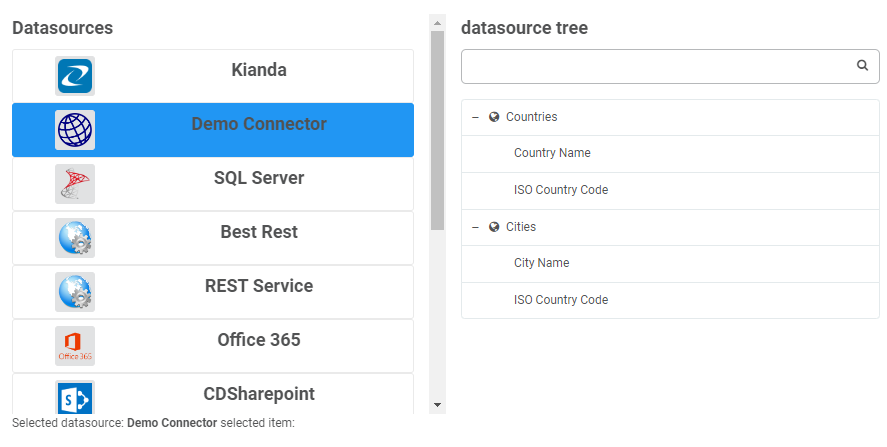
Query Hook
The Query hook allows a query to the datasource to be customised. Parameters are passed into this function to allow customisation to happen. These parameters are: datasource, query, rule and process; sample schemas are available for each at the Sample schema link.
In the sample code below, the filter is obtained by drilling into the query conditions object.
This is just one example of how the query can be customized before being processed, which is an advantage of using custom connectors. Take a look at the query schema for more information
 query(datasource, query, rule, process) {
    if(query.conditions)
    {
      query.filter = query.conditions[0].conditions[0].arg2.value;
    }
    return query;
  }
This ties in with the query success hook which handles the result which is returned from the datasource, which can also be customized.
QuerySuccess hook
The idea of the query success hook is to be able to customize the response of a datasource query for example drill into a complicated json response based on a condition.
querySuccess(datasource,result,rule,process) {
    // this.get("dataservice").mapSuccess(result,rule,process); //uncomment to use default mapping behaviour
   return result;
  }
Once the connector is created, the connector is available from the Data sources function under Administration, see Creating a datasource for details.
10.4 - Sample code for a microservice
Sample code
The following sections provide some sample code to help you get started in creating Test, Metadata and Query functions for your Microservice so that you can test and deploy a Custom Connector in Kianda, allowing you to connect forms and use data from any data source.
Encryption and Decryption sample code
        public static string HashWithHMACSHA256(string key, string value)
        {

            using (var hash = new HMACSHA256(Convert.FromBase64String(key)))
            {
                var hashedByte = hash.ComputeHash(Encoding.UTF8.GetBytes(value));
                var hashed = Convert.ToBase64String(hashedByte);
                return hashed;
            }
        }

        public static string AESEncrypt(string key, string plainData, out byte[] iv)
        {
            var _key = Convert.FromBase64String(key);
            using (Aes aes = Aes.Create())
            {
                aes.GenerateIV();
                aes.Mode = CipherMode.CBC;
                iv = aes.IV;
                aes.KeySize = 256;
                aes.Key = _key;
                using (var encryptor = aes.CreateEncryptor())
                {
                    using (MemoryStream ms = new MemoryStream())
                    {
                        using (CryptoStream cs = new CryptoStream(ms, encryptor, CryptoStreamMode.Write))
                        {

                            using (StreamWriter sw = new StreamWriter(cs))
                                sw.Write(plainData);
                        }
                        return Convert.ToBase64String(ms.ToArray());
                    }
                }

            }
        }


        public static string AESDecrypt(string key, string encryptedData, byte[] iv)
        {
            var buffer = Convert.FromBase64String(encryptedData);
            var _key = Convert.FromBase64String(key);
            using (Aes aes = Aes.Create())
            {
                aes.KeySize = 256;
                aes.Mode = CipherMode.CBC;
                aes.Key = _key;
                aes.IV = iv;
                using (var decryptor = aes.CreateDecryptor())
                {
                    using (MemoryStream ms = new MemoryStream(buffer))
                    using (CryptoStream cs = new CryptoStream(ms, decryptor, CryptoStreamMode.Read))
                    {
                        using (StreamReader sw = new StreamReader(cs))
                            return sw.ReadToEnd();
                    }
                }
            }

        }

        public static string GenerateAESKey()
        {
            using (Aes aes = Aes.Create())
            {
                aes.KeySize = 256;
                aes.GenerateKey();
                return Convert.ToBase64String(aes.Key);
            }
        }

        private static string GetSecretKey()
        {
            return "{secret key generated from Kianda}"; //REPLACE ME
        }
To return to Microservice development, click on the Microservice link.
Test sample code
        [FunctionName("connectorTest")]
        public static async Task<CustomConnectorResponse> connectorTest(
            [HttpTrigger(AuthorizationLevel.Function, "post", Route = null)][FromForm] HttpRequest req,
            ILogger log)
        {
            string SECRET_KEY = GetSecretKey();
            string signature = string.Empty;
            CustomConnectorResponse response = new CustomConnectorResponse();
            response.queryResult = new QueryResult();
            try
            {
                string testBody = await new StreamReader(req.Body).ReadToEndAsync();
                CustomConnectorRequest data = JsonConvert.DeserializeObject<CustomConnectorRequest>(testBody);
                var settings = JsonConvert.DeserializeObject<JObject>(AESDecrypt(SECRET_KEY, data.encryptedSettingsPropertyBag, data.iv));
                var accessCode = settings["accessCode"];
                var clientID = settings["client_key"];

                JObject tokenRequestObj = new JObject
                {
                    ["grant_type"] = "authorization_code",
                    ["client_id"] = clientID,
                    ["redirect_uri"] = "https://app.kianda.com/index.html",
                    ["code"] = accessCode
                };
                signature = HashWithHMACSHA256(SECRET_KEY, data.requestId);
                byte[] iv;
                var encryptedSettings = JsonConvert.SerializeObject(settings);
                var settingsobj = AESEncrypt(SECRET_KEY, encryptedSettings, out iv); //encrypt the settings
                response.encryptedSettingsPropertyBag = settingsobj;

                response.iv = iv;
                response.signature = signature;
                response.queryResult.success = true;
                response.queryResult.message = "Test completed successfully";
            }
            catch (Exception ex)
            {
                log.LogError(ex.Message);
                CustomConnectorResponse result1 = new CustomConnectorResponse();
                return result1;

            }

            return response;
        }
To return to Microservice development, click on the Microservice link.
         [FunctionName("connectorMetadata")]
        public static async Task<CustomConnectorResponse> connectorTree(//metadata
            [HttpTrigger(AuthorizationLevel.Function, "post", Route = null)] HttpRequest req,
            ILogger log)
        {
            string SECRET_KEY = GetSecretKey();
            string requestBody = await new StreamReader(req.Body).ReadToEndAsync();
            CustomConnectorRequest data = JsonConvert.DeserializeObject<CustomConnectorRequest>(requestBody);
            // Do Request for token and update settings object
            var settings = JsonConvert.DeserializeObject<JObject>(AESDecrypt(SECRET_KEY, data.encryptedSettingsPropertyBag, data.iv));

            JObject tokenRequestObj = new JObject
            {
                ["grant_type"] = "authorization_code",
                //["client_id"] = clientID,
                ["redirect_uri"] = "https://app.kianda.com/index.html"
                //["code"] = accessCode
            };
            //settings = GetToken(tokenRequestObj, settings);

            //create the Queryresult
            CustomConnectorResponse result = new CustomConnectorResponse();
            QueryResult resultQuery = new QueryResult();
            result.queryResult = resultQuery;


            //create the return Tree
            string signature = string.Empty;
            List<JObject> CityFields = new List<JObject> { };
            CityFields.Add(new JObject { ["name"] = "cityName", ["title"] = "City Name", ["text"] = "City Name", ["icon"] = "", ["type"] = "string", ["desc"] = "", });
            CityFields.Add(new JObject { ["name"] = "ISOCode", ["title"] = "ISO Country Code", ["text"] = "ISO Country Code", ["icon"] = "", ["type"] = "string", ["desc"] = "" });
            List<JObject> CountryFields = new List<JObject> { };
            CountryFields.Add(new JObject { ["name"] = "countryName", ["text"] = "Country Name", ["title"] = "Country Name", ["icon"] = "", ["type"] = "string", ["desc"] = "", });
            CountryFields.Add(new JObject { ["name"] = "ISOCode", ["text"] = "ISO Country Code", ["title"] = "ISO Country Code", ["icon"] = "", ["type"] = "string", ["desc"] = "" });

            List<JObject> nodes = new List<JObject> { };
            nodes.Add(new JObject { ["name"] = "Countries", ["text"] = "Countries", ["icon"] = "fa fa-globe", ["type"] = "STRUCTURE", ["nodes"] = new JArray { CountryFields }, ["fields"] = new JArray { CountryFields }, ["selectable"] = true });
            nodes.Add(new JObject { ["name"] = "Cities", ["text"] = "Cities", ["icon"] = "fa fa-globe", ["type"] = "STRUCTURE", ["nodes"] = new JArray { CityFields }, ["fields"] = new JArray { CityFields }, ["selectable"] = true });

            //create the tree root to be returned
            List<JObject> root = new List<JObject> { };
            root.Add(new JObject
            {
                ["text"] = "Countries and Cities",
                ["name"] = "CountriesAndCities",
                ["icon"] = "fa fa-database",
                ["selectable"] = false,
                ["nodes"] = new JArray { nodes }

            });

            try
            {
                result.queryResult.items = root;
                result.signature = HashWithHMACSHA256(SECRET_KEY, data.requestId);
                result.queryResult.success = true;
                result.queryResult.message = "Metadata Action Completed";
                byte[] iv;
                var encryptedSettings = JsonConvert.SerializeObject(settings);
                var settingsobj = AESEncrypt(SECRET_KEY, encryptedSettings, out iv); //encrypt the settings
                result.iv = iv;
                result.encryptedSettingsPropertyBag = settingsobj;
            }
            catch (Exception ex)
            {
                CustomConnectorResponse resultExc = new CustomConnectorResponse();
                QueryResult resultQueryExc = new QueryResult();
                result.queryResult = resultQuery;
                resultExc.queryResult.success = false;
                resultExc.queryResult.message = "Exception occured; " + ex.Message;
                resultExc.signature = signature;
                return resultExc;
            }

            return result;
        }
To return to Microservice development, click on the Microservice link.
Query sample code
    [FunctionName("connectorQuery")]
    public static async Task<CustomConnectorResponse> connectorQuery(
        [HttpTrigger(AuthorizationLevel.Function, "post", Route = null)] HttpRequest req,
        ILogger log)
    {
        string SECRET_KEY = GetSecretKey();
        CustomConnectorResponse result = new CustomConnectorResponse();
        QueryResult resultQuery = new QueryResult();
        result.queryResult = resultQuery;
        string signature = string.Empty;
        var myresponsestring = string.Empty;
        try
        {
            string testBody = await new StreamReader(req.Body).ReadToEndAsync();
            CustomConnectorRequest data = JsonConvert.DeserializeObject<CustomConnectorRequest>(testBody);
            Query query = data.query;
            var settings = JsonConvert.DeserializeObject<JObject>(AESDecrypt(SECRET_KEY, data.encryptedSettingsPropertyBag, data.iv));

            //demo object list creation

            result.queryResult.items = new List<JObject>();

            if (query.info.Value<string>("text") == "Countries")
            {
                List<JObject> CountriesList = new List<JObject>();
                var country1 = new JObject { ["countryName"] = "England", ["ISOCode"] = 123 };
                var country2 = new JObject { ["countryName"] = "Ireland", ["ISOCode"] = 124 };
                CountriesList.Add(country1);
                CountriesList.Add(country2);

                result.queryResult.items = CountriesList;
            }
            else
            {
                List<JObject> CitysList = new List<JObject>(); //create a list of jobjects
                var city1 = new JObject { ["countryName"] = "England", ["cityName"] = "London" };
                var city2 = new JObject { ["countryName"] = "England", ["cityName"] = "Liverpool" };
                var city3 = new JObject { ["countryName"] = "Ireland", ["cityName"] = "Dublin" };
                var city4 = new JObject { ["countryName"] = "Ireland", ["cityName"] = "Cork" };
                CitysList.Add(city1);
                CitysList.Add(city2);
                CitysList.Add(city3);
                CitysList.Add(city4);

                //check for conditions then return accordingly
                if (query != null && !string.IsNullOrEmpty(query.filter))
                {
                    //filtering the city list depending on the filter
                    var j = CitysList.Where(x => x.GetValue("countryName").Value<string>() == query.filter).ToList();
                    result.queryResult.items = j;
                }
                else
                {
                    // if no filter return the full list of citys
                    result.queryResult.items = CitysList;
                }
            }
            byte[] iv;
            var settingsobj = AESEncrypt(SECRET_KEY, JsonConvert.SerializeObject(settings), out iv); //encrypt the settings
            result.iv = iv;
            result.encryptedSettingsPropertyBag = settingsobj;
            result.signature = HashWithHMACSHA256(SECRET_KEY, data.requestId);
            result.queryResult.success = true;

        }
        catch (Exception ex)
        {
            CustomConnectorResponse resultExc = new CustomConnectorResponse();
            QueryResult resultQueryExc = new QueryResult();
            resultExc.queryResult.success = false;
            resultExc.queryResult.message = "Exception occured; " + ex.Message;
            resultExc.signature = signature;
            return resultExc;
        }

        return result;
    }
To return to Microservice development, click on the Microservice link.
What’s next
To learn how to create a custom connector view the steps to create a custom connector.