A page widget is a rendered Ember component that helps users find information, understand a result, or open an application. A dashboard can combine standard Kianda widgets with custom components for specialised reporting, calendars, calculated metrics, and navigation.
For reports over Kianda instances, use the Summaries API. It searches indexed instance properties and returns selected fields or calculated aggregates without loading every complete instance document. This is the data-access foundation for dashboards that report across hundreds of thousands of instances.
This guide targets Kianda’s Ember.js widget environment. It develops a complete configurable metric, then explains how to extend the same approach to a rate chart, a calendar, and a carousel. The Summaries reference contains the full query model, operators, field projection, permissions, and HTTP behaviour.
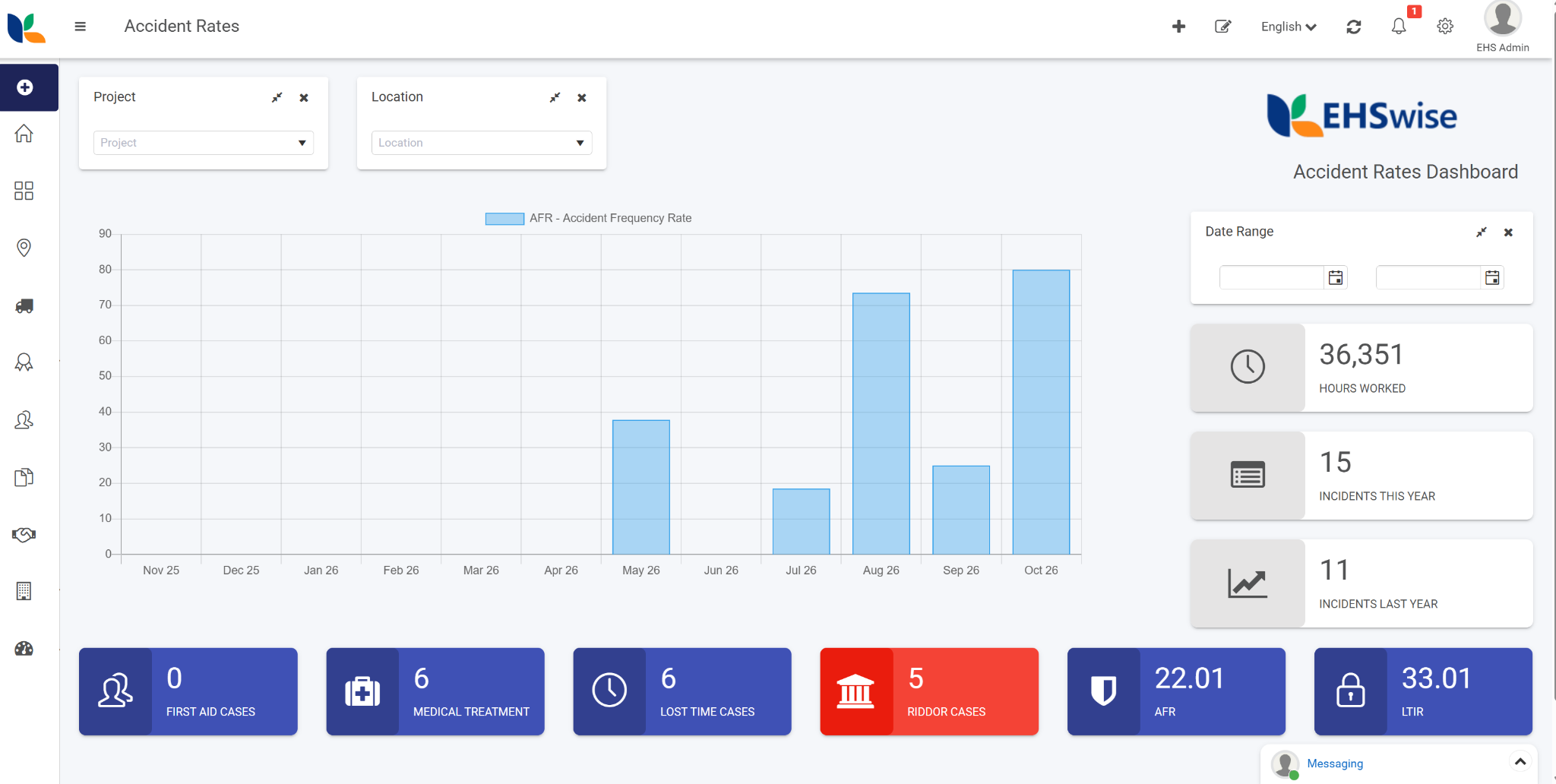
A page can combine built-in filters and tiles with a custom chart and calculated metrics. The page controls placement and presentation; each custom component controls its content and data loading. Filter effects depend on the connections configured for each target widget.
1. Create and place a page widget
Use an account with the appropriate Administrator or Developer access. See Users and groups for access management.
- Open Administration > Developer and select New widget.
- Enter a title, unique identifier, and icon. Select Widget as the widget type.
- Save the definition. Use Widget UI for the Handlebars template and Widget Code for the JavaScript component.
- Use Update after changing the component source.
- Open the target page and select Edit current page. Add the custom widget from the widget menu.
- Configure its page placement, presentation, and component-specific settings, then save the page.
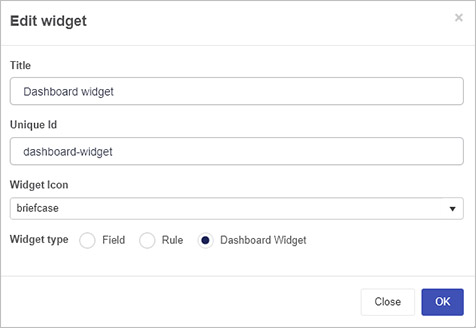
The custom component type has the form client-widget/<component-id>. For example, a definition with the unique identifier summary-metric is referenced as client-widget/summary-metric.
Distinguish the component identifier from a widget instance identifier. Several widgets on the same page can use client-widget/summary-metric; each placed widget has its own widget.id and settings. Query identities and DOM resources must respect that distinction.
Updating the component definition changes its implementation. Editing widget settings changes a placed widget’s configuration. Saving a page persists its configuration. These operations do not save or edit the process instances being reported on.
For page administration, see Pages and Edit dashboard page settings.
2. Understand the two views
Page widgets have two template branches:
| Template condition | Purpose |
|---|---|
displayMode === "settings" | Configure this widget in the global settings dialog. |
| Otherwise | Render the widget’s content on the page, including its appearance while the page is being designed. |
Use the standard classic component module:
import Ember from "ember";

export default Ember.Component.extend({
  // State, computed properties, lifecycle hooks, methods, and actions.
});
The template follows this structure:
{{#if (eq this.displayMode "settings")}}
  <label>
    Message
    {{input value=this.widget.settings.message class="form-control"}}
  </label>
{{else}}
  <p>{{this.widget.settings.message}}</p>
{{/if}}
The settings dialog renders a component connected to the same widget model as the component on the page. A binding to widget.settings.message therefore updates the shared setting. The dialog has its own component-local state and DOM.
Use ordinary Ember lifecycle hooks. A page widget does not need a rule-style execute() method or field-style edit() and display() methods. Guard runtime loading and third-party mounting with the settings-mode check: the settings template usually does not contain the chart or calendar element.
isDesign is a separate attribute used for page design presentation. It is not a third displayMode branch.
The surrounding widget frame
Kianda’s widget-base component supplies the frame, title, standard header controls, and the bridge between the page and its child widgets. Your component supplies the body content.
The host’s dynamic invocation includes these bindings:
{{component this.widget.type
  widget=this.widget
  data=this.data
  id=this.widget.id
  isDesign=this.isDesign
  showModal="showModal"
  gotoForm="gotoForm"
  connectTo="connectTo"
  sendFilterValue="sendFilterValue"}}
This is an excerpt of the host template, not code to paste into your custom widget. The action names describe bridges supplied by the host; they do not establish the argument signatures of the global navigation functions described later in this guide.
3. Build a complete summary metric
The first example displays a count, sum, or average. It demonstrates the complete page-widget path:
- The designer chooses a process, calculation, and conditions.
- Kianda binds the configuration to
widget.settings. - The runtime component handles
refresh. - It copies the current conditions, prepares date conditions, and queries summaries.
- The template displays loading, a numeric value, missing data, or an error.
No charting library is needed. The surrounding frame already provides the widget title and Refresh control.
Create a Widget named Summary metric, with the unique identifier summary-metric. Paste the following complete files into its UI and Code tabs. They are also available as summary-metric.hbs and summary-metric.js.
Widget UI
{{#if (eq this.displayMode "settings")}}
  <div class="form-group">
    <label>Process</label>
    {{process-picker
      processName=this.widget.settings.processName
      process=this.process
      required=true}}
  </div>

  <fieldset class="form-group">
    <legend>Calculation</legend>
    {{radio-button name=(concat this.elementId "-calculation")
      label="Count" value="count" group=this.widget.settings.tile}}
    {{radio-button name=(concat this.elementId "-calculation")
      label="Sum" value="sum" group=this.widget.settings.tile}}
    {{radio-button name=(concat this.elementId "-calculation")
      label="Average" value="avg" group=this.widget.settings.tile}}
  </fieldset>

  {{#if (and this.process (not-eq this.widget.settings.tile "count"))}}
    <div class="form-group">
      <label>Number field</label>
      {{field-picker
        includes='["fields/field-number"]'
        process=this.process
        allowText=false
        value=this.widget.settings.field
        required=true}}
    </div>
  {{/if}}

  <fieldset class="form-group">
    <legend>Record relationship</legend>
    {{radio-button name=(concat this.elementId "-relationship")
      label="All accessible" value="all" group=this.widget.settings.queryType}}
    {{radio-button name=(concat this.elementId "-relationship")
      label="Assigned to me" value="assignedTo" group=this.widget.settings.queryType}}
    {{radio-button name=(concat this.elementId "-relationship")
      label="Created by me" value="createdBy" group=this.widget.settings.queryType}}
    {{radio-button name=(concat this.elementId "-relationship")
      label="Modified by me" value="modifiedBy" group=this.widget.settings.queryType}}
  </fieldset>

  {{#if this.process}}
    <div class="form-group">
      <label>Conditions</label>
      {{rules/rule-conditions
        showProcessProperties=true
        isCompact=true
        btnText=""
        serialize=true
        conditions=this.widget.settings.conditions
        process=this.process}}
    </div>
  {{/if}}
{{else}}
  <div class="text-center" aria-live="polite" aria-busy={{this.isLoading}}>
    {{#if this.isLoading}}
      <p role="status">Loading metric…</p>
    {{else if this.errorMessage}}
      <p class="text-danger" role="alert">{{this.errorMessage}}</p>
    {{else if this.hasValue}}
      <p class="h2">{{this.formattedValue}}</p>
    {{else}}
      <p class="text-muted">No aggregate value is available.</p>
    {{/if}}
  </div>
{{/if}}
Widget Code
import Ember from "ember";

export default Ember.Component.extend({
  store: Ember.inject.service(),
  ruleEngine: Ember.inject.service("rule-engine"),
  process: null,
  isLoading: false,
  errorMessage: "",
  value: null,

  hasValue: Ember.computed("value", function() {
    return this.get("value") !== null;
  }),

  formattedValue: Ember.computed("value", function() {
    const value = this.get("value");
    return value === null ? "" : value.toLocaleString(undefined, {
      maximumFractionDigits: 2
    });
  }),

  init() {
    this._super(...arguments);
    this._mounted = false;
    this._revision = 0;
    this._running = false;
    this._refreshPending = false;

    // Keep the model's settings object and all existing saved values.
    if (this.get("widget.settings.tile") === undefined) {
      this.set("widget.settings.tile", "count");
    }
    if (this.get("widget.settings.queryType") === undefined) {
      this.set("widget.settings.queryType", "all");
    }
    if (this.get("widget.settings.conditions") === undefined) {
      this.set("widget.settings.conditions", []);
    }
  },

  didInsertElement() {
    this._super(...arguments);
    this._mounted = true;
    if (this.isRuntime()) {
      this.send("refresh");
    }
  },

  willDestroyElement() {
    this._mounted = false;
    this._revision += 1;
    this._refreshPending = false;
    this._super(...arguments);
  },

  isRuntime() {
    return this._mounted && !this.isDestroying && !this.isDestroyed &&
      this.get("displayMode") !== "settings";
  },

  isCurrent(revision, widget) {
    return this.isRuntime() && revision === this._revision &&
      widget === this.get("widget");
  },

  async drainRefreshes() {
    if (this._running || !this.isRuntime()) {
      return;
    }
    this._running = true;
    try {
      // Refreshes arriving during a request are coalesced into the next load.
      // Only one request for this stable aggregate ID runs at a time.
      while (this._refreshPending && this.isRuntime()) {
        this._refreshPending = false;
        await this.loadAggregate(this._revision);
      }
    } finally {
      this._running = false;
    }
  },

  async loadAggregate(revision) {
    const widget = this.get("widget");
    const publish = (properties) => {
      Ember.run.join(() => {
        if (this.isCurrent(revision, widget)) {
          this.setProperties(properties);
        }
      });
    };

    publish({ isLoading: true, errorMessage: "", value: null });
    try {
      const processName = this.get("widget.settings.processName");
      const tile = this.get("widget.settings.tile");
      const queryType = this.get("widget.settings.queryType");
      const fieldName = this.get("widget.settings.field.name");
      const conditions = JSON.parse(JSON.stringify(
        this.get("widget.settings.conditions") || []
      ));

      if (!processName || !String(processName).trim()) {
        throw new Error("Choose a process in the widget settings.");
      }
      if (["count", "sum", "avg"].indexOf(tile) === -1) {
        throw new Error("Choose Count, Sum, or Average.");
      }
      if (["all", "assignedTo", "createdBy", "modifiedBy"].indexOf(queryType) === -1) {
        throw new Error("Choose a supported record relationship.");
      }
      if (tile !== "count" && !fieldName) {
        throw new Error("Choose a number field for Sum or Average.");
      }
      if (!Array.isArray(conditions)) {
        throw new Error("The widget conditions must be an array.");
      }

      // This mutates our copy, including any relative date conditions.
      this.get("ruleEngine").parseDateConditions(conditions);
      const query = {
        action: "tile",
        info: {
          id: this.get("widget.id") + "-metric",
          process: processName,
          queryType: queryType,
          tile: tile
        },
        fields: tile === "count" ? ["__PROCESS_NAME"] : [fieldName],
        conditions: conditions,
        rowLimit: 1,
        preferOnline: true
      };
      if (tile !== "count") {
        query.info.field = fieldName;
      }

      const data = await Ember.run.join(() => this.get("store").query("summary", query));
      const raw = data.get("firstObject.properties.value");
      let nextValue = null;

      // Missing data stays missing; a returned numeric zero stays zero.
      if (raw !== undefined && raw !== null && raw !== "") {
        if (typeof raw !== "number" || !Number.isFinite(raw)) {
          throw new Error("The aggregate did not return a finite number.");
        }
        nextValue = raw;
      }
      publish({ value: nextValue });
    } catch (error) {
      publish({
        value: null,
        errorMessage: error && error.message
          ? error.message : "Unable to load this metric. Try Refresh."
      });
    } finally {
      publish({ isLoading: false });
    }
  },

  actions: {
    refresh() {
      if (!this.isRuntime()) {
        return;
      }
      this._revision += 1;
      this._refreshPending = true;
      // Kianda fires this action without awaiting it. loadAggregate catches
      // query/validation errors and publishes them in the component's view.
      this.drainRefreshes();
    }
  }
});
Configure and try the example
For a count, select a process and Count. For a sum or average, select a number field. For example, an hours-worked process can use Sum over its employee-hours field. The picker stores a field reference; the query uses the reference’s name, not its display label. After changing the selected process, reselect or verify the number field and review existing conditions: a stored reference is not automatically translated to the new process.
Add conditions through the conditions editor. Try a relative date condition, then connect a page filter to this widget. After updating configuration, use the widget’s Refresh control. This introductory implementation reads changed settings on its next refresh; it does not issue a network request on every keystroke in the settings dialog.
Keep the header visible for this example. If a design hides the standard header, provide an appropriate refresh control in the body or another deliberate trigger.
Why the implementation is structured this way
process-picker populates this.process with the process metadata needed by the field picker and conditions editor. It does not give the reporting component a current editable process instance.
serialize=true makes the conditions editor produce plain condition data suitable for the query. It does not mean that the conditions property should contain a JSON string.
parseDateConditions prepares the cloned conditions immediately before the request. The component preserves the designer’s conditions and any temporary conditions supplied by connected filters.
preferOnline: true selects the recommended single-Promise query path for custom page widgets. The component awaits that Promise inside its own loading method. Kianda does not await actions.refresh, so the component catches query errors and manages its own completion state.
The queue permits one request for this aggregate ID at a time. If several refreshes arrive while a request is running, they become one further load using the latest conditions. The revision check prevents an obsolete response from replacing a newer requested view. It does not cancel an HTTP request already in progress.
The response reader treats numeric 0 as a value. An absent aggregate remains null in local state and produces the no-data message. Do not write value || 0 unless deliberately defining a business rule that replaces missing data with zero.
4. Widget context and model reference
Component inputs
| Input or access path | Meaning |
|---|---|
widget | The placed widget model, including its identity and configuration. |
widget.settings | Shared plain configuration object, initialized by the model to {}. |
widget.page | Ember Data relationship to the containing page. A separate page input is not shown in the host invocation. |
widget.datasource | Relationship to a configured datasource, when this widget uses one. |
displayMode | Use the exact "settings" check to choose the configuration branch. |
isDesign | Whether the surrounding page is being designed. |
data | Host-provided data for integrations that use it. Its shape is not a universal page-widget result contract. The examples own their results. |
id | Passed by the host from the placed widget’s ID. |
process | Populated by the example’s process-picker for configuration controls. |
Inject the services actually needed by the component. A summaries widget commonly uses store and rule-engine; a connector-backed widget can inject datasource. An injection in another example does not make every service mandatory.
Widget model properties
| Property | Model type or role | Default or use |
|---|---|---|
id | Ember Data identifier | Unique placed-widget identity. |
title | String | Displayed by the surrounding header. |
type | String | Component type, such as client-widget/summary-metric. |
class | String | Grid classes; default col-sm-12. |
customCssClass | String | Additional page-widget styling hook. |
visible | Boolean | Default true. |
showHeader | Boolean | Default true; design mode can still show the design header. |
isCustom | Boolean | Default false; custom placed widgets use true. |
groupName | String | Grouping metadata used by page configuration. |
colorScheme | String | Default panel-primary. |
visibleTo | hasMany('person') | Page-widget visibility configuration. |
page | belongsTo('page') | Containing page. |
datasource | belongsTo('datasource') | Optional datasource. |
settings | Attribute containing an object | A fresh {} for each model. |
The model also exposes desktopVisible, tabletVisible, mobileVisible, onlineVisible, and offlineVisible. Each reads and writes the corresponding property under settings and returns true when that setting is undefined.
These visibility properties control presentation. Summaries applies instance access permissions independently; hiding a widget or a form field is not a substitute for instance authorization.
Configuration and component state
Store serializable configuration in widget.settings: selected process names, field references, conditions, display options, and configured slides.
Keep results, loading flags, error text, request revisions, timers, chart instances, calendar instances, DOM elements, and event handlers on the component. They belong to a rendered view, not to the saved page definition.
Initialize individual settings only when they are missing. Preserve intentional values such as false, 0, or an empty optional string. Avoid replacing the settings hash, since it also contains page-level configuration and temporary filter state.
5. Configure and validate settings
Page widgets use the global settings dialog’s native validation for required inputs and supported pickers:
{{input value=this.widget.settings.heading required=true}}

{{field-picker
  process=this.process
  allowText=false
  value=this.widget.settings.field
  required=true}}
There is no page-widget saving validation event equivalent to the custom field or rule contract. Do not copy their event-registration pattern into a page widget.
Use required controls for configuration-time completeness. Check the settings again before a request: an imported page, a changed process, or an incomplete draft may still reach runtime. Show a local actionable error, such as “Choose a number field for Sum or Average.”
The settings model is shared. Do not implement a separate page save by calling widget.save() from a picker or query callback. Let the page designer own persistence. Similarly, do not assume that closing or cancelling the dialog is a transaction boundary for arbitrary component-managed changes.
Useful configuration controls include process-picker, field-picker, rules/rule-conditions, radio-button, person-picker, icon-picker, and the platform’s rich-text and upload controls. Use a selected process definition with field-related controls. A selected field reference describes a field; its text is its label, not an instance value.
For more elaborate settings, keep per-item editor state local and define when an item is committed into a persisted array. Use Ember-aware setters or array replacement so both settings and runtime views can observe changes.
6. Connect a custom widget to page filters
A custom reporting widget participates in page filtering by implementing actions.refresh and building each query from the current widget.settings.conditions.
The runtime sequence is:
- A page filter receives a value from the user or its configured source.
- Kianda resolves
filterValue1and, where used,filterValue2through the filter’s design-time connections. - It merges the resulting temporary condition groups into the target widget’s
settings.conditions. - The temporary groups carry a
filterIdidentifying their originating filter. - Kianda fires the target widget’s
refreshaction with no arguments and does not await a Promise. - The custom widget copies those conditions and loads its next result.
When a filter is cleared, Kianda removes its temporary condition groups. Before a page is saved, Kianda also removes the temporary filterId groups. The host owns that cleanup and the marker’s identifier format.
Preserve the effective conditions
Use the entire live array when creating a request:
const conditions = JSON.parse(JSON.stringify(
  this.get("widget.settings.conditions") || []
));

this.get("ruleEngine").parseDateConditions(conditions);
Keep the filterId groups in this request copy. Removing them would remove the user’s active filters. Do not edit the shared array when adding a reporting period, paging range, or other query-specific restriction.
The JSON cloning technique suits the serialized condition data used here. It is not a general-purpose way to clone Ember models, services, or arbitrary JavaScript objects.
Configure a connection
In the filter widget’s settings, select the target widget and define how its selected value maps to a query condition. For example, a Project filter can map its selected project code to a target process’s processProjectCode field. A date-range filter can provide two values for the lower and upper boundaries.
The connection’s destination is a placed widget ID, not its reusable client-widget/... component type. If a widget responds to its own Refresh button but not to a filter, check the configured connection target before changing the query code.
An exported page is a snapshot of its configuration. A filter’s presence on the page does not prove that every neighbouring widget is connected to it.
Share filters across several datasets
A rate widget may query both an incident process and an hours-worked process. Snapshot the base conditions at the start of the refresh, then clone that snapshot independently for each query before adding its own date restriction.
Cloning does not translate fields. A shared condition on processProjectCode works for both datasets only if both processes use that field with compatible values. If the processes use different field names or meanings, implement an explicit mapping before building each query; do not send an incident-only condition to the hours-worked dataset and assume it is meaningful.
7. Query summaries from a page widget
Choose the result shape
| Action | Appropriate use | Read the result |
|---|---|---|
list | Cards, tables, calendars, and other record-based views. | Iterate summary records and read their requested properties. |
tile | Count, sum, or average. | Read firstObject.properties.value from the Ember store result. |
chart | Server-side grouping and aggregate series. | Read the first result’s properties.labels, values1, and configured additional series. |
Use a server aggregate when the view needs an aggregate. Loading thousands of complete records to calculate a total in the browser defeats the purpose of the summaries index. The rate example combines a small set of server-calculated aggregates with explicit arithmetic in the component.
The recommended client path
Inside an asynchronous component method, use:
const data = await this.get("store").query("summary", {
  action: "tile",
  info: {
    id: this.get("widget.id") + "-hours-total",
    process: "hours-worked-data",
    queryType: "all",
    field: "DATAMS_NUM_EmployeeHours",
    tile: "sum"
  },
  fields: ["DATAMS_NUM_EmployeeHours"],
  conditions: conditions,
  rowLimit: 1,
  preferOnline: true
});
This is a fragment: it assumes conditions has already been cloned and prepared, and the caller provides the error and lifecycle handling shown in the complete metric example.
preferOnline is a client-store option. It is not a member of the server’s Query model and is unnecessary in a direct HTTP request. This guide uses the single-Promise path; a custom widget does not need the built-in list’s more advanced cached/online dual-result implementation.
Use the supported queryType values all, assignedTo, createdBy, and modifiedBy. all means all records accessible to the current user. Do not introduce the legacy default value or deprecated processSource and isPartner query settings into a new example.
Give separate datasets separate identities
Ember Data identifies records by their model type and ID. Supply a different info.id for each logical aggregate dataset in one widget:
| Dataset | Example info.id construction |
|---|---|
| One total | widgetId + "-metric" |
| Incident count aggregate | widgetId + "-incidents" |
| Hours aggregate | widgetId + "-hours" |
| Monthly incident aggregate | widgetId + "-incidents-2026-10" |
| Monthly hours aggregate | widgetId + "-hours-2026-10" |
Use stable dataset identifiers so repeated refreshes refer to the same logical result. Do not reuse one ID for every variable in a calculated tile. Also coordinate repeated refreshes of the same dataset: ignoring an obsolete UI result and isolating distinct store records solve different problems.
Independent queries with distinct identities can run together using Promise.all. Capture their returned primitive values before constructing a derived result. A failed required query should produce an error state rather than a plausible partial total.
Dates and relative conditions
Call ruleEngine.parseDateConditions(conditions) on the copied array immediately before sending it. The client resolves date conditions into UTC boundaries. Follow the Summaries date preparation reference for the exact request semantics.
For a deliberately generated reporting period, construct explicit boundaries and state the calendar/time-zone policy. The rate and calendar downloads use UTC consistently as a tutorial choice. Do not silently mix browser-local bucket boundaries with workspace-relative date conditions if they are intended to represent the same reporting calendar.
Lists, projection, and paging
A list request must supply a nonempty fields array. Request the fields needed by the view. A calendar, for example, needs its title and date fields; a compact card may need only a title, status, and reference.
The following fragment builds one page. processName, fieldNames, conditions, page, and pageSize are caller-supplied values:
const query = {
  action: "list",
  info: {
    process: processName,
    queryType: "all",
    id: this.get("widget.id") + "-records",
    isListWidget: true,
    isOData: true,
    page: page
  },
  fields: fieldNames,
  conditions: conditions,
  orderBy: "__NAME",
  orderAscending: true,
  rowLimit: pageSize,
  preferOnline: true
};

const data = await this.get("store").query("summary", query);
Pages are zero-based. Use deterministic ordering when retrieving several pages, and reset to page 0 when changing filters. The default text representation is appropriate for __NAME; use the documented date or number sort type when sorting those values.
The raw REST response reports the total through the total-items header. Ember results can carry client metadata under data.meta; the raw JSON body does not gain that object. Use an established adapter metadata contract if building a total-count pager. Do not assume a property such as data.meta.totalItems solely because it appears conventional.
A bounded loader can instead request successive pages until one contains fewer than rowLimit records. If the result is an exact multiple of the page size, this requires one final empty page. Use a clear overall limit for a dense view and report when the result exceeds it. Page-number queries are not an immutable snapshot: concurrent edits can change page boundaries, so avoid presenting this approach as a transactional export.
With isListWidget: true, a summary’s store id can include the query’s widget identity. Use summary.name for instance operations. Do not assume the store ID is the original instance name.
isOData: true can supply typed companion properties such as <fieldName>_utc for dates and <fieldName>_number for numeric fields. It does not change the API into an OData response envelope. Check that a companion value exists before using it.
8. Manage asynchronous refreshes and lifecycle
The page and filter bridge fires Ember actions. It neither passes refresh arguments nor serializes asynchronous work on the widget’s behalf.
| Responsibility | Where it belongs |
|---|---|
| First load | Runtime didInsertElement, or another explicit runtime trigger. |
| Filter/header refresh | actions.refresh. |
| Validation, date preparation, request, result parsing | An internally error-handled async method. |
| Loading, error, and empty presentation | Component-local state and runtime template. |
| Changes to fetched data after editing settings | The next explicit refresh, or a targeted observer you implement. |
| Repeated refreshes | A queue, coalescing strategy, or another deliberate concurrency policy. |
| Chart/calendar mounting | After insertion into the component’s own runtime DOM. |
| Timers, handlers, and external instances | Cleanup in willDestroyElement. |
Call this._super(...arguments) when overriding lifecycle hooks. Use a component-scoped lookup such as this.element.querySelector(...) or this.$(...) for DOM resources. An ID that is unique only to the widget definition will collide when the same type is placed twice.
Wrap model/UI changes from native Promise continuations or external-library callbacks in an Ember run-loop boundary, as the examples do with Ember.run.join. Check that the component is still active before publishing asynchronous results. The Ember 2.18 lifecycle guide and run-loop guide explain these framework hooks.
Do not start a new fetch unconditionally from didRender: a fetch changes local state, which renders the component again and can create a loop. Likewise, the fact that widget.settings is shared does not make a previously loaded dataset recompute automatically.
The introductory metric clears its previous value while refreshing. That is an explicit presentation policy. Another view may retain its previous result, but should identify it as previous data while loading or after a failure.
9. Calculate a rate from several processes
The accident-rate example combines two summaries per reporting period:
| Input | Example process | Example number field |
|---|---|---|
| Incident numerator | incident | injuredPeopleCount |
| Hours denominator | hours-worked-data | DATAMS_NUM_EmployeeHours |
It calculates:
rate = (incident total × scale factor) / hours total
The example uses 100000 as its configured scale factor. This is part of the example’s reporting definition; choose the measure, numerator, denominator, and normalization appropriate to the report you are implementing.
Use explicit arithmetic:
function calculateRate(incidents, hours, scale) {
  if (incidents === null || hours === null || hours <= 0) {
    return null;
  }
  const value = (incidents * scale) / hours;
  return Number.isFinite(value) ? value : null;
}
A present numerator of zero and a positive denominator produce zero. A missing input or nonpositive hours value produces a gap. Keep numeric values as numbers for charting; format them for text presentation separately.
Complete chart example
Download accident-rate.js and accident-rate.hbs. Create a separate Widget definition and paste those files into its Code and UI tabs.
The example offers configurable process and field names, a period count, and a scale factor. Its defaults match the two datasets above, use processDate for both date fields, and show twelve monthly UTC buckets including the current month. Replace those names with fields present in your workspace. The example accepts 1–24 months to keep its request fan-out predictable; this is not a Summaries API limit. It queries each complete month, so the current month’s total includes matching future-dated records already entered for that month.
For each period it copies the same base filter snapshot independently, adds a period restriction, and requests both sums with distinct IDs. Its IDs also include a stable identity for the rendered component, isolating a remount from unfinished requests belonging to an earlier component. It runs the two period queries together and waits for both to settle, even if one fails, before processing another period or a queued refresh. Results remain component-local; Chart.js receives the finished numeric series, and the template also exposes the values in a table.
Edits to the rate’s process names, field names, period count, and scale trigger a debounced reload. Page filters continue to use the host’s refresh action. This is an explicit extension of the introductory metric’s refresh behaviour.
The canvas is scoped to the component, and the chart is destroyed on teardown. It remains in the runtime DOM while loading and error state changes, avoiding an external chart instance pointing at an element removed by an if block.
Adding a period without changing condition logic
The rate and calendar downloads require their top-level condition groups to join with and before appending additional range groups. They show an actionable error for top-level or combinations. Conditions inside an existing group may still use or.
This is a boundary of these worked examples, not a restriction of the Summaries API. Arbitrary expressions such as (A) OR (B) need deliberate grouping when adding a common range. Appending AND range without preserving the original grouping can change which records match. The examples avoid inventing nested condition-group syntax.
For multiple reporting processes, choose common filter fields that exist in both or provide an explicit per-dataset translation. A query’s info.process restricts its scope; it does not reinterpret another process’s field names.
10. Render summary records in a calendar
A calendar changes the presentation of a list result. It still queries action: "list", requests the necessary fields, and uses the returned instance name when opening a record.
Download summary-calendar.js and summary-calendar.hbs. This example targets the FullCalendar v6 global FullCalendar.Calendar interface and is intended for all-day events.
Configure the calendar
Select a process, title field, and start-date field. The end-date field is optional. Supply a pinned FullCalendar v6 global bundle containing the DayGrid views used here: dayGridMonth, dayGridWeek, and dayGridDay. Supply a matching stylesheet URL if the chosen bundle requires one. Configure one FullCalendar version across the page and reload the page after changing that version. See FullCalendar v6 global initialization. FullCalendar is an external dependency, not one of Kianda’s bundled libraries.
The example interprets dates using a consistent UTC calendar. A missing end produces a one-day event. When an end is present, it is treated as an inclusive all-day end in the process data and converted to FullCalendar’s exclusive end by adding one day. This is an explicit mapping for the example, not a general rule for timed events or every process date field.
FullCalendar v6’s event parsing and event-source callback document its exclusive end semantics. If a process stores local calendar dates, or needs timed events, choose a consistent workspace-aware conversion and revisit both the query boundaries and event mapping.
Load the entire visible range
Filtering only on “start is inside the visible range” omits an event that began earlier and continues into that range. The example covers two disjoint sets:
- Events whose start falls within the visible range.
- Events whose start precedes the range and whose optional inclusive end reaches the range.
Each set uses a separate query identity, retains the base page filters, and loads 100 records per page, sorted by __NAME. The second query is unnecessary when no end field is configured. The loader deduplicates instance names and accepts at most 2,000 events across both branches. Each branch is bounded to 20 full pages; when its twentieth page is full, one additional request checks that the following page is empty. More matching records produce an actionable error instead of a partial successful calendar. These are limits chosen for the example, not limits of the Summaries API.
Both branches use the top-level and condition-group requirement described in the rate example. The visible range may include days from neighbouring months, so use FullCalendar’s supplied range rather than reconstructing only the named month.
Open the form for edits
The calendar is read-only: dragging, resizing, and direct instance updates are disabled. When opening forms on click is enabled, clicking an event opens the full Kianda form through showModalForm. Permissions and form state then determine the available editing behaviour and rule execution.
The example uses the modal callback to request a refresh. It does not assume a particular callback payload, infer that every callback means a successful save, or await an undocumented modal Promise. Summary indexing is asynchronous, so a just-saved edit may require another refresh before it appears in a report.
This keeps the component focused on reporting while the form handles the business operation. A separately designed direct-editing calendar would need its own supported update, rule-execution, validation, and failed-save behaviour.
11. Build a carousel for page content and navigation
Page widgets can also guide users to applications or show configured content. A carousel is useful for highlights, announcements, and links to commonly used processes.
Download page-carousel.js and page-carousel.hbs. This focused example uses Ember timers and bundled styling; it does not require another carousel library.
Each saved slide contains a title, description, optional image and image description, and an optional navigation button. The target can be a Kianda page, a process to start, or a complete HTTP(S) URL. Rotation defaults to eight seconds; the settings require an interval of at least five seconds.
The runtime keeps its active slide, timer, and pause state on the component. Previous and Next pause rotation; keyboard or pointer entry also pauses it until the user selects Resume. A reduced-motion preference starts it paused. Timers stop when the component is removed.
Titles and descriptions use ordinary escaped Handlebars expressions. Runtime substitutions belong in local derived state; do not attach rendered titles or browser objects to the saved slide configuration and hide them with serialization workarounds.
Add datasource content when needed
The richer carousel integration can select content from a configured datasource. That query path is separate from the Summaries action model. A component can inject the datasource service and, inside an error-handled async method, use a request such as:
const result = await this.get("dataService").query(
  this.get("widget.datasource"),
  {
    action: "select",
    info: this.get("widget.settings.list"),
    fields: ["code", "displayName"],
    conditions: conditions,
    rowLimit: 1
  }
);

const items = result.items;
This fragment assumes a datasource that supports select, a configured list descriptor, and prepared conditions appropriate to that datasource. Its service injection is dataService: Ember.inject.service("datasource").
select and result.items belong to this datasource integration. They are not a fourth Summaries action or an alternative Summaries response envelope. Use the Summaries store path when reporting over Kianda instance summaries.
For placeholder substitution, preserve values such as 0 and false, and render the resulting text with escaped bindings. If an application deliberately accepts HTML content, define its trusted source and sanitization policy before rendering it as HTML.
12. Open pages and process forms
Kianda exposes these top-level functions:
window.showModalForm(nameOrUrl, isNew, params, isUrlPredefined, callBack, isStatic);
window.gotoForm(name, isNew, partnerId, queryParams, reload);
window.gotoDashboard(name, queryParams);
These are signatures, not calls to copy with undeclared variable names. The examples below use the ordinary page/process-name paths. Optional partner, predefined-URL, reload, and static-modal behaviours should be used only when the integration needs their established semantics.
| Task | Example |
|---|---|
| Open an existing instance in a modal | window.showModalForm(instanceName, false, "", false, callback, false) |
| Start a process in the main form view | window.gotoForm(processName, true, null, queryParams, false) |
| Navigate to a page | window.gotoDashboard(pageName, queryParams) |
For an existing summary record, derive instanceName from summary.get("name"). For a new process, use the process definition’s name. Do not substitute the summary’s widget-specific store ID.
Query parameters are strings such as project=site1&location=location1. Encode values when constructing them:
const queryParams = "project=" + encodeURIComponent(projectCode) +
  "&location=" + encodeURIComponent(locationCode);

window.gotoDashboard("accident-rate", queryParams);
Pass the intended parameters explicitly. If an application merges current-page parameters with button parameters, choose which source wins for duplicate keys and use a query-string parser; concatenating two serialized strings without a separator produces invalid parameters.
Preserve the case of external URLs. Validate their scheme and open them from the user’s interaction handler. The carousel uses HTTP(S) destinations and avoids carrying query parameters from the current page to unrelated web addresses.
Declare every action referenced by your template. A name such as tileClick is not automatically implemented merely because a custom tile template invokes it.
13. Layout, libraries, and offline behaviour
Page layout and the widget frame
A page can define named containers under page.settings.containers. Each container has a name and responsive grid classes. A widget chooses a container through widget.settings.container and supplies its own grid classes through widget.class.
This simplified configuration follows the dashboard shown above:
{
  "containers": [
    { "name": "Left", "mobileClass": "col-sm-7", "desktopClass": "col-lg-9" },
    { "name": "Right", "mobileClass": "col-sm-5", "desktopClass": "col-lg-3" },
    { "name": "Middle", "mobileClass": "col-sm-12", "desktopClass": "col-lg-12" }
  ]
}
Those keys are part of the page configuration; the actual responsive breakpoints follow the assigned grid classes. They are not fixed pixel dimensions a component should hard-code.
The frame uses widget.showHeader and widget.settings.hideFrame for header/panel presentation. Keep content responsive within the provided container. Scope CSS to your component’s root class; broad .carousel, .panel, or canvas selectors can alter other widgets.
When integrating a canvas or calendar, let its container determine width and provide a deliberate height or aspect ratio. Test two instances of the same component side by side and at narrow widths. Avoid selectors that depend on undocumented levels of the surrounding frame’s DOM.
Bundled and external dependencies
Kianda bundles the following libraries in its vendor assets:
| Library | Common use |
|---|---|
| Chart.js | Charts. |
| Bootstrap and BootstrapDialog | Layout, controls, and dialogs. |
| Kendo | Data/UI facilities and formatting. |
| Moment | Date handling. |
| jQuery and jQuery UI | DOM integrations and UI behaviours. |
| Summernote | Rich-text editing. |
| Babel | Widget-source compilation support. |
Target the versions supplied by the workspace for bundled libraries. Bundled availability does not imply that examples from an unrelated major version use compatible options. The rate example uses the basic Chart.js interface. The calendar uses the external FullCalendar v6 global API and requires its DayGrid views.
Additional scripts and styles can be loaded from a trusted CDN or a Kianda public file. Load a dependency once, share an in-flight load where appropriate, handle failure, and check that the widget still exists before mounting it. Destroy the component’s external instance on teardown; do not remove a shared library used by other widgets.
Public-file caching and query availability
Kianda public files participate in the service worker’s offline-first caching. Hosting a dependency as a public file allows its cached bytes to remain available without a network connection after they have been obtained.
Cached library code and cached report data are different dependencies. A cached FullCalendar script does not prove that a new Summaries request can be answered offline. These examples teach preferOnline: true; do not promise complete offline reporting from script caching alone. The widget’s onlineVisible and offlineVisible settings control whether it is shown in those modes, not whether a query is guaranteed to succeed.
14. Compile, debug, and verify
Use Update in the Developer editor to compile the component source. Kianda’s widget workflow uses Babel and generated source maps for debugging. See Custom widget debugging for locating widget sources and using browser developer tools.
Inspect the component state with Ember Inspector and inspect the request in the browser’s Network panel. For a summary query, check the selected process, info.id, fields, prepared conditions, and result shape. If the API fails, the server records the error under support/logs, category Instance | Summary find(Query). The component still needs to catch the client-side failure and show a useful message.
Troubleshooting
| Symptom | Check |
|---|---|
| Settings open but a chart or calendar throws | Runtime mounting must be skipped in displayMode: "settings". |
| A filter changes but the result does not | Verify the target widget ID, actions.refresh, and use of the live conditions array. |
| Clearing a filter leaves a restriction | Query from a new copy of current conditions, not a cached or independently mutated array. |
| A relative date filter becomes stale | Prepare dates immediately before the request. |
| Two calculated inputs unexpectedly share a value | Give separate datasets distinct info.id values. |
| An older result replaces a newer requested view | Coordinate overlapping refreshes and guard publication of stale results. |
| A valid zero appears as missing | Test null/undefined explicitly rather than using truthiness. |
| A missing aggregate appears as a real zero | Remove unconditional ` |
| A widget fails only when placed twice | Check global DOM IDs, selectors, timers, and shared query identities. |
| A calendar omits records | Check paging, its overall bound, and events starting before the visible range. |
| A record cannot be opened | Use the summary’s instance name, not its store id. |
| A picker has no process fields | Bind it to the process populated by process-picker. |
| A field is missing from a summary | Check requested fields and supported indexed coverage; table contents and client-calculated columns have separate limitations. |
| Settings change but the fetched value stays the same | Use Refresh or implement a targeted reload trigger. Shared settings do not automatically repeat a fetch. |
| A dependency loads offline but data fails | Check data availability separately from public-file caching. |
| A query succeeds but a template action fails | Implement the named action or use a confirmed host/global helper. |
Verify a widget in the workspace
Before reuse, exercise the configuration and runtime paths that matter to the component:
- Open settings, configure required inputs, and refresh after changes.
- Try initial loading, an empty result, a returned zero, and a failed request.
- Change and clear each connected filter; confirm the request reflects the latest conditions.
- Trigger several refreshes quickly and navigate away while a request or script load is pending.
- Place two instances of the same custom type and confirm independent settings, queries, and DOM resources.
- For the rate, test missing inputs, zero hours, and valid zero incidents.
- For the calendar, test more than one page of events, missing end dates, a multi-day event crossing the range, and editing through the form.
- For the carousel, test keyboard controls, pause/resume, destination parameters, and timer cleanup.
Syntax checks and template compilation are useful before deployment. They do not replace testing the actual Kianda host, adapter, configured process fields, permissions, and library versions.
Complete examples and related documentation
| Example | JavaScript | Handlebars |
|---|---|---|
| Configurable summary metric | summary-metric.js | summary-metric.hbs |
| Monthly rate chart | accident-rate.js | accident-rate.hbs |
| Read-only summary calendar | summary-calendar.js | summary-calendar.hbs |
| Page carousel and navigation | page-carousel.js | page-carousel.hbs |